> ## Documentation Index
> Fetch the complete documentation index at: https://docs.brm.ai/llms.txt
> Use this file to discover all available pages before exploring further.
# Azure AI Foundry Usage Integration
This article walks you through connecting your Azure AI Foundry resources to BRM to better understand and track your team's AI spend and usage.
***Why this matters:***\_ AI spend on Azure often hides inside a much larger cloud bill. This connection gives you a clear, resource-level view of what's actually running through Azure AI Foundry.\_
⚠️ **Important:** This is **not** an Azure OpenAI or Foundry inference API key. BRM needs Microsoft Entra **service-principal client credentials** — a different kind of credential created in Azure's Entra admin tools.
BRM uses these credentials to read your Azure AI resources and their Cost Management spend data. It does not use them to run inference, deploy models, or read prompts/responses.
ℹ️ BRM backfills up to a year of daily spend history from Azure Cost Management, broken down by Foundry resource and billing meter. Where a resource has a single model deployment, BRM attributes that spend to the model.
## What you'll need
You'll end up with four values to enter into BRM:
| **Tenant ID** | Your Microsoft Entra tenant |
| :------------------ | :------------------------------------------------------- |
| **Subscription ID** | The Azure subscription containing your Foundry resources |
| **Client ID** | The app registration's Application (client) ID |
| **Client secret** | The secret **value** (not the Secret ID) |
**Roles needed**, assigned at the subscription level:
* Reader — lets BRM list Azure resources and Foundry deployments
* Cost Management Reader — lets BRM read Azure Cost Management spend data
**Who can do this:** An Azure admin who can create app registrations and assign subscription-level roles — usually a subscription **Owner** or **User Access Administrator**.
## Step 1: Identify the right subscription
Confirm which Azure subscription contains the Azure AI Foundry resources you want BRM to track. If your Foundry resources span multiple subscriptions, repeat this setup for each one — or contact BRM support to discuss a custom setup.
## Step 2: Create an app registration
In Azure Portal, go to [**Microsoft Entra ID → App registrations → New registration**](https://learn.microsoft.com/en-us/entra/identity-platform/howto-create-service-principal-portal). Name it "BRM AI Usage".
Double-check you're creating this in the correct Microsoft Entra tenant — the one tied to the subscription from Step 1.
## Step 3: Copy the tenant ID and client ID
On the app's overview page, copy the **Application (client) ID** and the **Directory (tenant) ID**. You'll need both later.
## Step 4: Create a client secret
Go to [**Certificates & secrets → Client secrets → New client secret**](https://learn.microsoft.com/en-us/entra/identity-platform/how-to-add-credentials).
## Step 5: Copy the secret value
Copy the secret's **Value** column right away — it's only shown once. Don't copy the Secret ID; BRM needs the Value.
## Step 6: Assign the Reader role
Go to [**Subscriptions → \[your subscription\] → Access control (IAM) → Add role assignment**](https://learn.microsoft.com/en-us/azure/role-based-access-control/role-assignments-portal). Assign the **Reader** role to the BRM AI Usage app.
## Step 7: Assign the Cost Management Reader role
Repeat the role assignment, this time choosing [**Cost Management Reader**](https://learn.microsoft.com/en-us/azure/cost-management-billing/costs/assign-access-acm-data), at the same subscription scope.
ℹ️ Azure role assignments can take a few minutes to take effect. If BRM's connection test fails right after this step, wait a few minutes and try again.
## Step 8: Enter everything in BRM
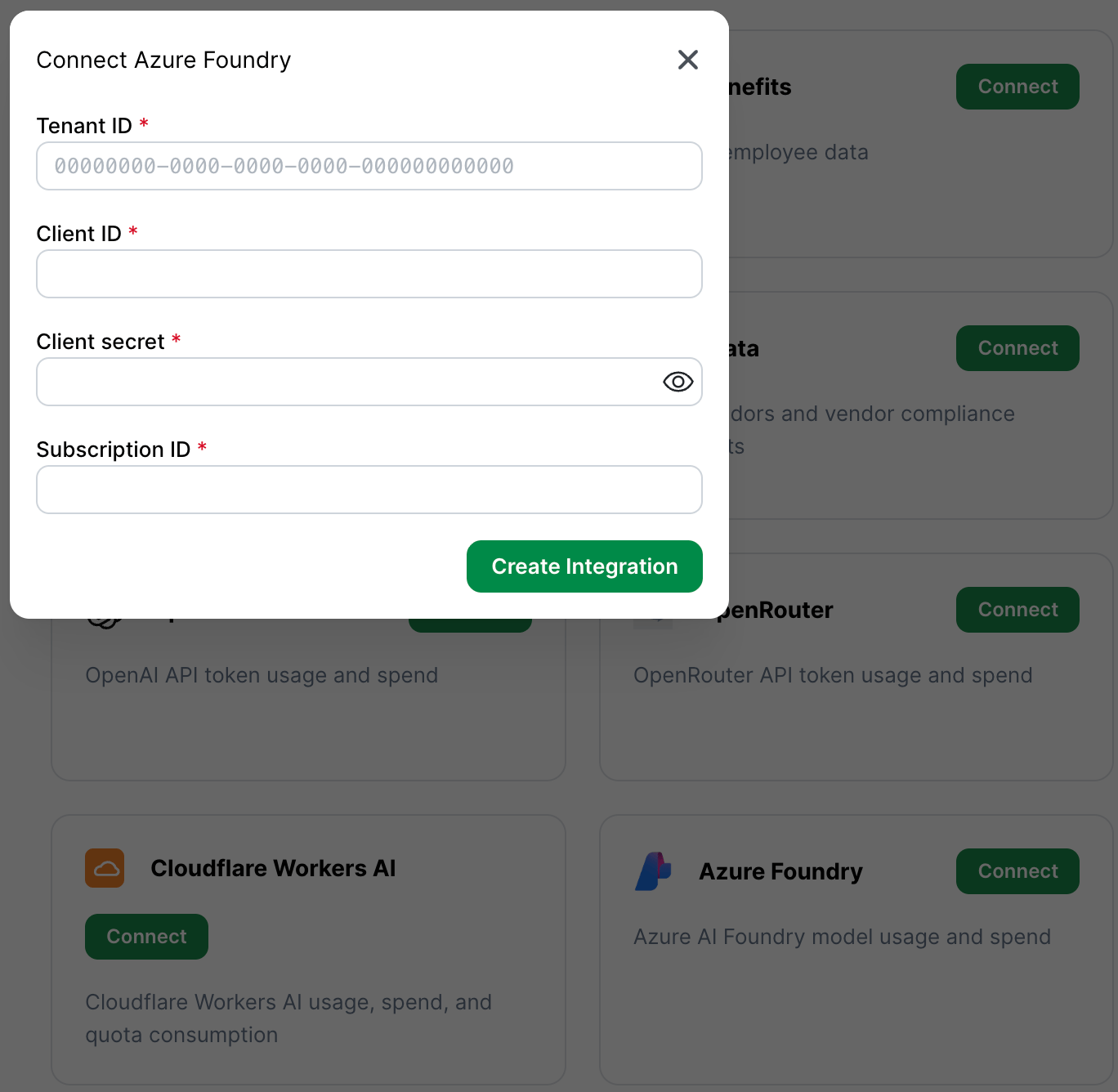
In BRM, open the Azure AI Foundry integration setup, found by clicking on your profile in the lower-left-hand corner of the screen, navigating to Integrations, then clicking "Connect" next to "**Azure Foundry**", and enter:
* Tenant ID
* Client ID
* Client secret (the Value, not the Secret ID)
* Subscription ID
BRM will confirm the connection and begin pulling in spend data.
 ## If you'd rather use the command line
If your team is comfortable with Azure CLI, this whole setup can be scripted:
```bash theme={null}
AZURE_SUBSCRIPTION_ID="00000000-0000-0000-0000-000000000000"
az account set --subscription "$AZURE_SUBSCRIPTION_ID"
APP_ID=$(az ad app create --display-name "BRM AI Usage" --query appId -o tsv)
az ad sp create --id "$APP_ID"
# The printed value is the client secret. Copy it directly into BRM.
az ad app credential reset \
--id "$APP_ID" \
--append \
--display-name "BRM AI Usage secret" \
--years 1 \
--query password \
-o tsv
az role assignment create \
--assignee "$APP_ID" \
--role "Reader" \
--scope "/subscriptions/$AZURE_SUBSCRIPTION_ID"
az role assignment create \
--assignee "$APP_ID" \
--role "Cost Management Reader" \
--scope "/subscriptions/$AZURE_SUBSCRIPTION_ID"
az account show --query "{tenantId:tenantId, subscriptionId:id}" -o json
```
## Security notes
* Both roles are read-only. BRM cannot run inference, deploy models, change Azure resources, change billing settings, or read prompt/response content.
* You can rotate or revoke the client secret at any time in Microsoft Entra ID. Note that revoking the secret stops BRM's syncing until you enter a new one by reconnecting the integration in BRM.
* If your organization manages costs at a management group, billing account, billing profile, or invoice-section level instead of per-subscription, contact BRM support before setup — this guide covers the standard subscription-level setup only.
## Common mistakes
* **Using an Azure OpenAI or Foundry inference key instead of Entra client credentials.** These are different credential types.
* **Copying the Secret ID instead of the secret Value.** BRM needs the Value.
* **Creating the app registration in the wrong Microsoft Entra tenant.**
* **Granting Cognitive Services permissions but forgetting subscription-level Reader and Cost Management Reader.**
* **Assigning Reader but forgetting Cost Management Reader.** The initial connection test will still pass — it only checks that BRM can see the subscription — but no spend data will ever arrive. If the integration connects but stays empty, check this role first.
* **Testing the connection immediately after assigning roles.** Give this a few minutes — Azure role assignments take time to propagate.
* **Connecting only one subscription when Foundry resources live across several.** Set up one integration per subscription, or talk to BRM support about a custom setup.
## Provider documentation
Our steps above should stay current, but if Microsoft changes their interface, these are the source-of-truth docs:
* [Register a Microsoft Entra app and create a service principal](https://learn.microsoft.com/en-us/entra/identity-platform/howto-create-service-principal-portal)
* [Add client secrets](https://learn.microsoft.com/en-us/entra/identity-platform/how-to-add-credentials)
* [Assign Azure roles](https://learn.microsoft.com/en-us/azure/role-based-access-control/role-assignments-portal)
* [Assign access to Cost Management data](https://learn.microsoft.com/en-us/azure/cost-management-billing/costs/assign-access-acm-data)
* [Azure Cost Management Query API](https://learn.microsoft.com/en-us/rest/api/cost-management/query/usage)
* [Plan and manage Microsoft Foundry costs](https://learn.microsoft.com/en-us/azure/foundry/concepts/manage-costs)
* [Azure AI Services deployments API](https://learn.microsoft.com/en-us/rest/api/aiservices/accountmanagement/deployments?view=rest-aiservices-accountmanagement-2024-10-01)
## Still stuck?
Reach out to BRM support and let us know which step you're stuck on. Don't send your client secret over email or chat — we'll point you to a secure way to share it if needed.
## If you'd rather use the command line
If your team is comfortable with Azure CLI, this whole setup can be scripted:
```bash theme={null}
AZURE_SUBSCRIPTION_ID="00000000-0000-0000-0000-000000000000"
az account set --subscription "$AZURE_SUBSCRIPTION_ID"
APP_ID=$(az ad app create --display-name "BRM AI Usage" --query appId -o tsv)
az ad sp create --id "$APP_ID"
# The printed value is the client secret. Copy it directly into BRM.
az ad app credential reset \
--id "$APP_ID" \
--append \
--display-name "BRM AI Usage secret" \
--years 1 \
--query password \
-o tsv
az role assignment create \
--assignee "$APP_ID" \
--role "Reader" \
--scope "/subscriptions/$AZURE_SUBSCRIPTION_ID"
az role assignment create \
--assignee "$APP_ID" \
--role "Cost Management Reader" \
--scope "/subscriptions/$AZURE_SUBSCRIPTION_ID"
az account show --query "{tenantId:tenantId, subscriptionId:id}" -o json
```
## Security notes
* Both roles are read-only. BRM cannot run inference, deploy models, change Azure resources, change billing settings, or read prompt/response content.
* You can rotate or revoke the client secret at any time in Microsoft Entra ID. Note that revoking the secret stops BRM's syncing until you enter a new one by reconnecting the integration in BRM.
* If your organization manages costs at a management group, billing account, billing profile, or invoice-section level instead of per-subscription, contact BRM support before setup — this guide covers the standard subscription-level setup only.
## Common mistakes
* **Using an Azure OpenAI or Foundry inference key instead of Entra client credentials.** These are different credential types.
* **Copying the Secret ID instead of the secret Value.** BRM needs the Value.
* **Creating the app registration in the wrong Microsoft Entra tenant.**
* **Granting Cognitive Services permissions but forgetting subscription-level Reader and Cost Management Reader.**
* **Assigning Reader but forgetting Cost Management Reader.** The initial connection test will still pass — it only checks that BRM can see the subscription — but no spend data will ever arrive. If the integration connects but stays empty, check this role first.
* **Testing the connection immediately after assigning roles.** Give this a few minutes — Azure role assignments take time to propagate.
* **Connecting only one subscription when Foundry resources live across several.** Set up one integration per subscription, or talk to BRM support about a custom setup.
## Provider documentation
Our steps above should stay current, but if Microsoft changes their interface, these are the source-of-truth docs:
* [Register a Microsoft Entra app and create a service principal](https://learn.microsoft.com/en-us/entra/identity-platform/howto-create-service-principal-portal)
* [Add client secrets](https://learn.microsoft.com/en-us/entra/identity-platform/how-to-add-credentials)
* [Assign Azure roles](https://learn.microsoft.com/en-us/azure/role-based-access-control/role-assignments-portal)
* [Assign access to Cost Management data](https://learn.microsoft.com/en-us/azure/cost-management-billing/costs/assign-access-acm-data)
* [Azure Cost Management Query API](https://learn.microsoft.com/en-us/rest/api/cost-management/query/usage)
* [Plan and manage Microsoft Foundry costs](https://learn.microsoft.com/en-us/azure/foundry/concepts/manage-costs)
* [Azure AI Services deployments API](https://learn.microsoft.com/en-us/rest/api/aiservices/accountmanagement/deployments?view=rest-aiservices-accountmanagement-2024-10-01)
## Still stuck?
Reach out to BRM support and let us know which step you're stuck on. Don't send your client secret over email or chat — we'll point you to a secure way to share it if needed.