> ## Documentation Index
> Fetch the complete documentation index at: https://docs.brm.ai/llms.txt
> Use this file to discover all available pages before exploring further.
# Deel integration
> Description of your new file.
## **Overview**
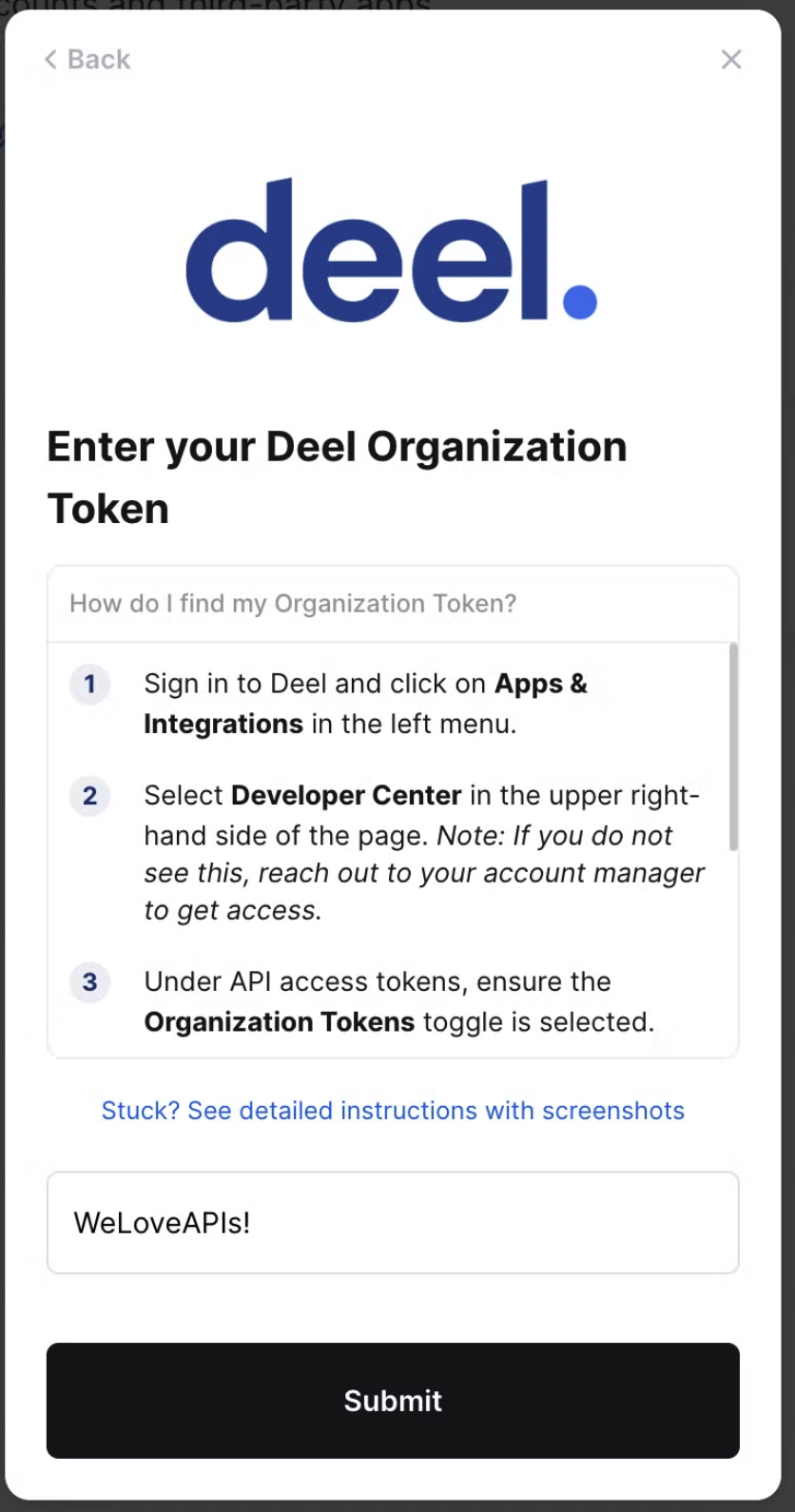
To authenticate Deel, you will need to provide the following information:
* Organization Token
## **Prerequisites**
* You must be a Deel admin to complete the linking flow
* Your Deel account must have API access enabled. Contact your Deel account manager to confirm if you are unsure of this
## **Instructions**
### Method 1: User Credentials
This method is preferred and much quicker and easier.
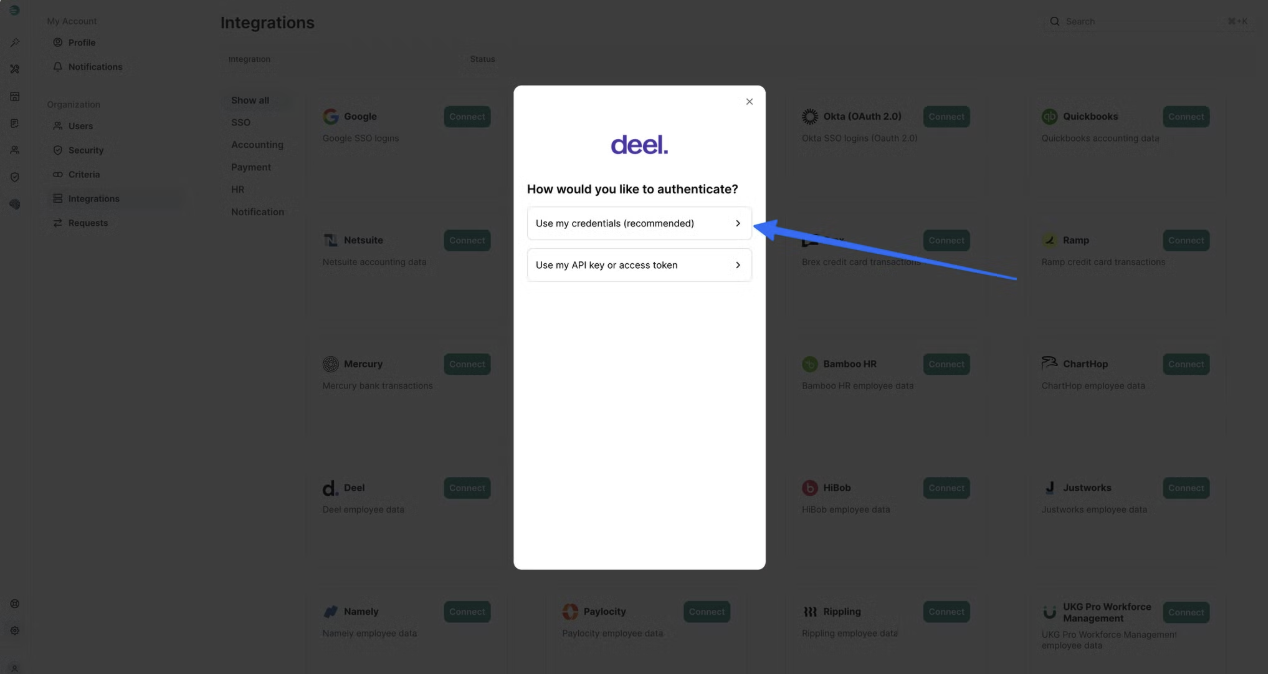
**Step 1: Click “Connect” on the Deel integration**
Select `Use my credentials (recommended)`
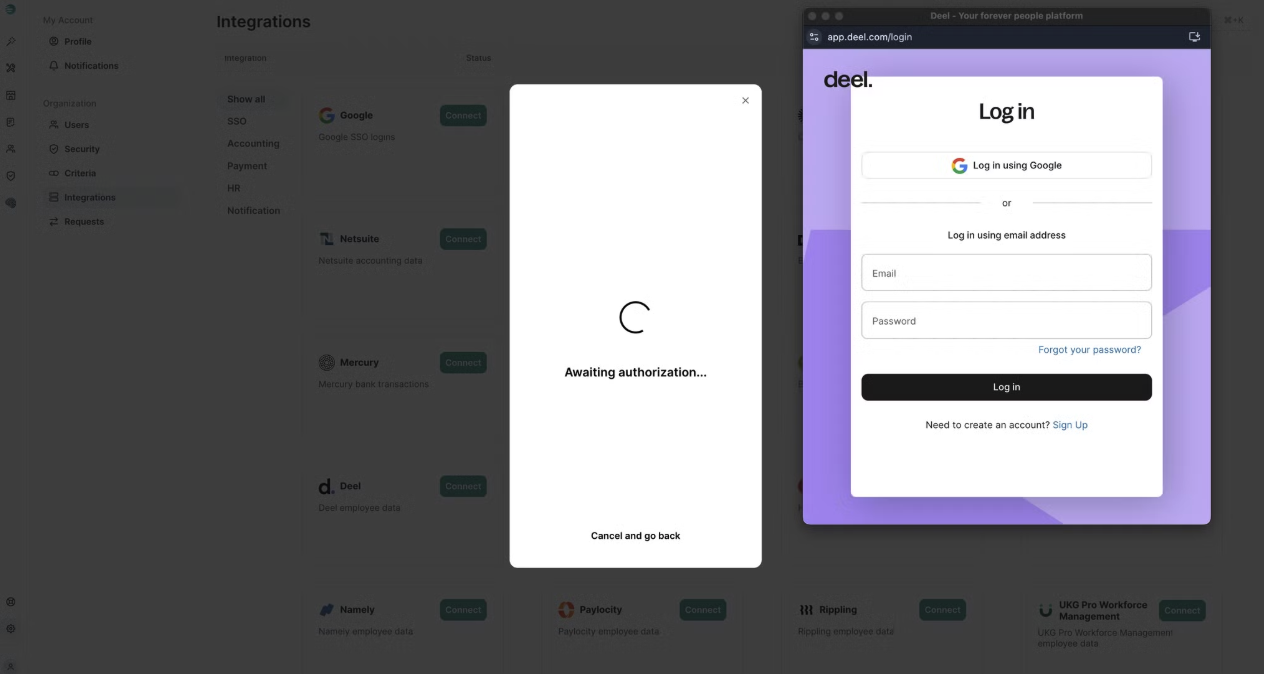
 **Step 2: Click through the modal and a login window will pop-up**
BRM will only read data on employees, their employment status, and reporting line
**Step 2: Click through the modal and a login window will pop-up**
BRM will only read data on employees, their employment status, and reporting line
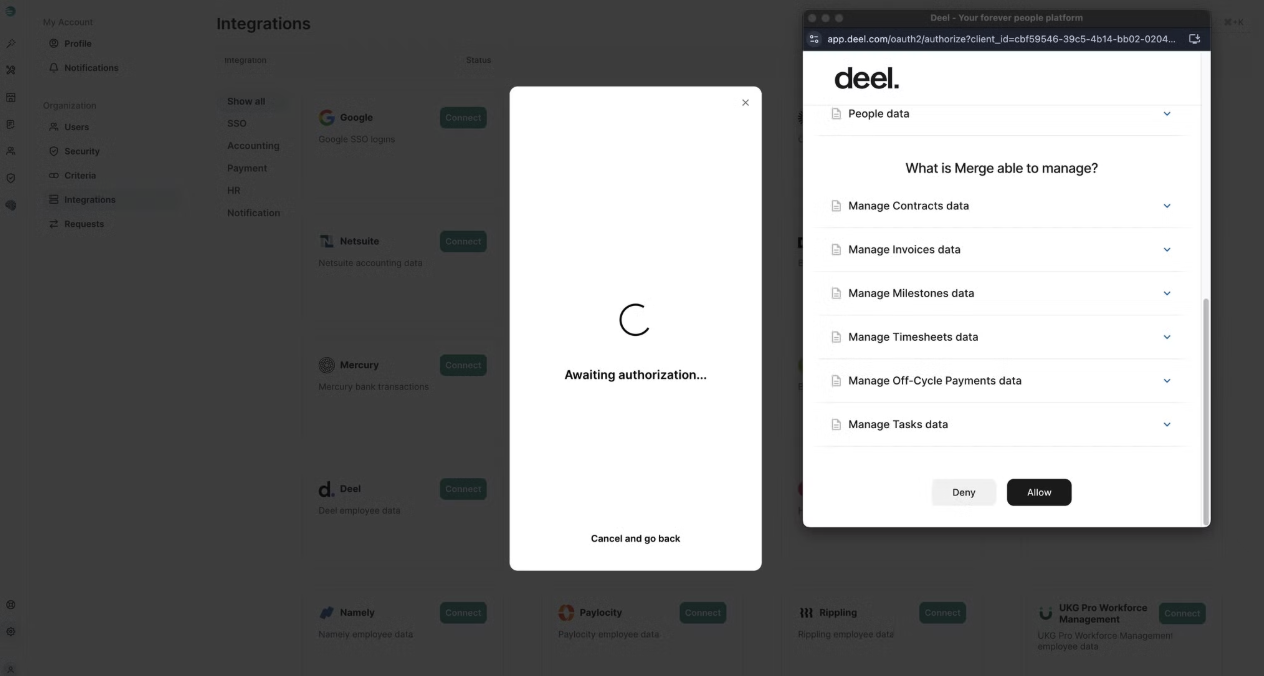
 **Step 3: Login to Deel and click allow**
Note: the auth screen consists of boilerplate language, BRM will not manage anything in Deel and can only read data on employees, their employment status, and reporting line
**Step 3: Login to Deel and click allow**
Note: the auth screen consists of boilerplate language, BRM will not manage anything in Deel and can only read data on employees, their employment status, and reporting line
 ## Method 2: API Token
**Step 1: Create an organization token**
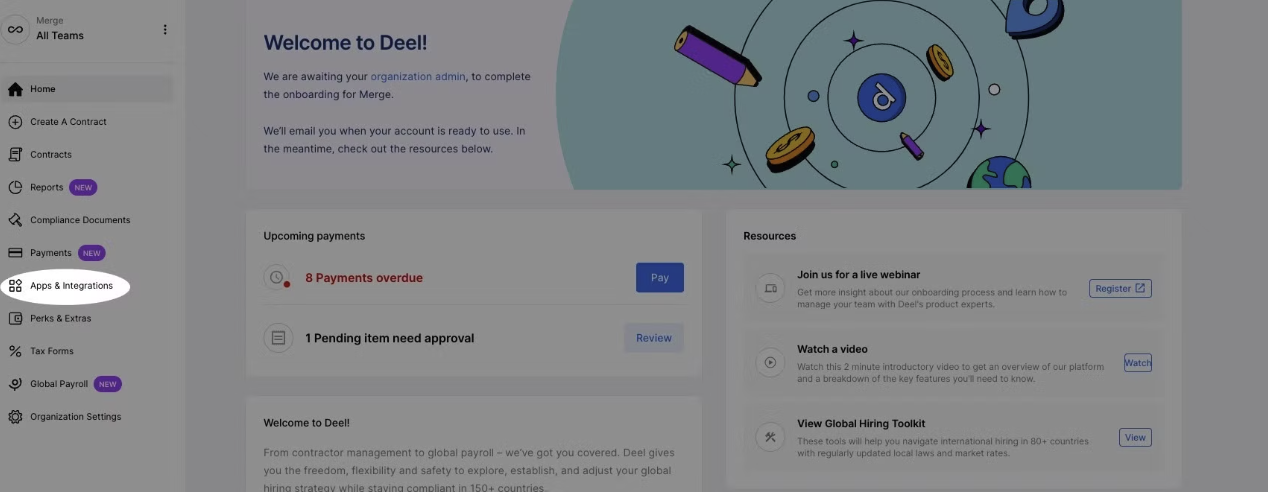
1. In your Deel portal, go to Apps & Integrations on the left-hand side
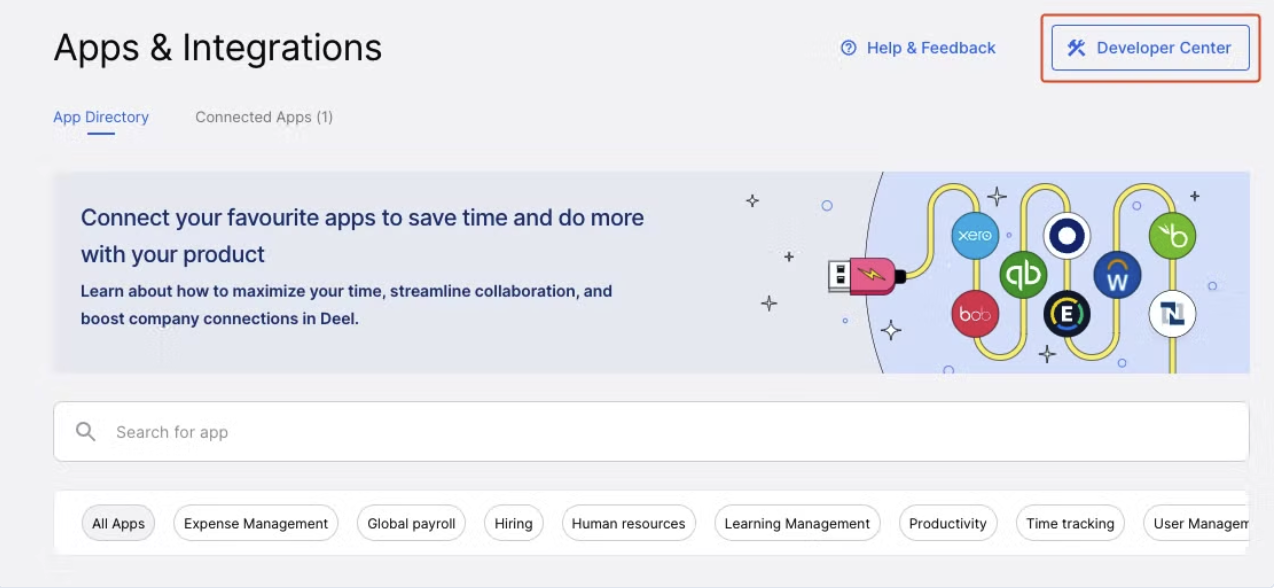
2. In the upper right, go to developer center
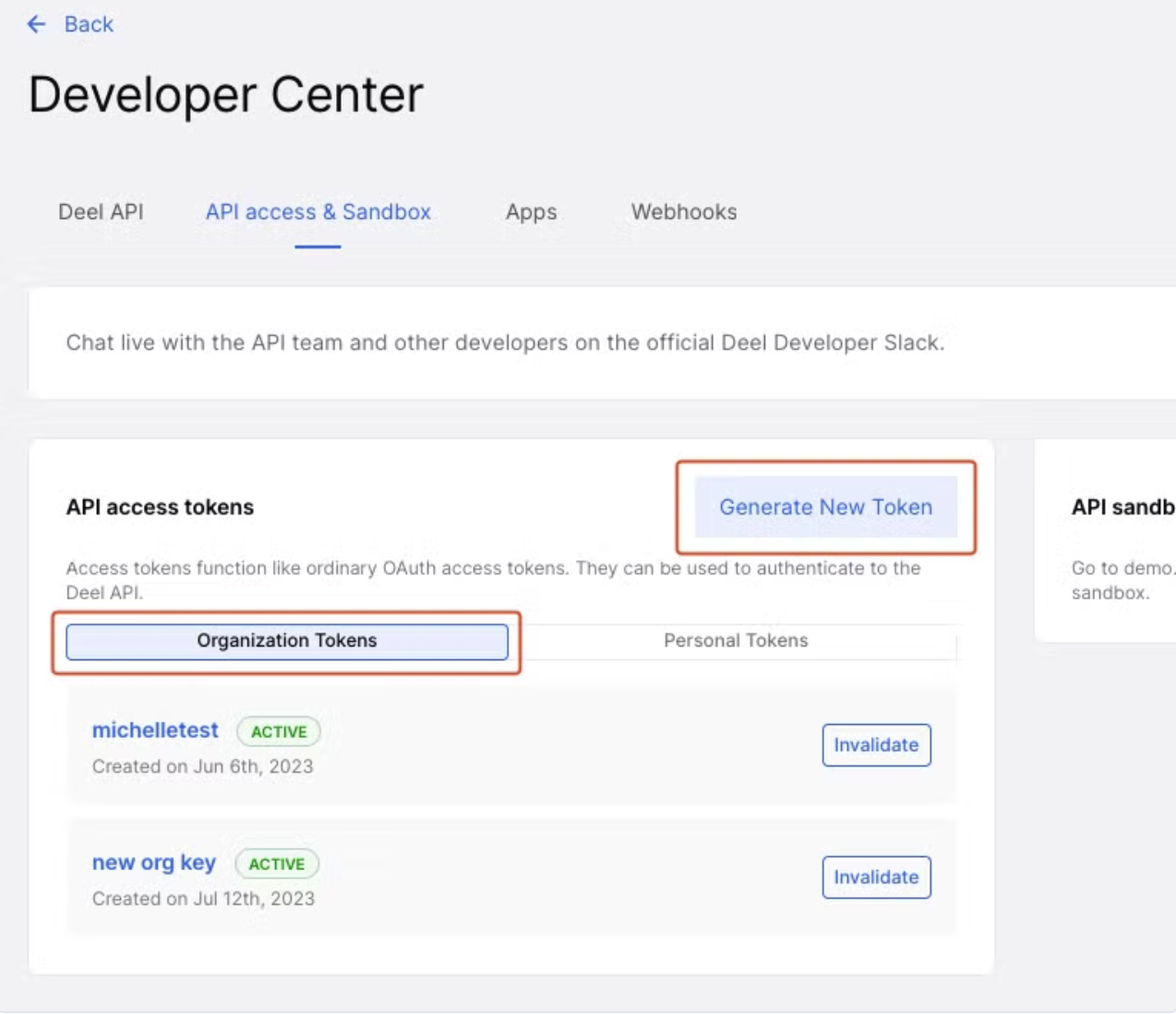
3. Click generate new token under organization tokens
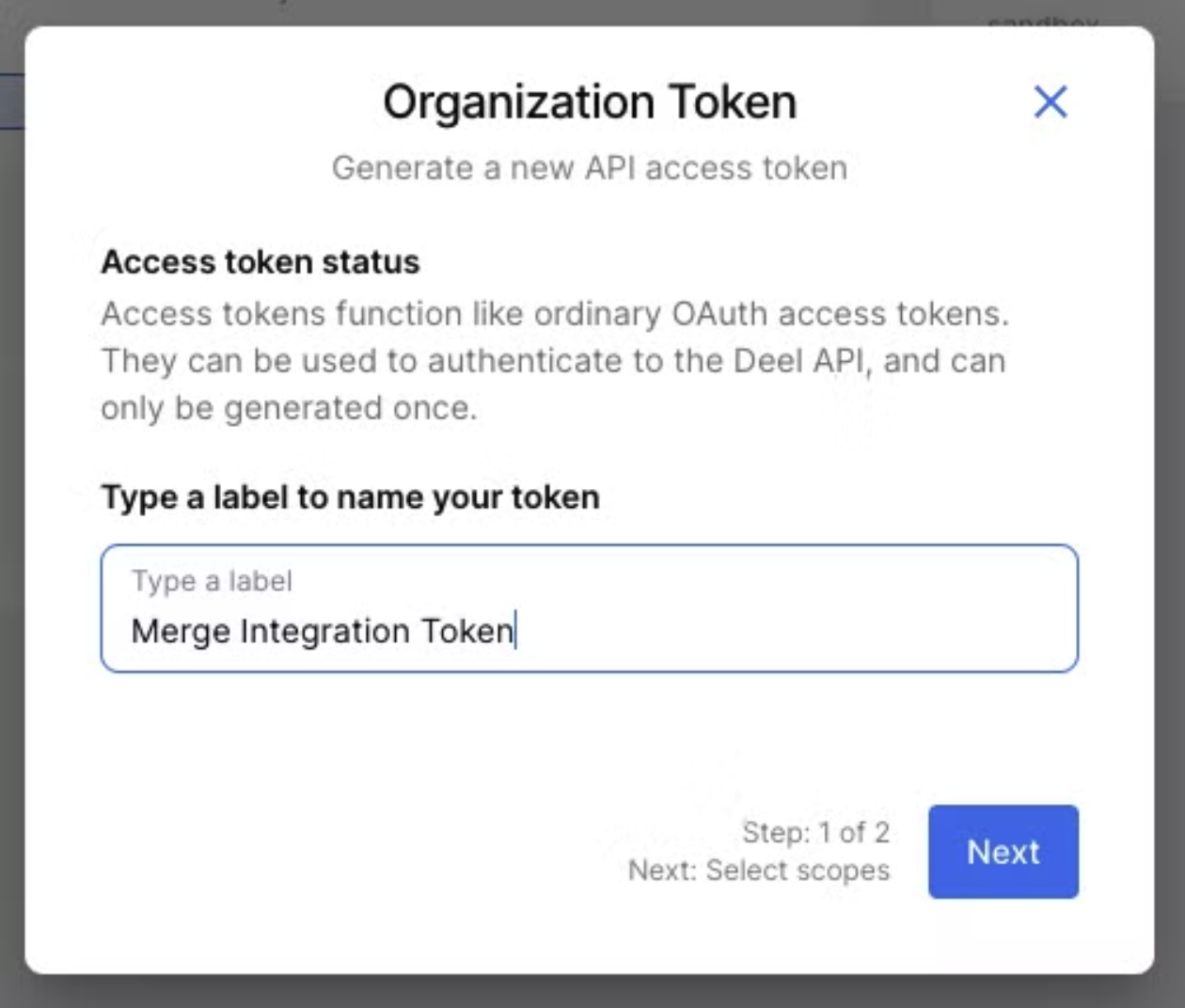
4. Label your organization token and click next
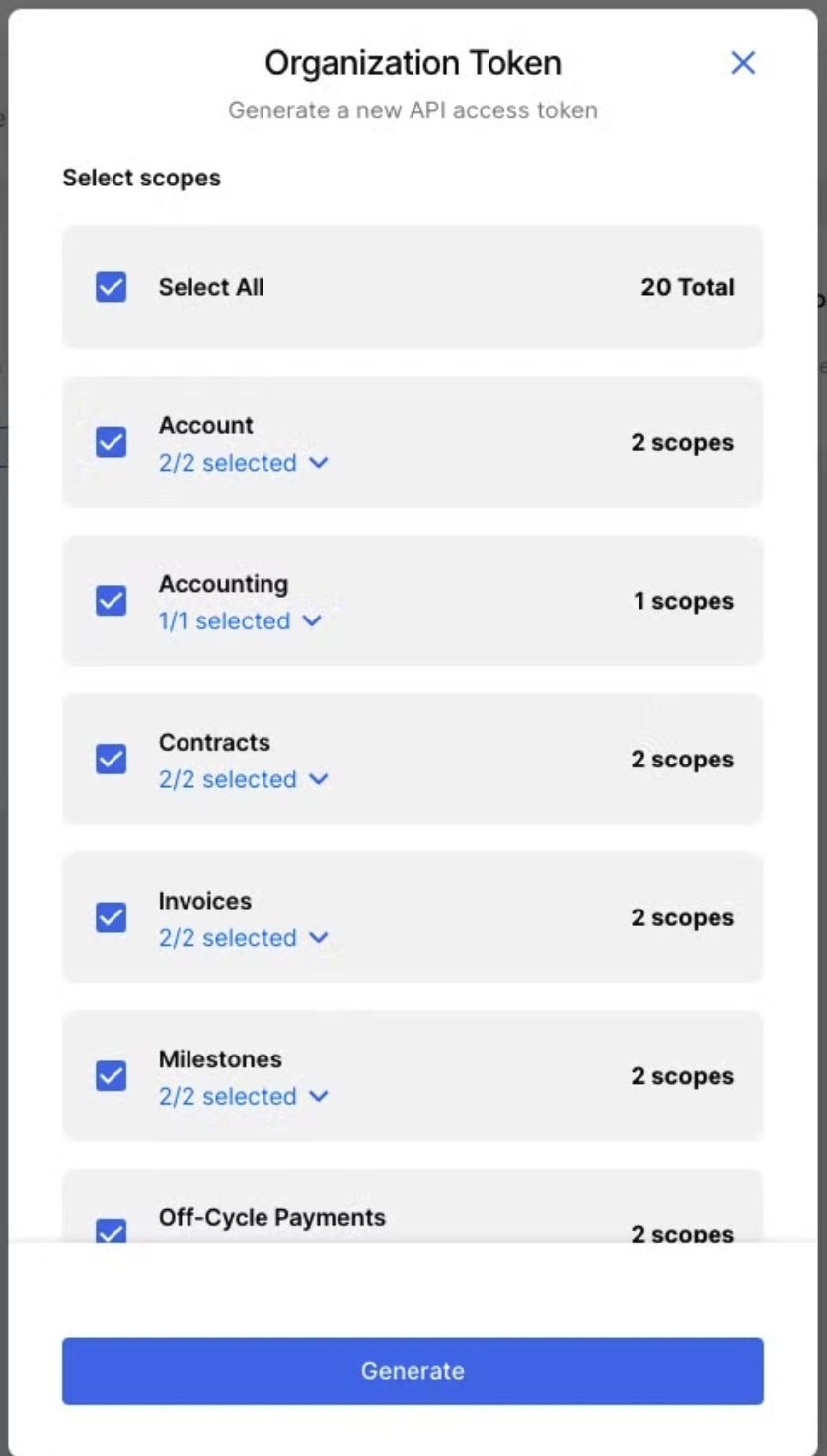
5. Select all scopes to add to your organization token and click generate
## Method 2: API Token
**Step 1: Create an organization token**
1. In your Deel portal, go to Apps & Integrations on the left-hand side
2. In the upper right, go to developer center
3. Click generate new token under organization tokens
4. Label your organization token and click next
5. Select all scopes to add to your organization token and click generate
 **Step 2: Enter your token in the linking flow**