> ## Documentation Index
> Fetch the complete documentation index at: https://docs.brm.ai/llms.txt
> Use this file to discover all available pages before exploring further.
# Cursor AI Usage Integration
This article walks you through connecting your Cursor team account to BRM so we can show your team's model usage, token usage, and per-user breakdowns.
***Why this matters:***\_ AI-native tools like Cursor let engineers pick the model inside the product, which makes spend almost impossible to attribute without this kind of data.\_
⚠️ **Important:** BRM needs a **Cursor team Admin API key** — a team-level admin credential, not your personal Cursor editor token.
BRM uses this key to read team members and usage events, including model usage, token usage, charged amounts (where Cursor reports them), and usage by user email.
## What you'll need
| **Credential** | Cursor team Admin API key |
| :--------------------- | :----------------------------------- |
| **Who can create it** | A team admin on the Cursor dashboard |
| **Where it's created** | Cursor dashboard → API Keys |
## Step 1: Sign in to the Cursor dashboard
Sign in to the [Cursor dashboard](https://cursor.com/dashboard/api?section=team-keys#team-api-keys) using an account that is a **team admin**. Make sure you're in the correct team workspace before continuing. Keys created in the wrong workspace won't show the data you expect.
## Step 2: Open API Keys
Open **API Keys** from the dashboard navigation.
## Step 3: Create a new key
Click **New API Key**.
## Step 4: Name the key
Tip: Name the key BRM AI Usage.
## Step 5: Set the scope
Set the scope to read only to let BRM read AI usage data.
## Step 6: Copy the key
Copy the key and paste it directly into BRM's integration setup screen.
## Step 7: Enter the key in BRM
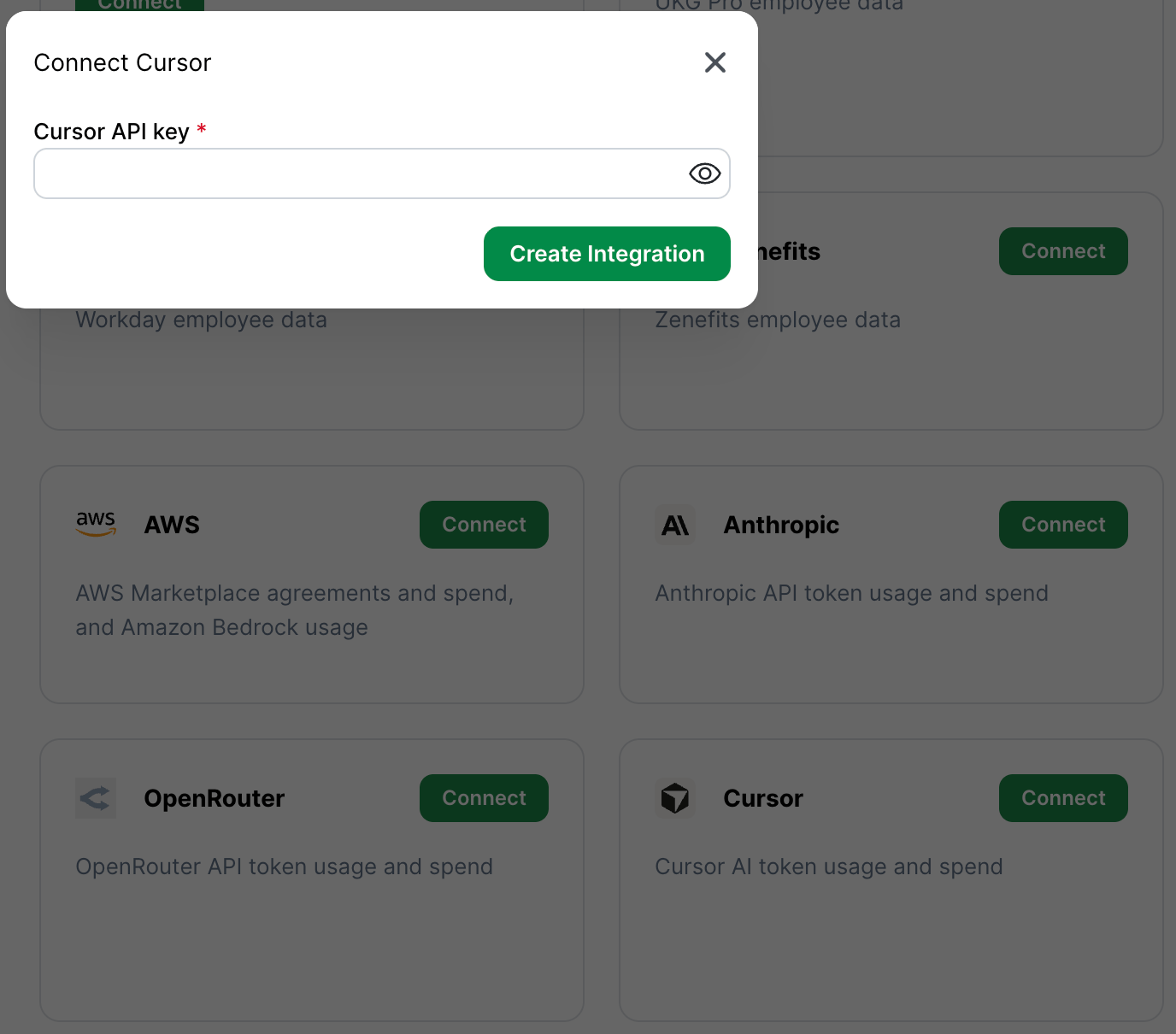
In BRM, open the Cursor integration setup and paste in the key. BRM will confirm the connection and begin pulling in usage data.
 ## Common mistakes
* **Using a personal Cursor account token instead of a team Admin API key.** Personal tokens won't work for this integration.
* **Creating the key from the wrong team workspace.** Confirm you're in the team whose usage you want BRM to track.
* **Expecting dollar amounts on every historical event.** Cursor usage events may include token usage even when older cost fields aren't available — this is normal.
## Provider documentation
Our steps above should stay current, but if Cursor changes their interface, these are the source-of-truth docs:
* [Admin API](https://cursor.com/docs/account/teams/admin-api)
* [Analytics API](https://cursor.com/docs/account/teams/analytics-api)
* [Cursor APIs overview](https://cursor.com/docs/api)
## Still stuck?
Reach out to BRM support and let us know which step you're stuck on. Don't send your API key over email or chat — we'll point you to a secure way to share it if needed.
\\
## Common mistakes
* **Using a personal Cursor account token instead of a team Admin API key.** Personal tokens won't work for this integration.
* **Creating the key from the wrong team workspace.** Confirm you're in the team whose usage you want BRM to track.
* **Expecting dollar amounts on every historical event.** Cursor usage events may include token usage even when older cost fields aren't available — this is normal.
## Provider documentation
Our steps above should stay current, but if Cursor changes their interface, these are the source-of-truth docs:
* [Admin API](https://cursor.com/docs/account/teams/admin-api)
* [Analytics API](https://cursor.com/docs/account/teams/analytics-api)
* [Cursor APIs overview](https://cursor.com/docs/api)
## Still stuck?
Reach out to BRM support and let us know which step you're stuck on. Don't send your API key over email or chat — we'll point you to a secure way to share it if needed.
\\