> ## Documentation Index
> Fetch the complete documentation index at: https://docs.brm.ai/llms.txt
> Use this file to discover all available pages before exploring further.
# Microsoft SSO
> You can log in to BRM using your Microsoft account linked to your BRM profile.
## Steps
1. Go to [**https://app.brmapp.net/**](https://app.brmapp.net/)
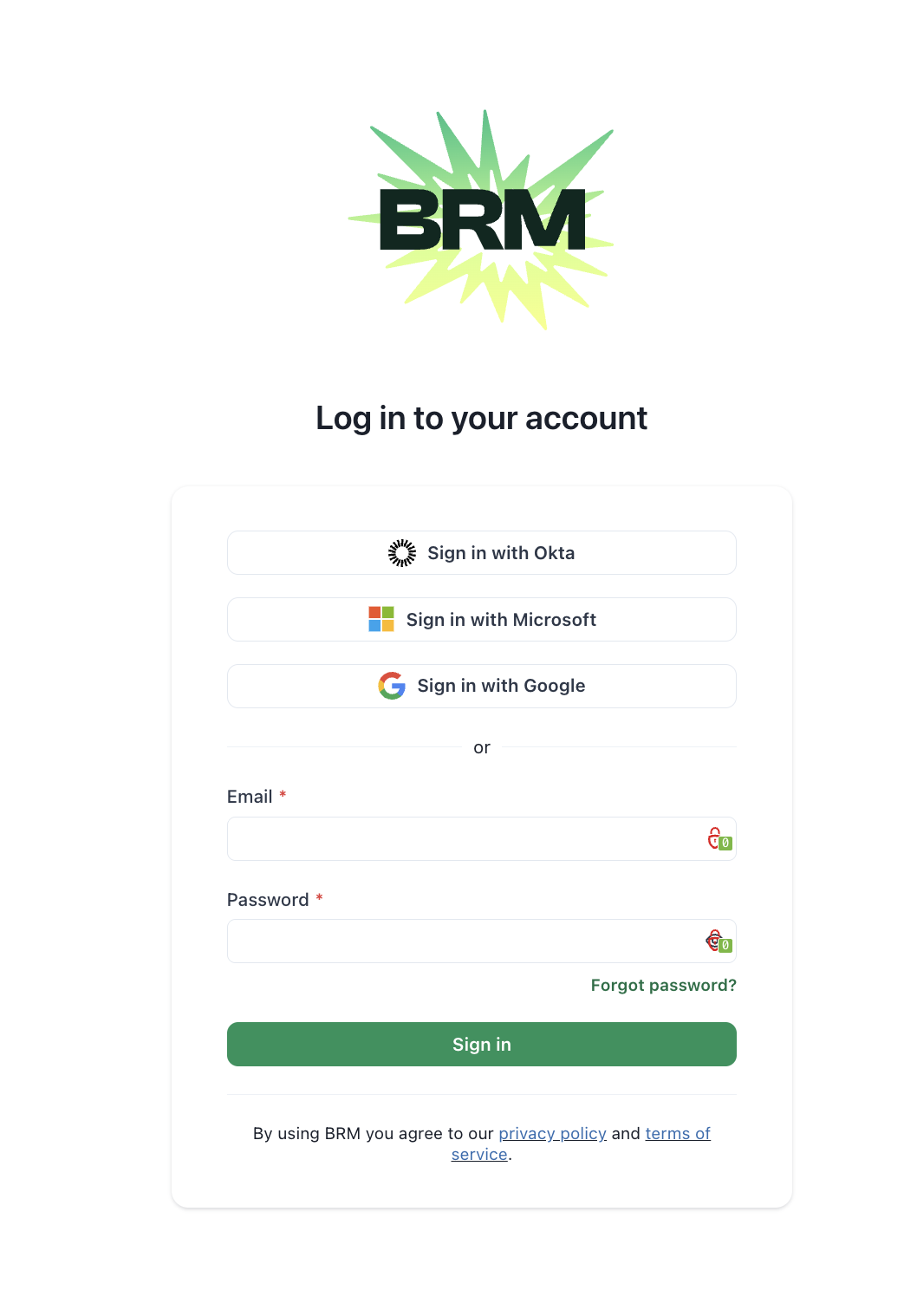
2. Select **Sign in with Microsoft** on the login page
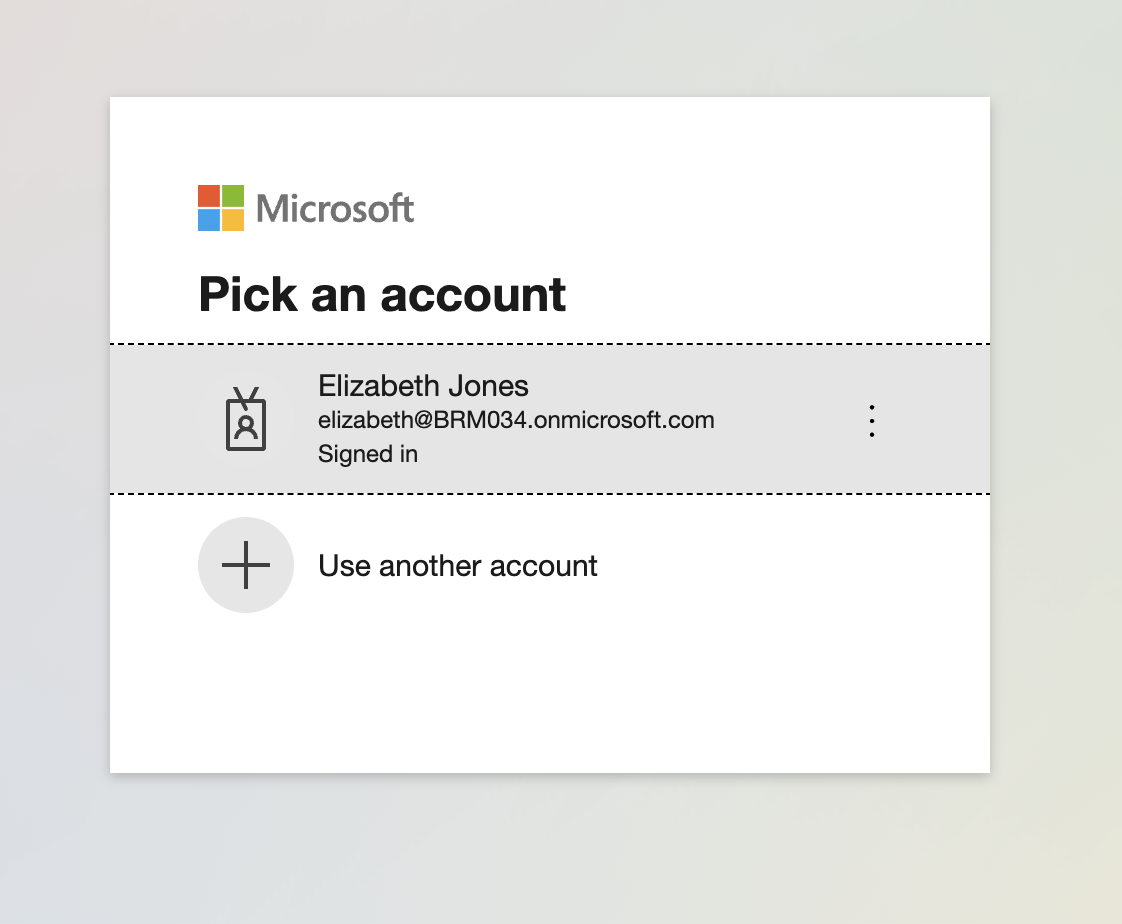
 3. Choose your **work account** when prompted by Microsoft
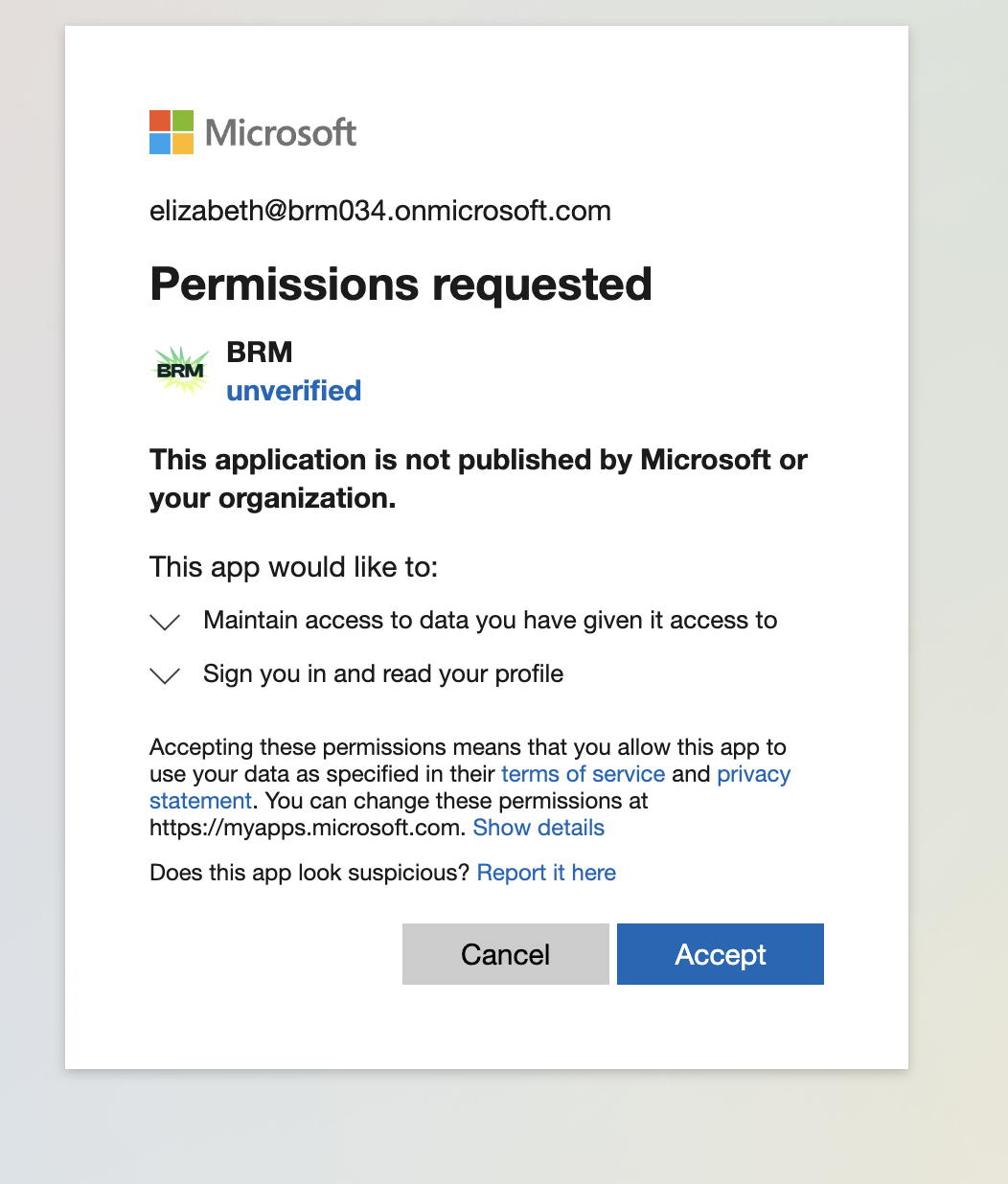
 4. Review the permissions screen and select **Accept**
 5. You’ll be redirected back to BRM and signed in
## Note
You must sign in with the same Microsoft email address that your BRM account is attached to.
5. You’ll be redirected back to BRM and signed in
## Note
You must sign in with the same Microsoft email address that your BRM account is attached to.