> ## Documentation Index
> Fetch the complete documentation index at: https://docs.brm.ai/llms.txt
> Use this file to discover all available pages before exploring further.
# OpenAI Usage Integration
This article walks you through connecting your OpenAI account to BRM so we can show your team's token usage, model usage, and cost data.
***Why this matters:***\_ the top-line OpenAI invoice rarely shows which models, keys, or teams are actually driving the spend — this connection does.\_
⚠️ **Important:** BRM needs an **OpenAI Admin API key** for your organization. A regular project API key, user API key, or service-account model key will not work for usage and cost reporting.
BRM uses this key only to read organization-level usage and cost data, broken down by model, API key, or project. BRM never uses it to send prompts to OpenAI's models.
## What you'll need
| **Credential** | OpenAI Admin API key |
| :--------------------- | :--------------------------------------------------- |
| **Who can create it** | An organization **owner** on the OpenAI API Platform |
| **Where it's created** | Organization settings → Admin keys |
## Step 1: Sign in to the OpenAI API Platform
Sign in to the [OpenAI API Platform](https://platform.openai.com/) using an account that is an **organization owner**. Project owners cannot create Admin API keys; only an organization owner can.
## Step 2: Open Admin keys
Open [organization settings → Admin keys](https://platform.openai.com/settings/organization/admin-keys) in the left navigation.
## Step 3: Create a new admin key
Click **Create new admin key**.
## Step 4: Name the key
Tip: Name the key "BRM AI Usage".
## Step 5: Set scopes (if shown)
Select "Read Only" to grant BRM read access to usage data.
## Step 6: Copy the key
Copy the key right away. OpenAI does not let you recover a lost key — if you lose it before entering it into BRM, you'll need to create a new one.
## Step 7: Enter the key in BRM
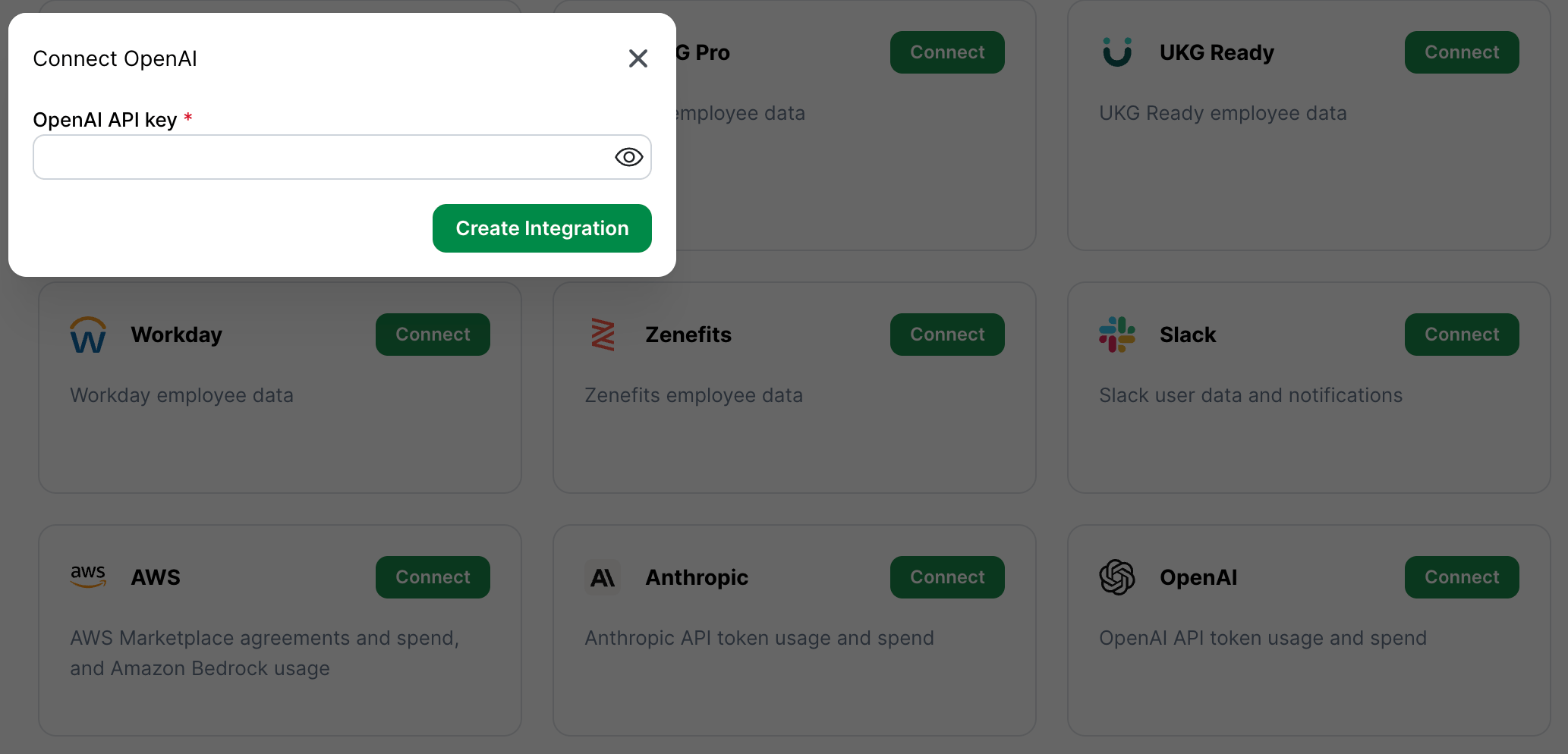
In BRM, open the OpenAI integration setup and paste in the key. BRM will confirm the connection and begin pulling in usage data.
 ## Common mistakes
* **Creating a project API key instead of an organization Admin key.** Project-level keys won't work in this case.
* **Having a project owner create the key.** Only an organization owner can create Admin API keys.
* **Losing the key before entering it into BRM.** OpenAI can't recover the key — you'll need to create a new one.
## Provider documentation
Our steps above should stay current, but if OpenAI changes their interface, these are the source-of-truth docs:
* [Admin API key settings](https://platform.openai.com/settings/organization/admin-keys)
* [Administration API overview](https://developers.openai.com/api/reference/administration/overview/)
* [Usage (completions) endpoint](https://developers.openai.com/api/reference/resources/admin/subresources/organization/subresources/usage/methods/completions/)
* [Costs endpoint](https://developers.openai.com/api/reference/resources/admin/subresources/organization/subresources/usage/methods/costs/)
## Still stuck?
Reach out to BRM support and let us know which step you're stuck on. Don't send your API key over email or chat — we'll point you to a secure way to share it if needed.
\\
## Common mistakes
* **Creating a project API key instead of an organization Admin key.** Project-level keys won't work in this case.
* **Having a project owner create the key.** Only an organization owner can create Admin API keys.
* **Losing the key before entering it into BRM.** OpenAI can't recover the key — you'll need to create a new one.
## Provider documentation
Our steps above should stay current, but if OpenAI changes their interface, these are the source-of-truth docs:
* [Admin API key settings](https://platform.openai.com/settings/organization/admin-keys)
* [Administration API overview](https://developers.openai.com/api/reference/administration/overview/)
* [Usage (completions) endpoint](https://developers.openai.com/api/reference/resources/admin/subresources/organization/subresources/usage/methods/completions/)
* [Costs endpoint](https://developers.openai.com/api/reference/resources/admin/subresources/organization/subresources/usage/methods/costs/)
## Still stuck?
Reach out to BRM support and let us know which step you're stuck on. Don't send your API key over email or chat — we'll point you to a secure way to share it if needed.
\\