> ## Documentation Index
> Fetch the complete documentation index at: https://docs.brm.ai/llms.txt
> Use this file to discover all available pages before exploring further.
# OpenRouter AI Usage Integration
This article walks you through connecting your OpenRouter account to BRM so we can show your team's token usage, model usage, and spend data.
***Why this matters:***\_ spend through an aggregator like OpenRouter is easy to lose track of — it sits between you and whatever model you're routing to. This connection shows exactly where it's going.\_
⚠️ **Important:** BRM needs an **OpenRouter Management API key**, rather than a standard model API key. A regular inference key may look like it works, but OpenRouter blocks it from the analytics endpoints BRM needs.
BRM uses this key to read daily usage, prompt and completion tokens, request counts, model and API key breakdowns, and spend.
## What you'll need
| **Credential** | OpenRouter Management API key |
| :--------------------- | :---------------------------------------------- |
| **Who can create it** | A workspace or organization admin on OpenRouter |
| **Where it's created** | Settings → Management API Keys |
## Step 1: Sign in to OpenRouter
Sign in to [OpenRouter](https://openrouter.ai/) using an account with admin access to the correct workspace or organization. Double-check you're in the right workspace before creating the key. Keys created in the wrong workspace won't show the data you expect.
## Step 2: Go to Management API Keys
Go to **Prefrences → [Management API Keys](https://openrouter.ai/settings/management-keys)**.
## Step 3: Create a new key
Click **Create New Key**.
## Step 4: Name the key
Tip: Name the key BRM AI Usage.
## Step 5: Copy the key
Copy the key right away — OpenRouter only shows the plaintext key once.
## Step 6: Enter the key in BRM
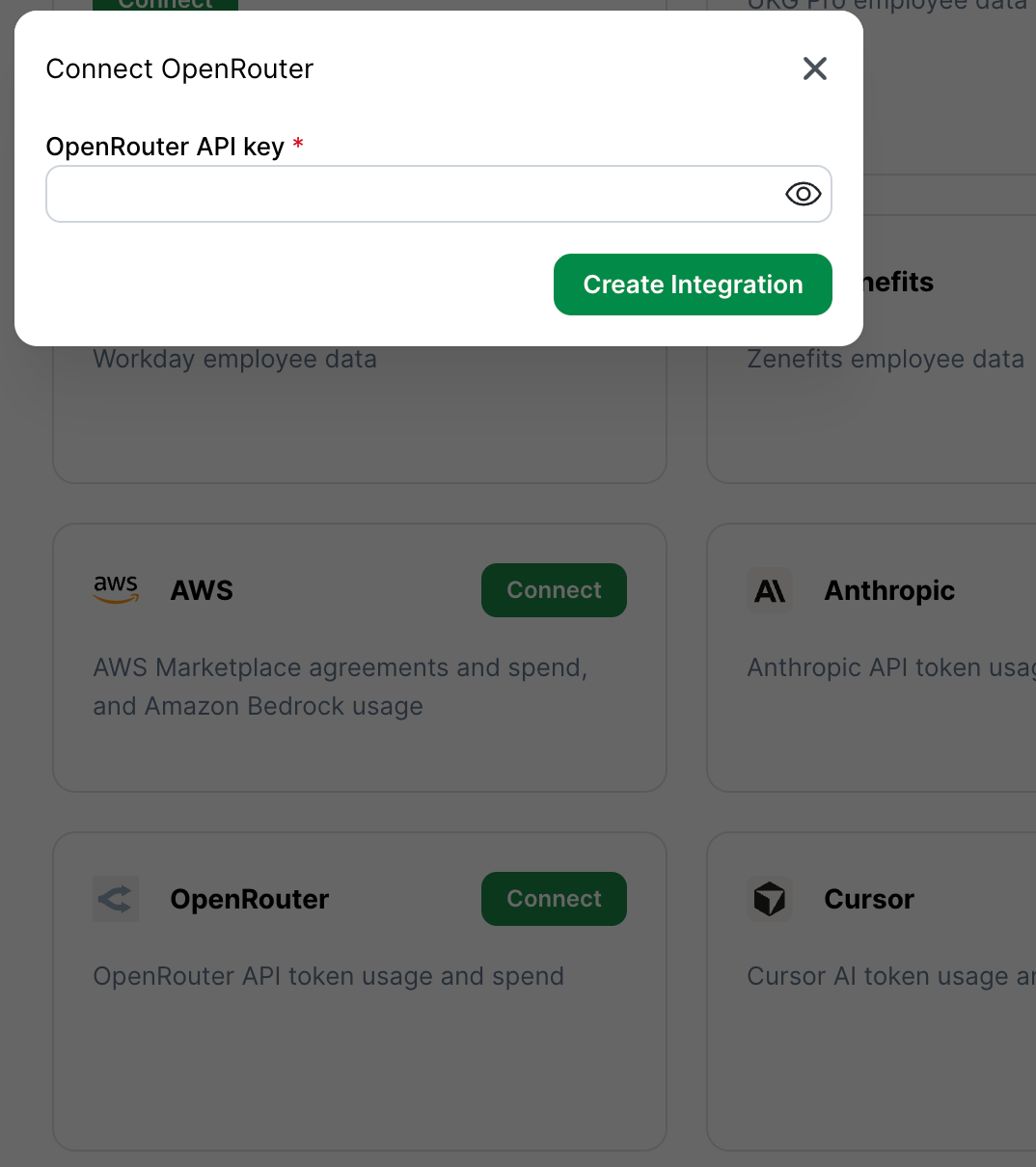
In BRM, open the OpenRouter integration setup and paste in the key. BRM will confirm the connection and begin pulling in usage data.
 ## Common mistakes
* **Creating a standard model API key instead of a Management key.** Standard keys will fail when BRM queries analytics.
* **Creating the key in the wrong workspace or organization.** Make sure you're in the workspace that has the usage you want BRM to track.
* **Not copying the key right away.** OpenRouter only shows it once. If you miss it, create a new one.
## Provider documentation
Our steps above should stay current, but if OpenRouter changes their interface, these are the source-of-truth docs:
* [Management API keys](https://openrouter.ai/docs/guides/overview/auth/management-api-keys)
* [Analytics query API](https://openrouter.ai/docs/api/api-reference/betaanalytics/query-analytics-data)
* [API authentication](https://openrouter.ai/docs/api/reference/authentication)
## Stuck?
Reach out to BRM support and let us know which step you're stuck on. Don't send your API key over email or chat — we'll point you to a secure way to share it if needed.
## Common mistakes
* **Creating a standard model API key instead of a Management key.** Standard keys will fail when BRM queries analytics.
* **Creating the key in the wrong workspace or organization.** Make sure you're in the workspace that has the usage you want BRM to track.
* **Not copying the key right away.** OpenRouter only shows it once. If you miss it, create a new one.
## Provider documentation
Our steps above should stay current, but if OpenRouter changes their interface, these are the source-of-truth docs:
* [Management API keys](https://openrouter.ai/docs/guides/overview/auth/management-api-keys)
* [Analytics query API](https://openrouter.ai/docs/api/api-reference/betaanalytics/query-analytics-data)
* [API authentication](https://openrouter.ai/docs/api/reference/authentication)
## Stuck?
Reach out to BRM support and let us know which step you're stuck on. Don't send your API key over email or chat — we'll point you to a secure way to share it if needed.