> ## Documentation Index
> Fetch the complete documentation index at: https://docs.brm.ai/llms.txt
> Use this file to discover all available pages before exploring further.

# Customize Request Flows with Criteria

> You can further customize your request workflows by adding or removing criteria to ensure you collect all necessary procurement information.

## Adding or Removing Standard Criteria

1. Start by opening the Settings menu from the left sidebar.
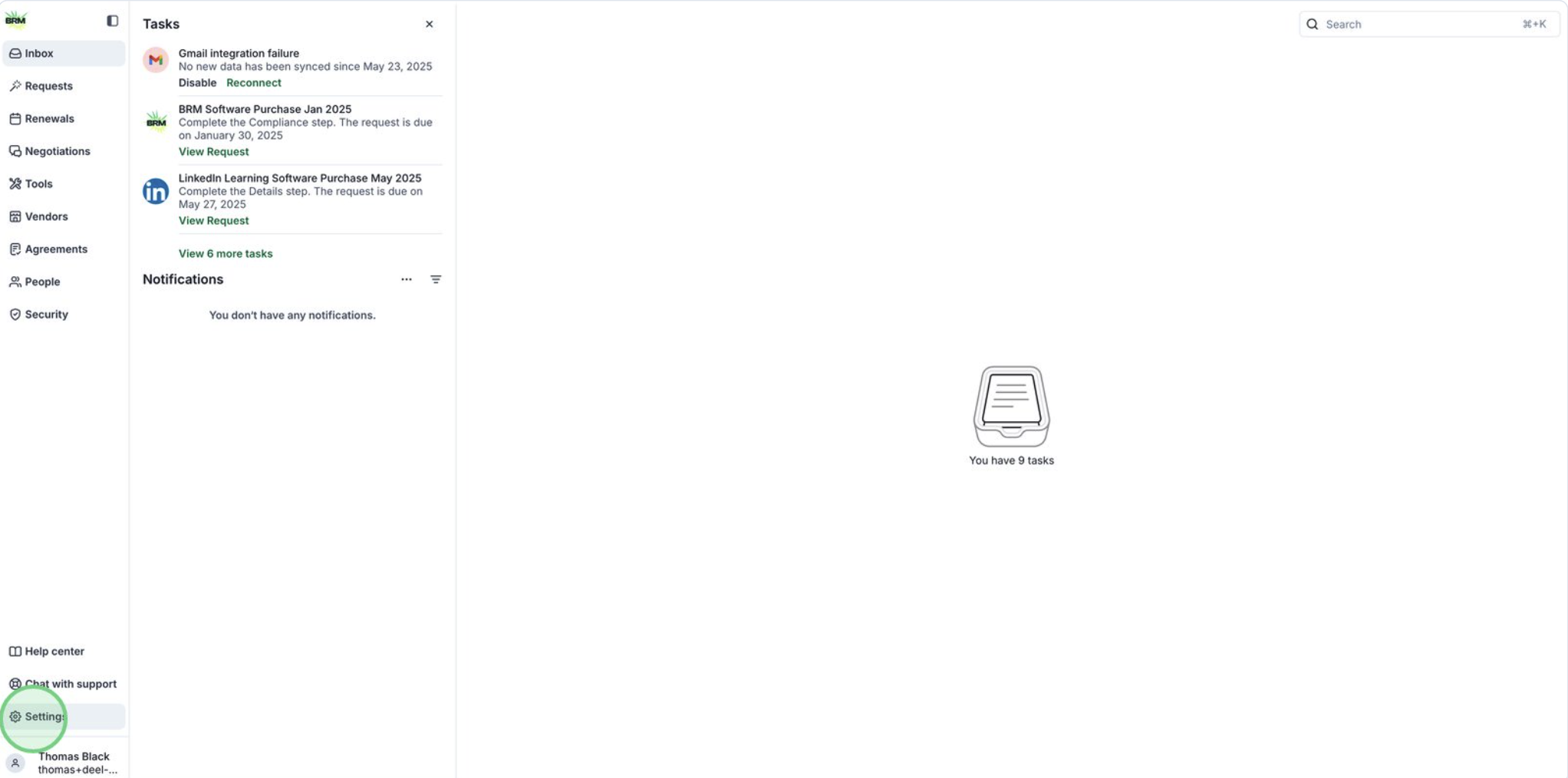
<img src="https://mintcdn.com/brm-b1721f33/Tg_g4Uss5u9rOogI/images/custom1.png?fit=max&auto=format&n=Tg_g4Uss5u9rOogI&q=85&s=c2ec76542a26f778fe3d3b8300250018" alt="Custom1 Pn" width="2044" height="1014" data-path="images/custom1.png" />

2. Next, navigate to the Criteria section to manage organizational requirements.
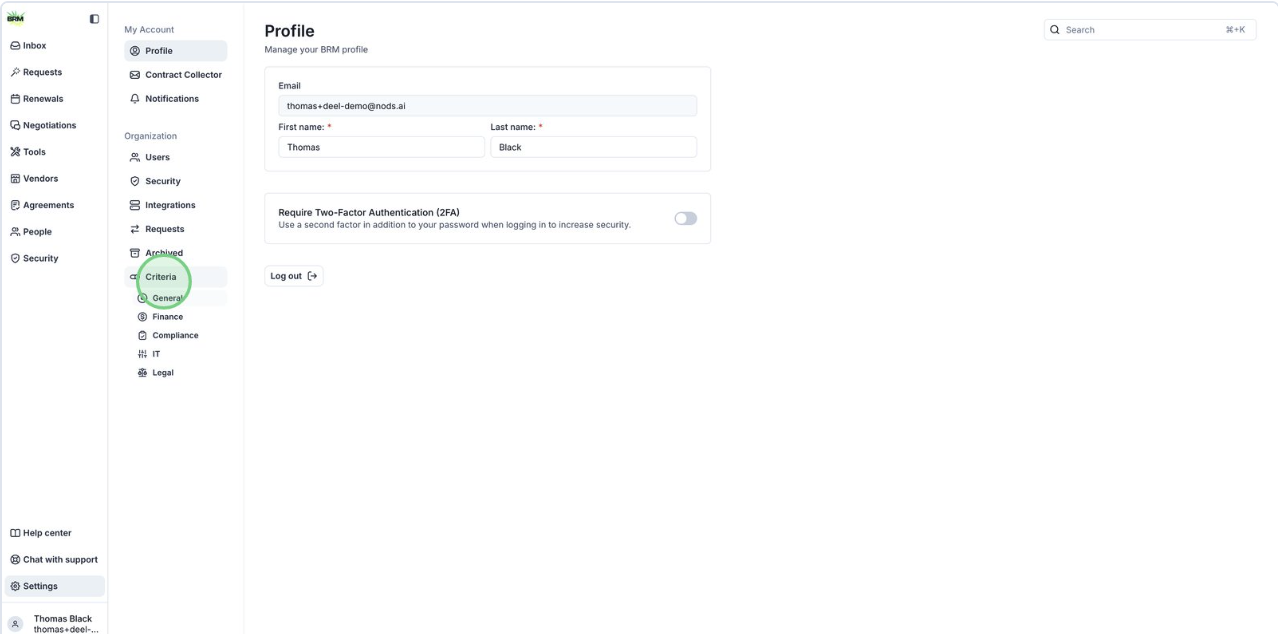
<img src="https://mintcdn.com/brm-b1721f33/Tg_g4Uss5u9rOogI/images/custom2.png?fit=max&auto=format&n=Tg_g4Uss5u9rOogI&q=85&s=2feaaf84d254234e0958c7561903679a" alt="Custom2 Pn" width="1278" height="634" data-path="images/custom2.png" />

3. Select the a category under Criteria to access your criteria fields.
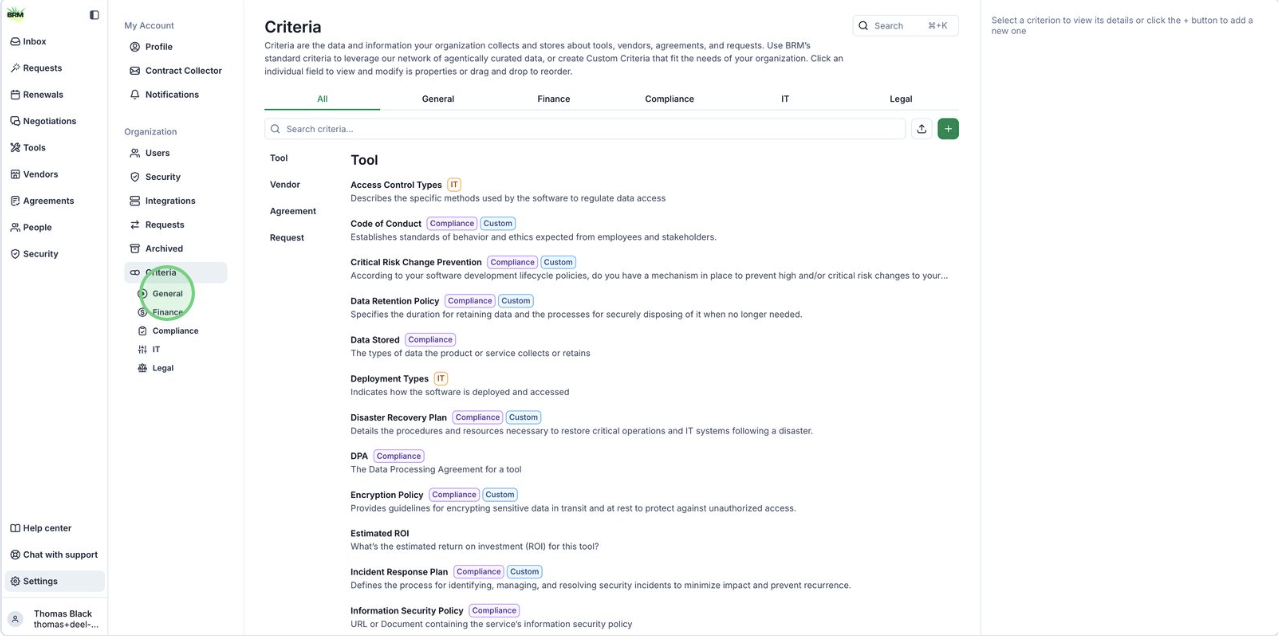
<img src="https://mintcdn.com/brm-b1721f33/Tg_g4Uss5u9rOogI/images/custom3.png?fit=max&auto=format&n=Tg_g4Uss5u9rOogI&q=85&s=8117c5525fbb69f2b78bb2abbb2187f4" alt="Custom3 Pn" width="1278" height="636" data-path="images/custom3.png" />

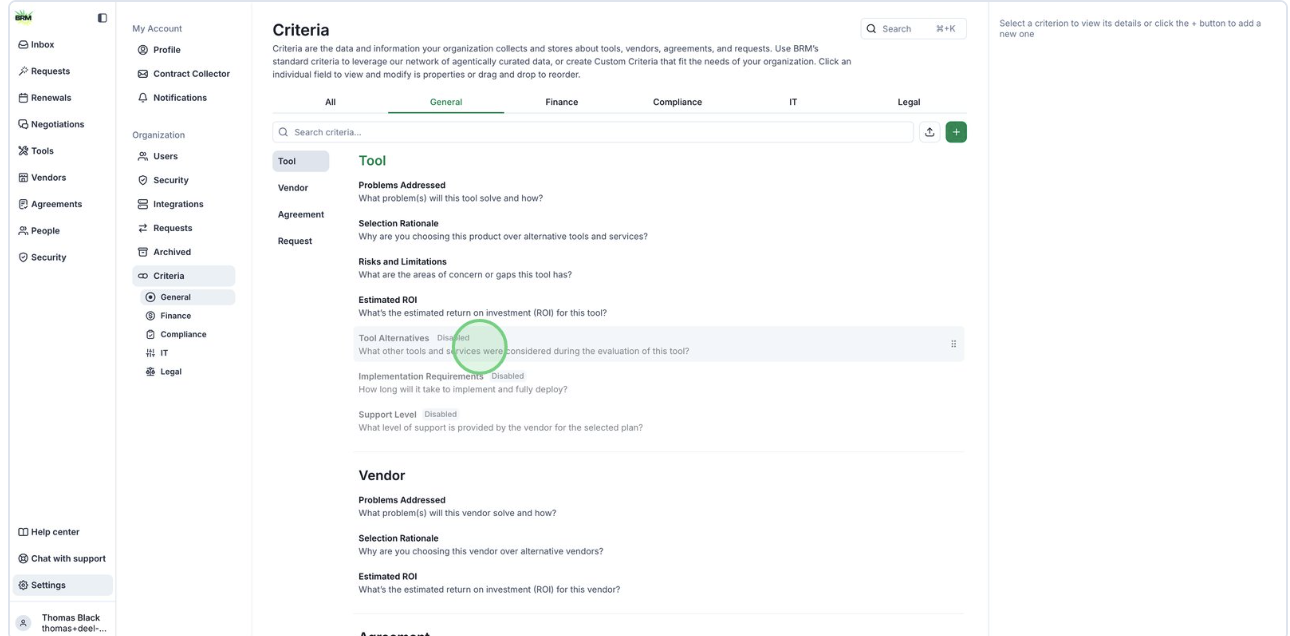
4. Select the grayed out criteria you want to add to the request flow.
<img src="https://mintcdn.com/brm-b1721f33/Tg_g4Uss5u9rOogI/images/custom4.png?fit=max&auto=format&n=Tg_g4Uss5u9rOogI&q=85&s=51aab611933bbd081d377feb2982ebc3" alt="Custom4 Pn" width="1290" height="636" data-path="images/custom4.png" />

5. Use the Enabled dropdown to add this criterion to the workflow.

<img src="https://mintcdn.com/brm-b1721f33/Tg_g4Uss5u9rOogI/images/custom5.png?fit=max&auto=format&n=Tg_g4Uss5u9rOogI&q=85&s=df8cf18ee64da438d2ee76dac43f7af6" alt="Custom5 Pn" width="1274" height="638" data-path="images/custom5.png" />

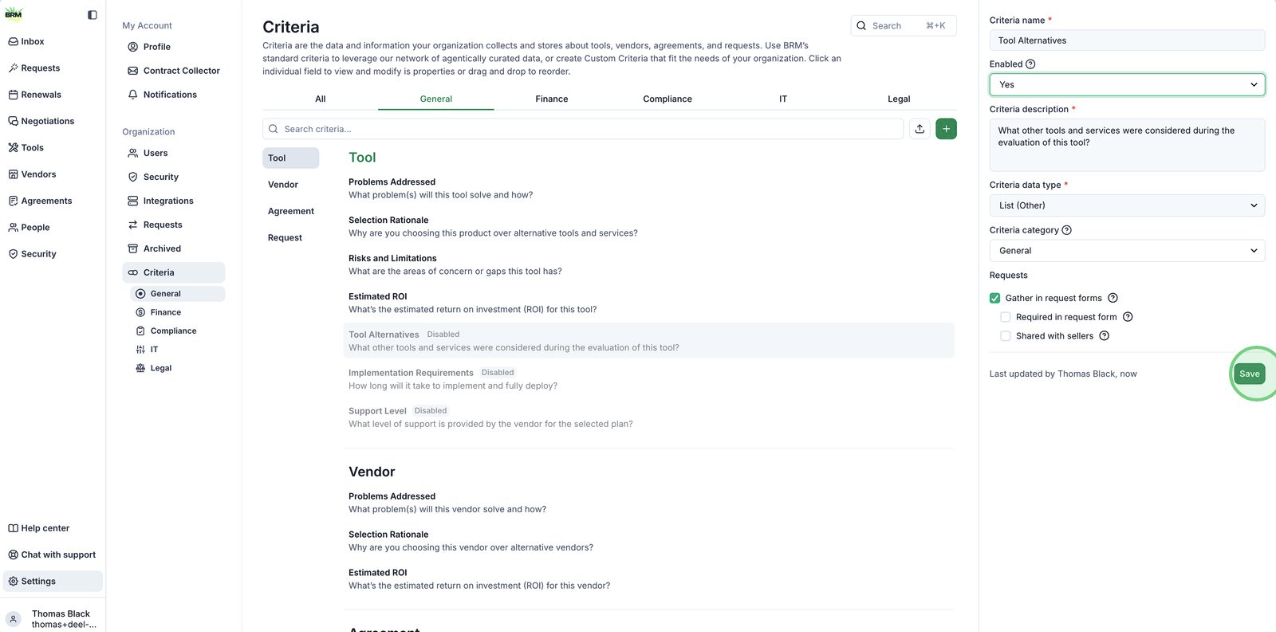
6. Click the Save button to apply and store your changes to the criterion settings.
<img src="https://mintcdn.com/brm-b1721f33/Tg_g4Uss5u9rOogI/images/custom6.png?fit=max&auto=format&n=Tg_g4Uss5u9rOogI&q=85&s=5b307ce872b4faabf185149854bbf06b" alt="Custom6 Pn" width="1276" height="632" data-path="images/custom6.png" />

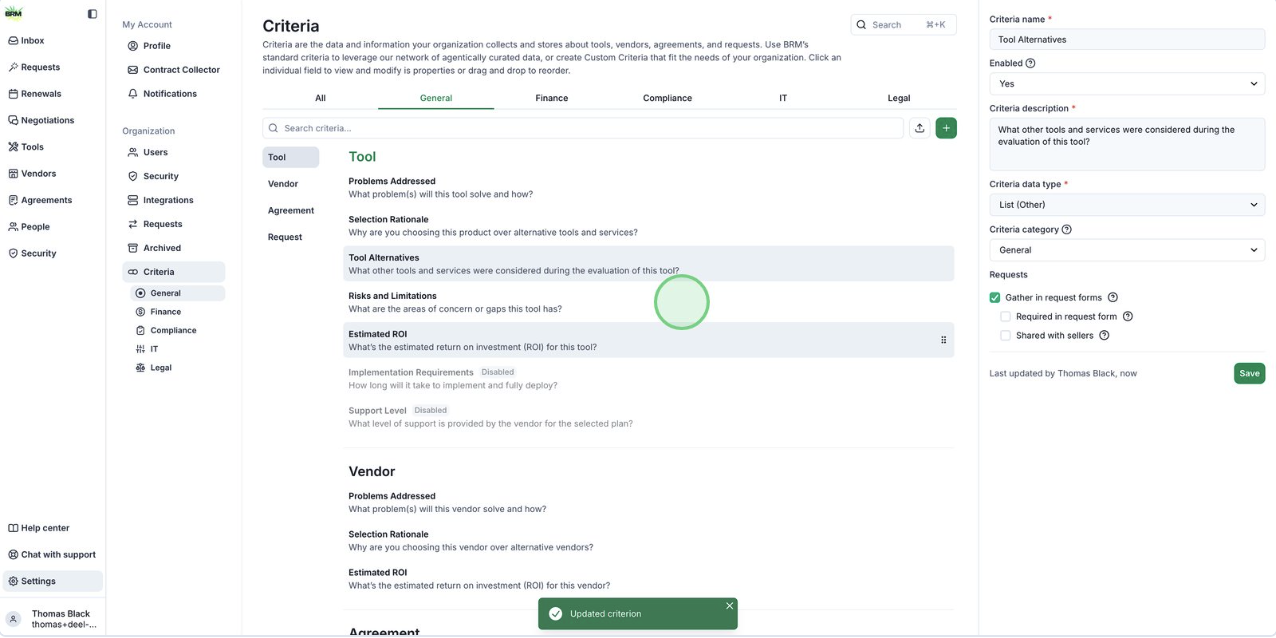
7. Select an active criterion to remove it.
<img src="https://mintcdn.com/brm-b1721f33/Tg_g4Uss5u9rOogI/images/custom7.png?fit=max&auto=format&n=Tg_g4Uss5u9rOogI&q=85&s=9b69e110e5f6633499039cc36ba4619a" alt="Custom7 Pn" width="1276" height="638" data-path="images/custom7.png" />

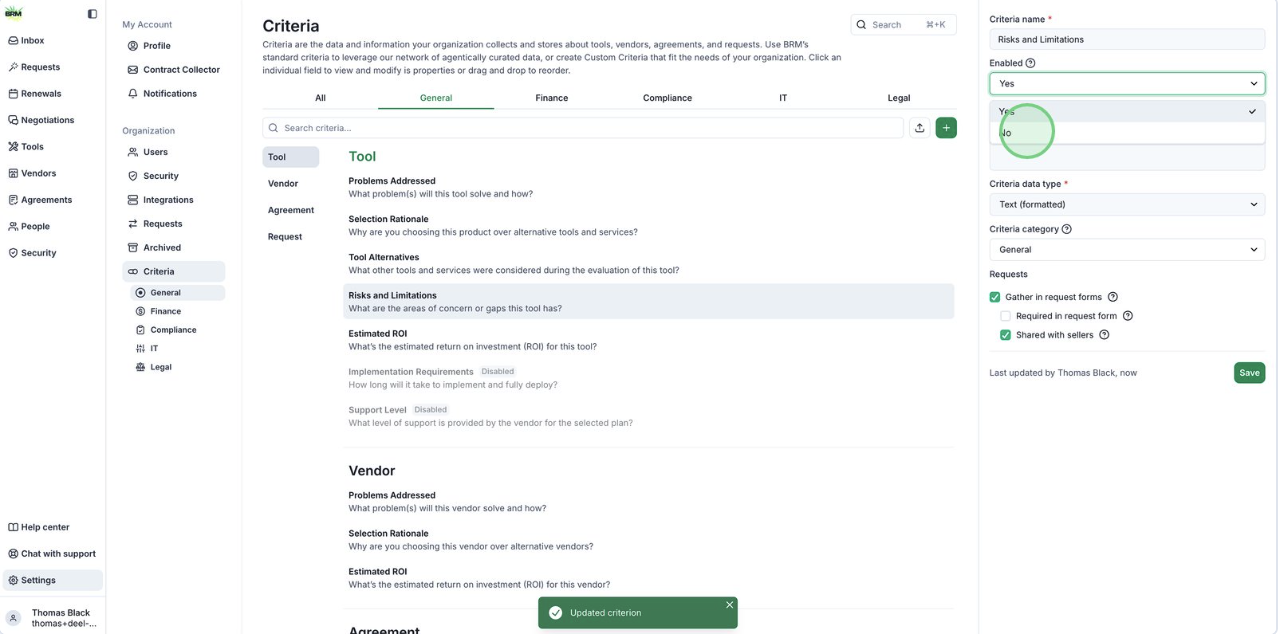
8. Choose Enabled = No to disable.

<img src="https://mintcdn.com/brm-b1721f33/Tg_g4Uss5u9rOogI/images/custom8.png?fit=max&auto=format&n=Tg_g4Uss5u9rOogI&q=85&s=58cd498b37cb1d6c4d29d2f52781ce37" alt="Custom8 Pn" width="1280" height="634" data-path="images/custom8.png" />

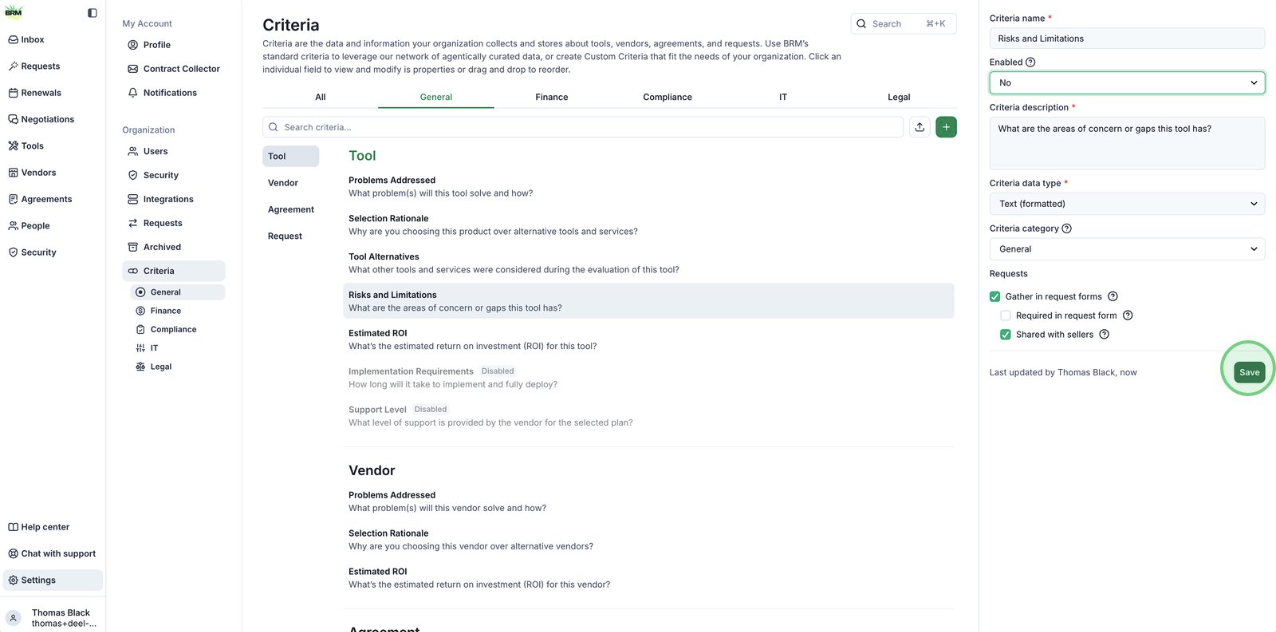
9. Click Save to confirm and implement your updated criteria settings.
<img src="https://mintcdn.com/brm-b1721f33/Tg_g4Uss5u9rOogI/images/custom9.png?fit=max&auto=format&n=Tg_g4Uss5u9rOogI&q=85&s=ab7b5ec8203a6bd8855f74fb3ea75384" alt="Custom9 Pn" width="1276" height="632" data-path="images/custom9.png" />