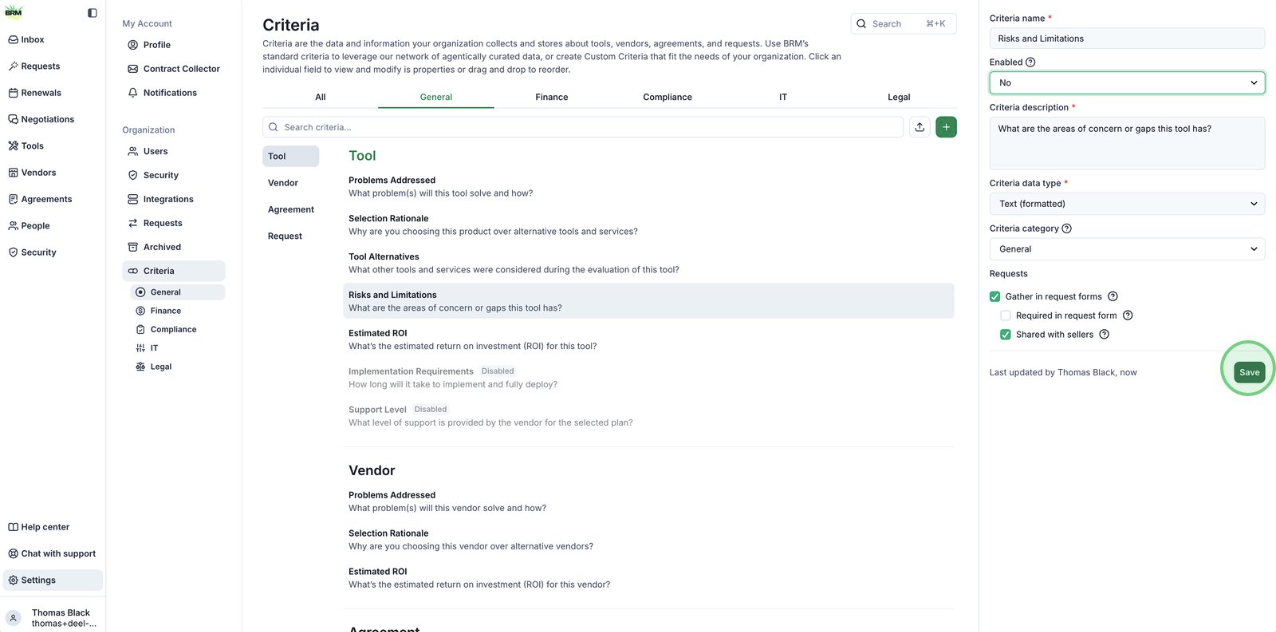
Adding or Removing Standard Criteria
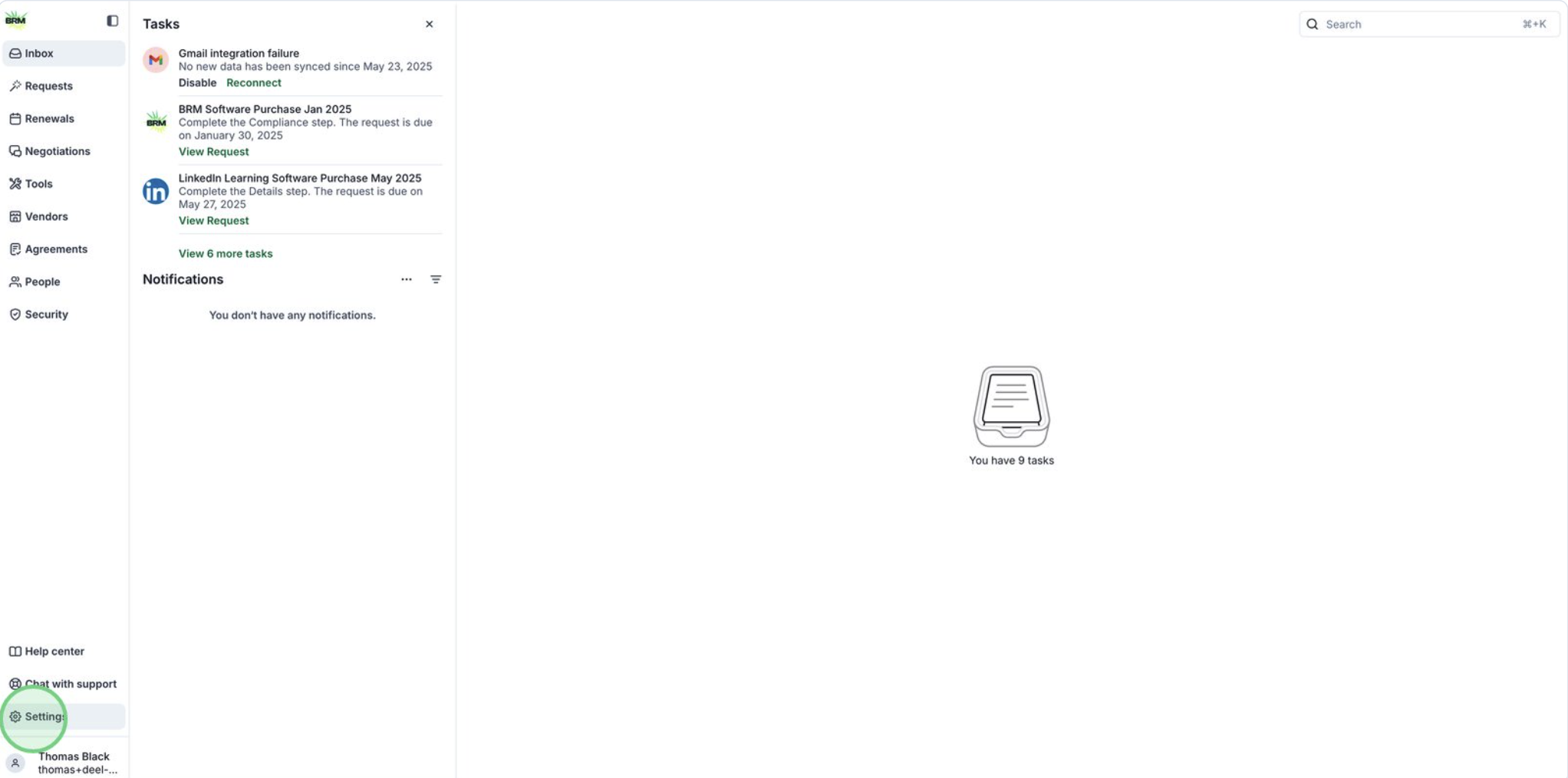
- Start by opening the Settings menu from the left sidebar.
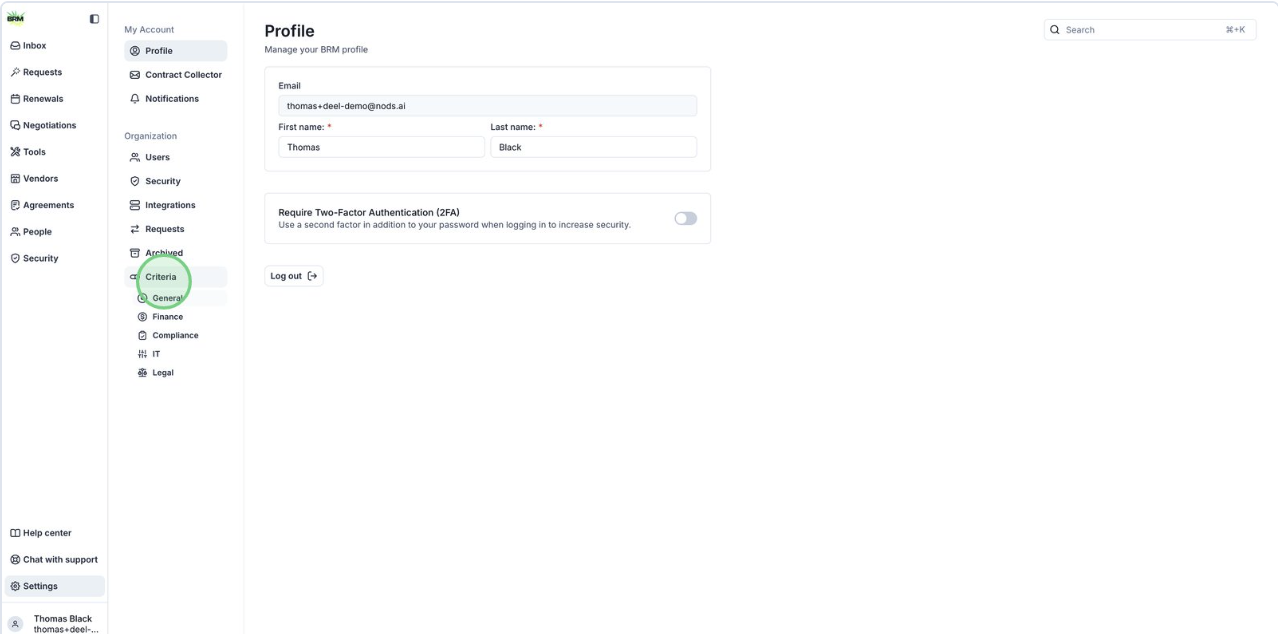
- Next, navigate to the Criteria section to manage organizational requirements.
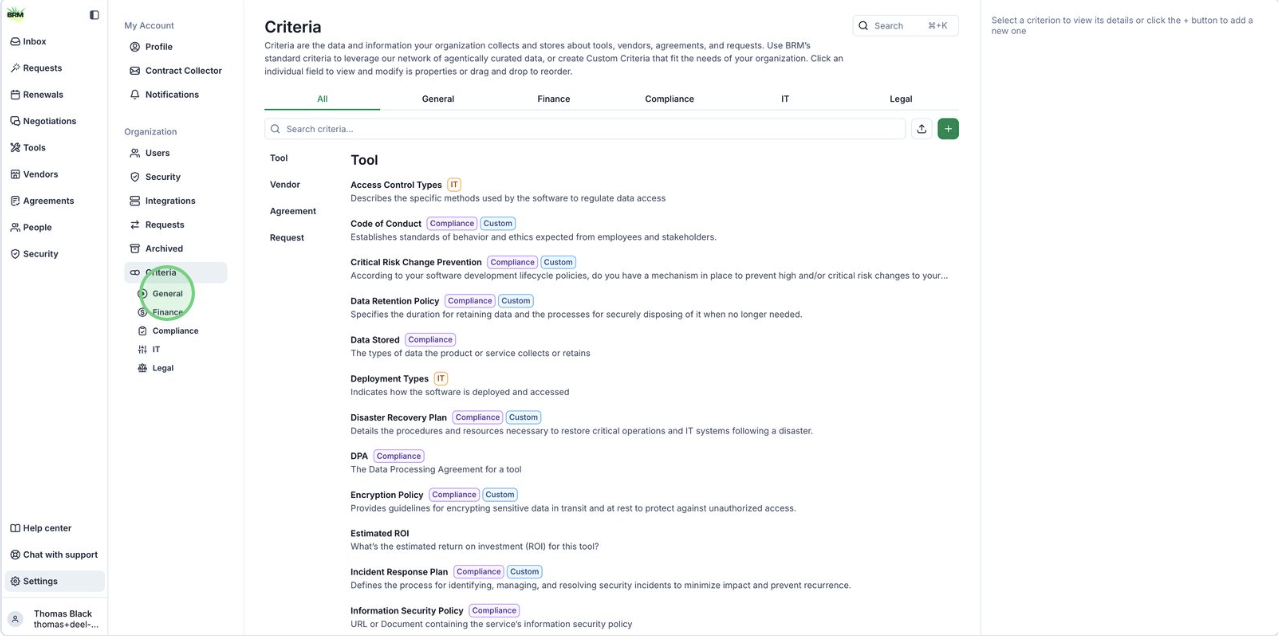
- Select the a category under Criteria to access your criteria fields.
- Select the grayed out criteria you want to add to the request flow.
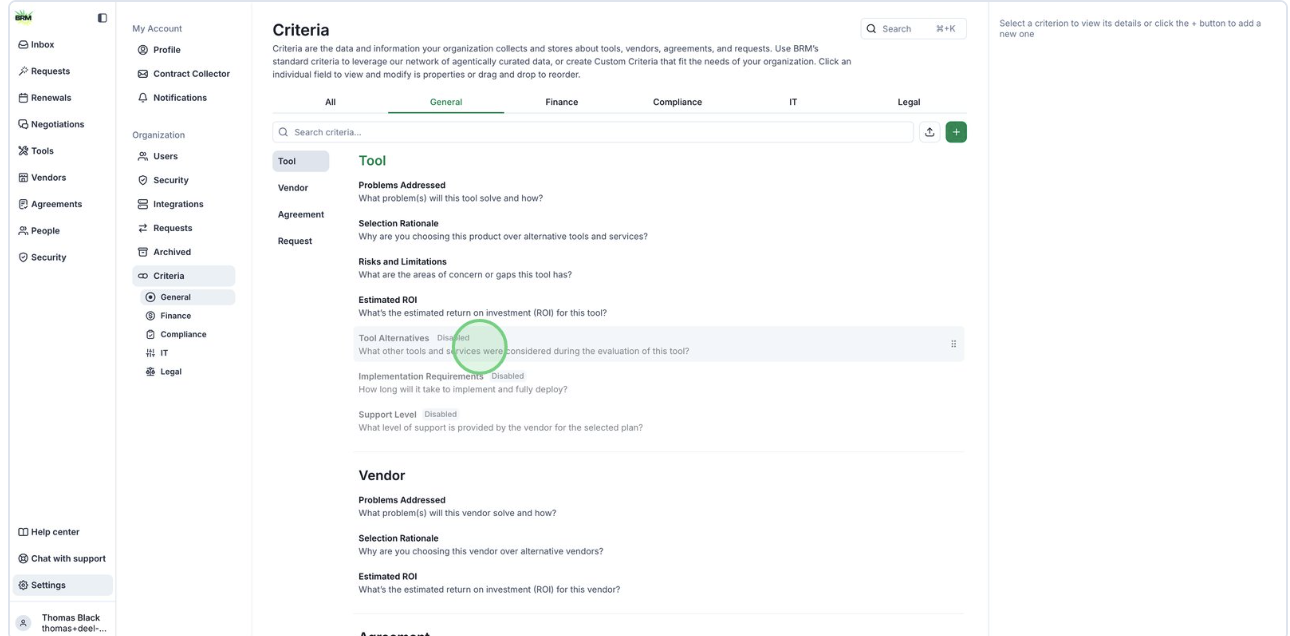
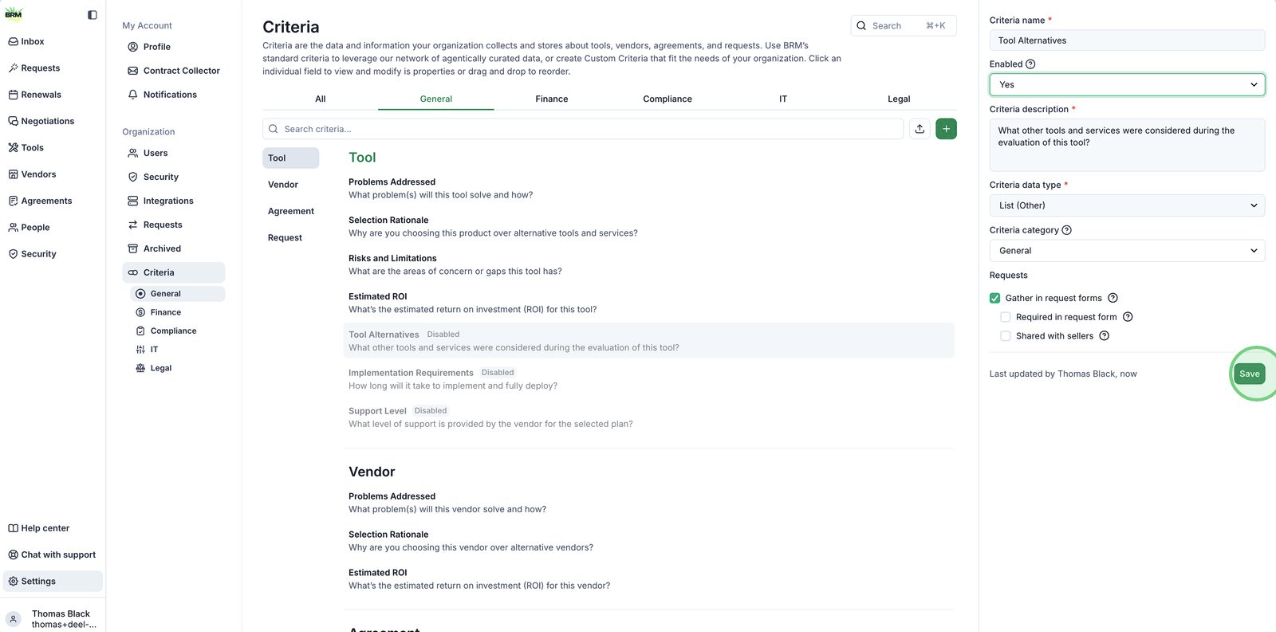
- Use the Enabled dropdown to add this criterion to the workflow.

- Click the Save button to apply and store your changes to the criterion settings.
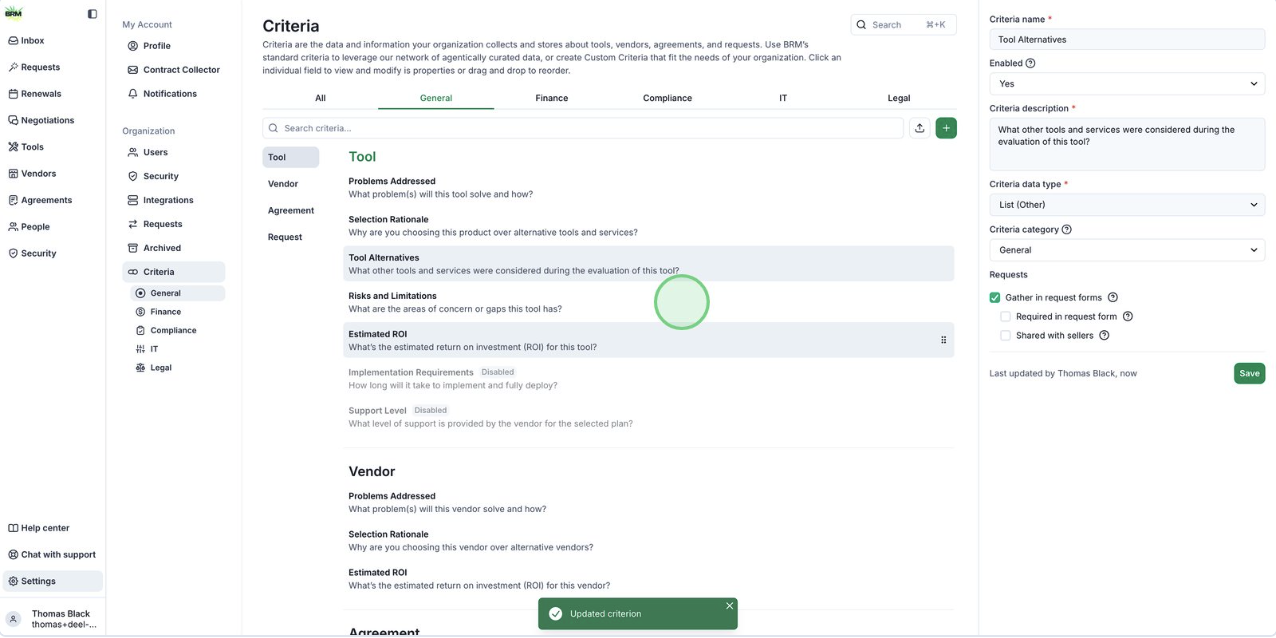
- Select an active criterion to remove it.
- Choose Enabled = No to disable.
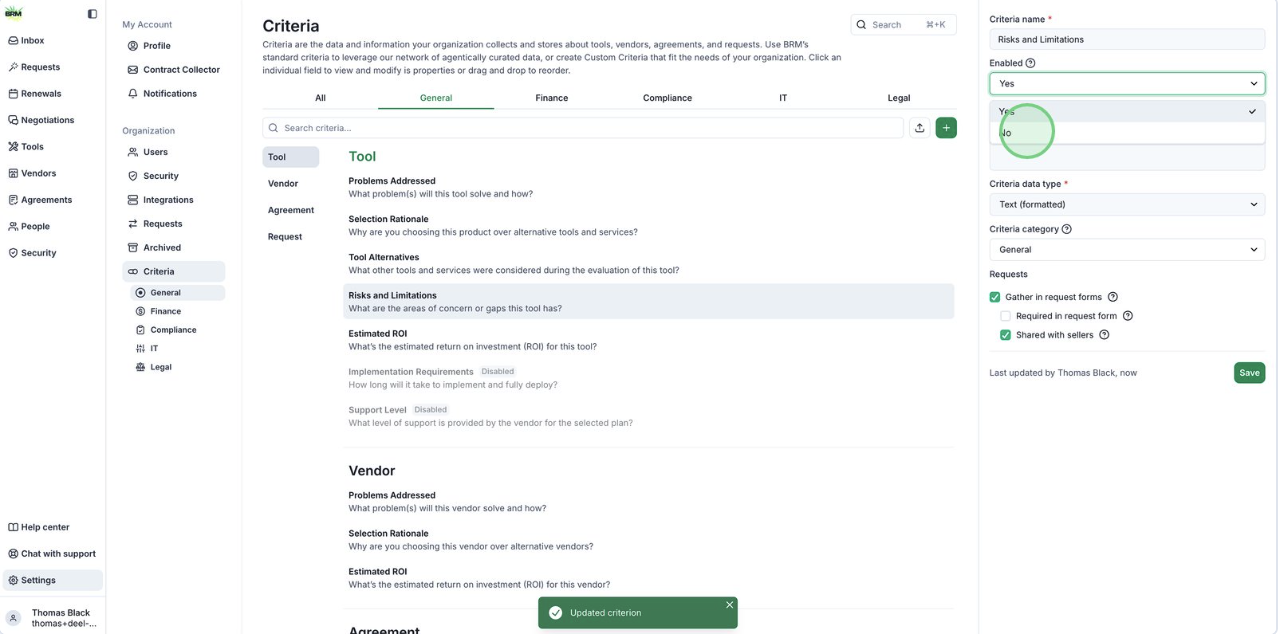
- Click Save to confirm and implement your updated criteria settings.