

-
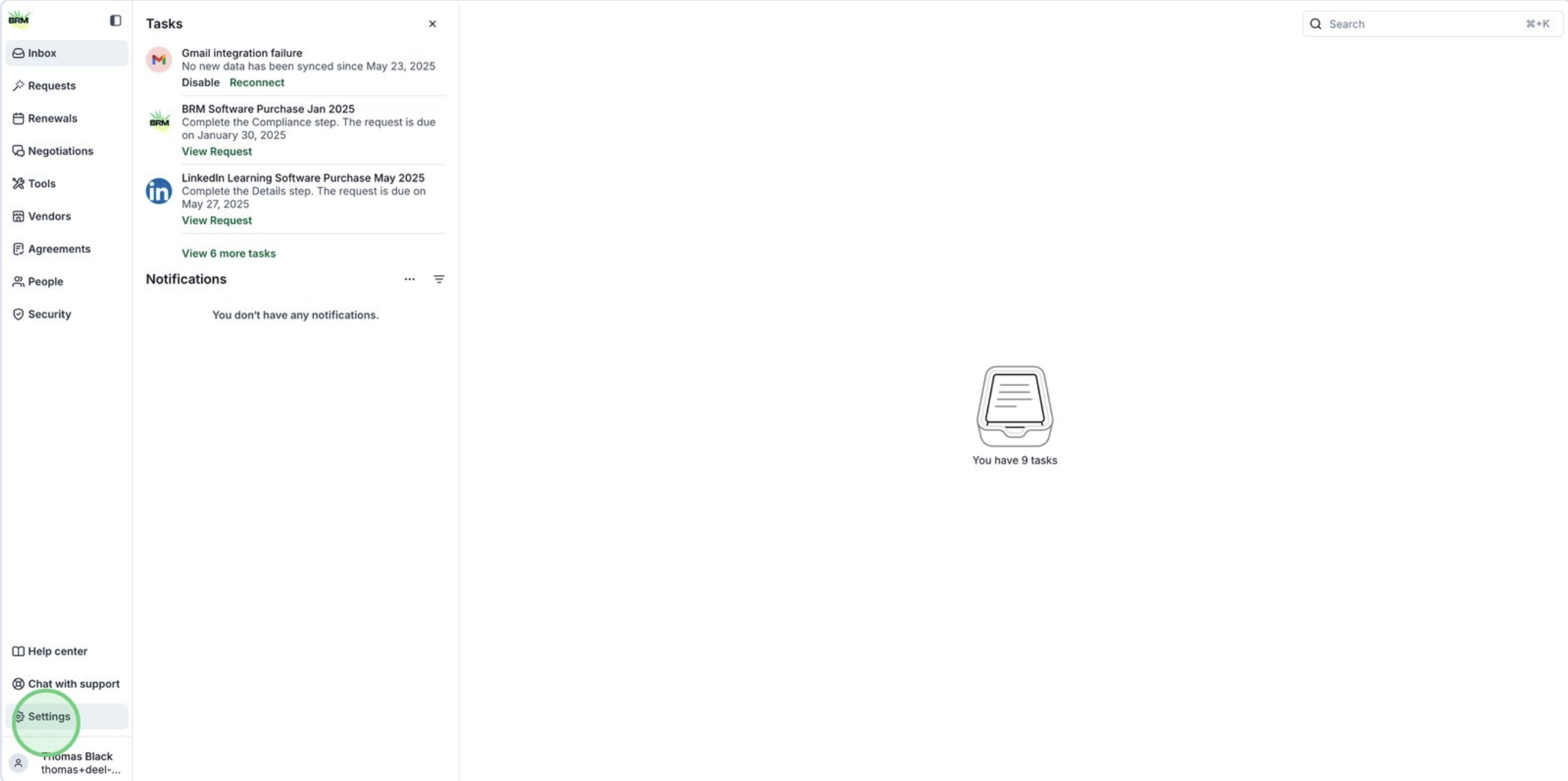
Start by opening the Settings menu to access system configuration options.
-
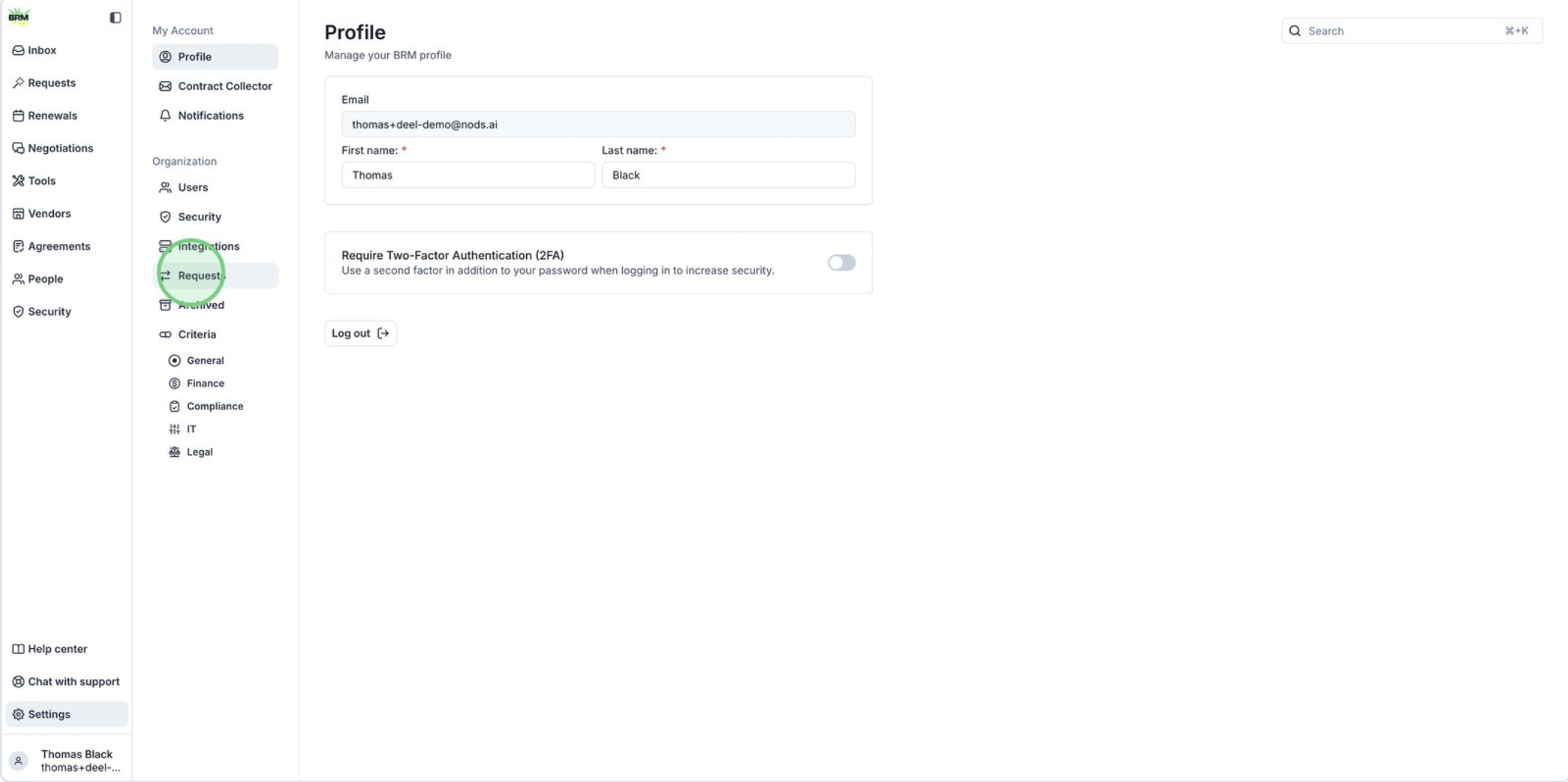
Navigate to the Requests section to manage or create new purchase requests.
-
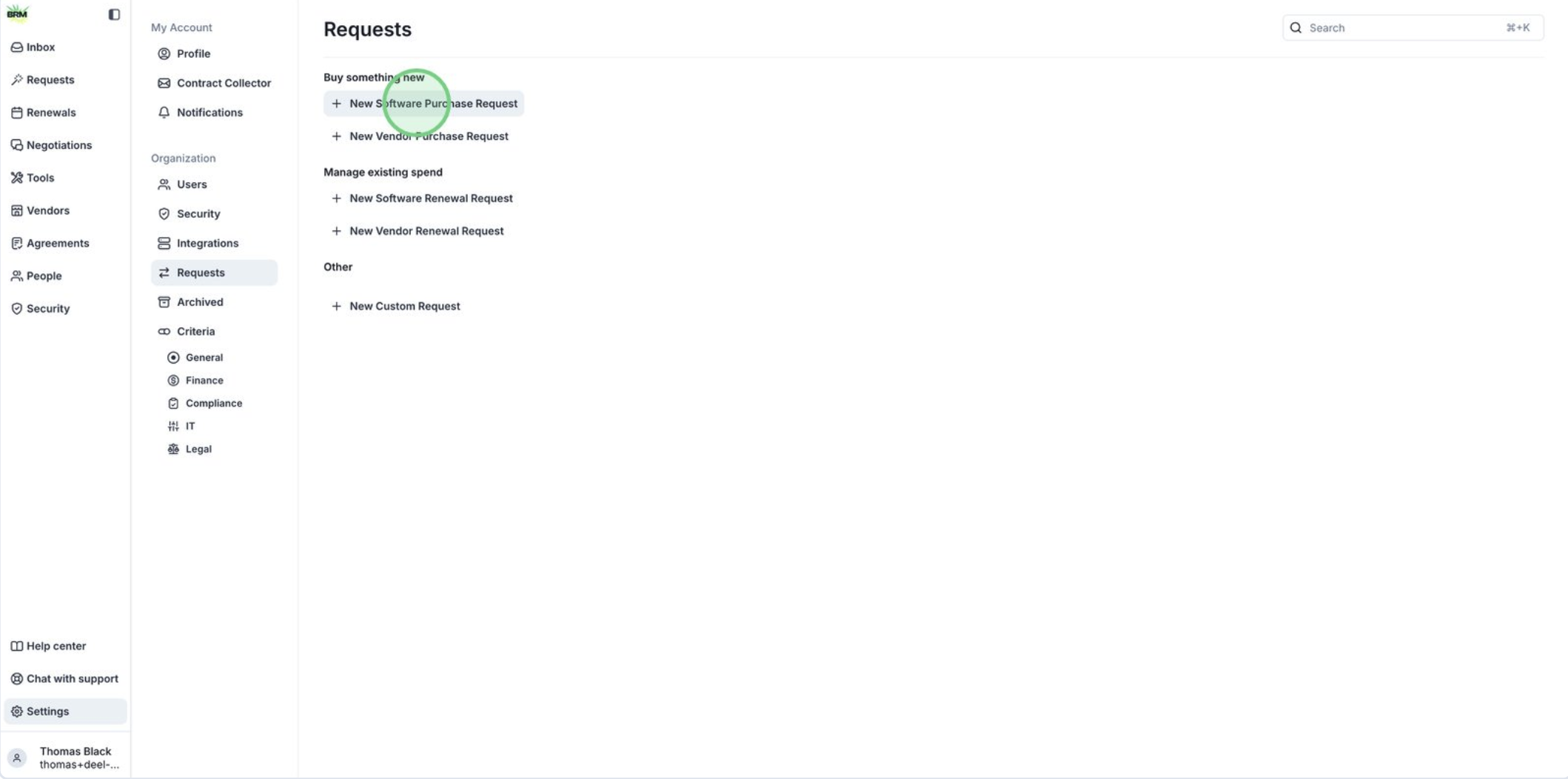
Select New Software Purchase Request to begin configuring a new workflow for software procurement.
-
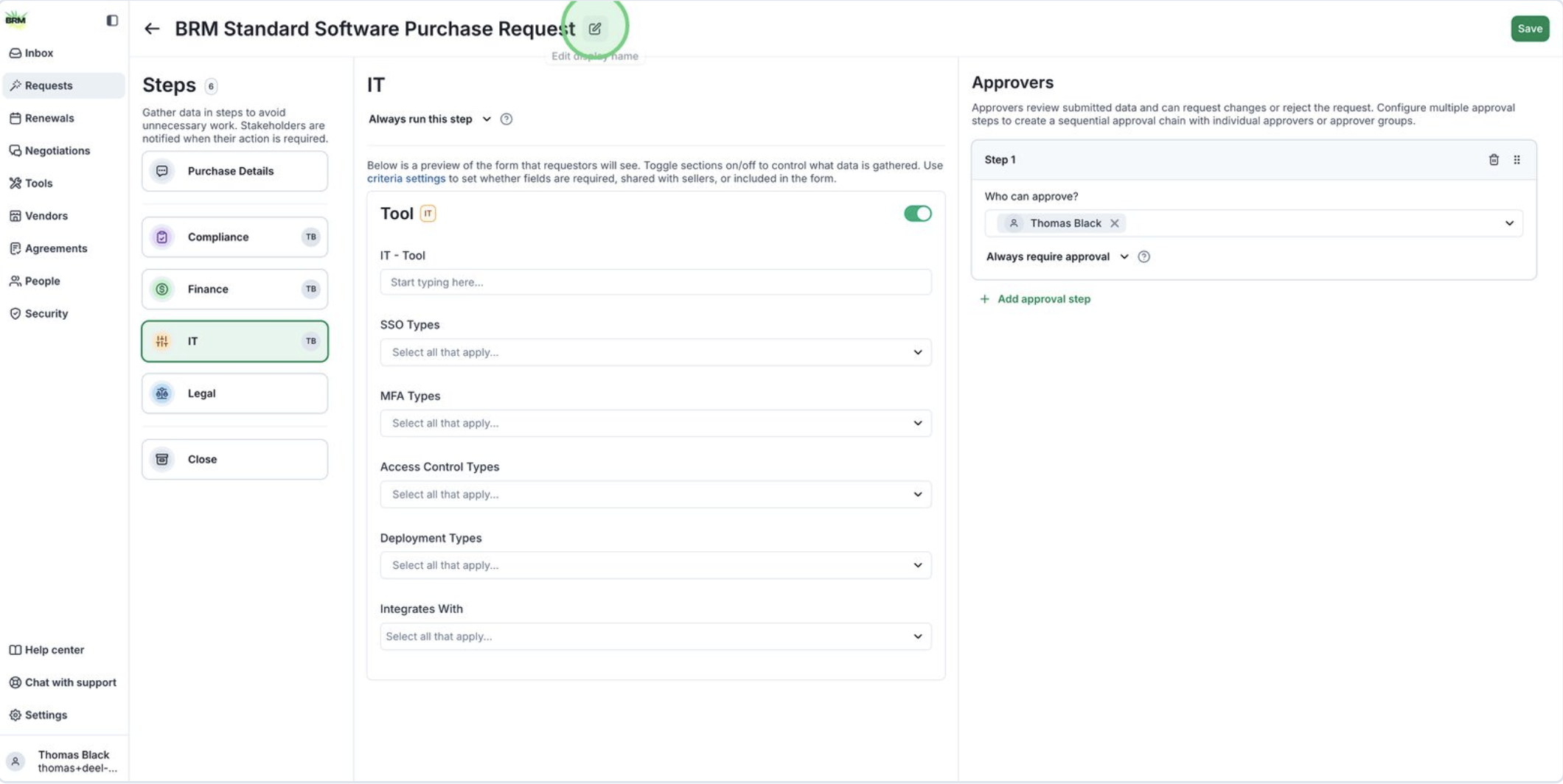
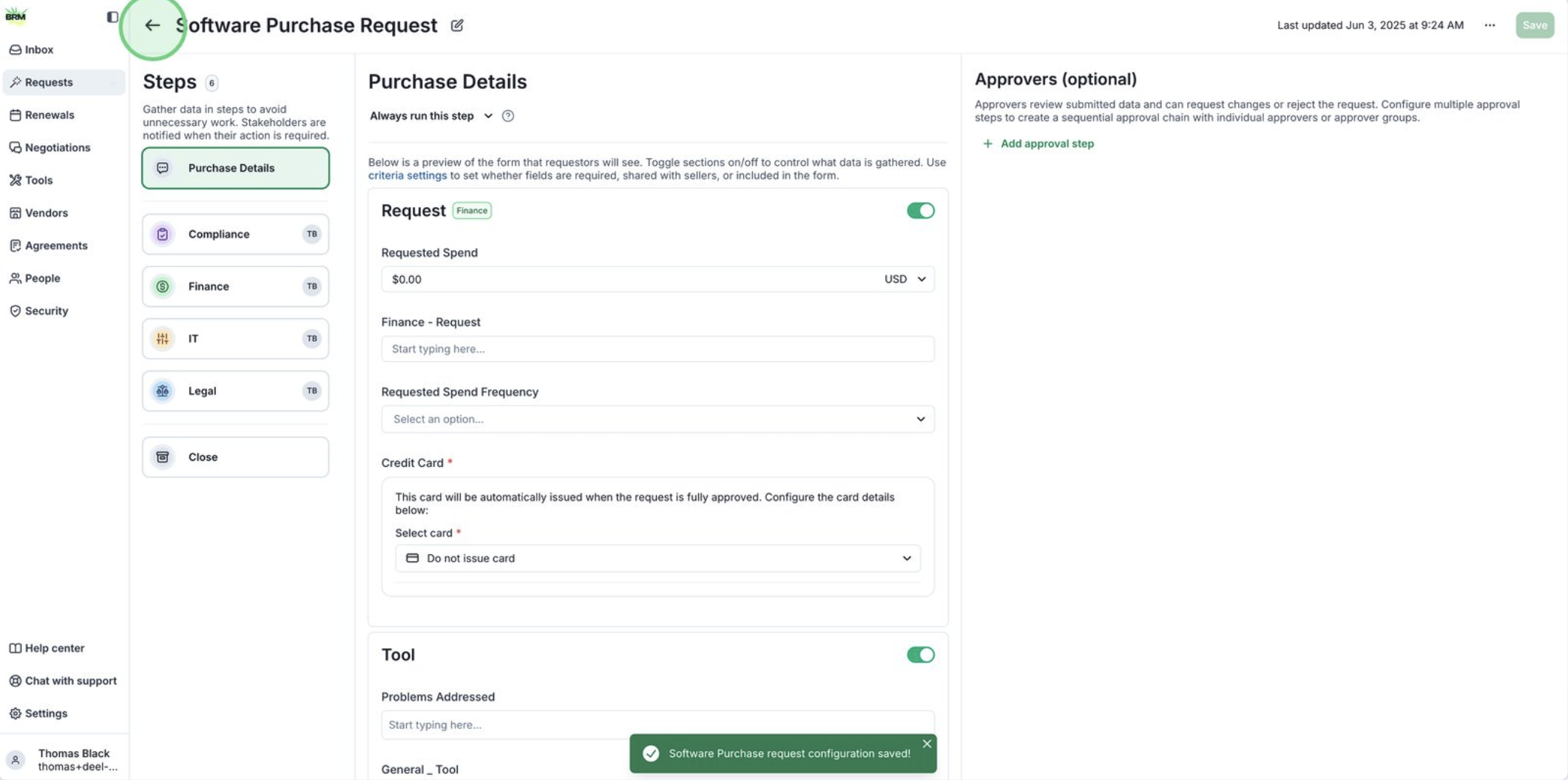
Click the edit icon next to the request name to update the title of your software purchase request workflow.
-
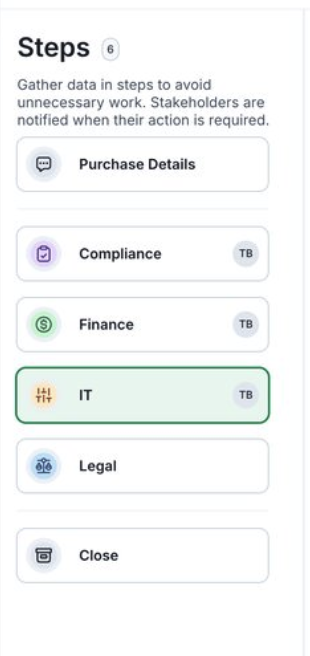
Take note of the different steps listed on the left side of the screen. You can add the steps required for your purchase workflow and remove any that aren’t needed.
-
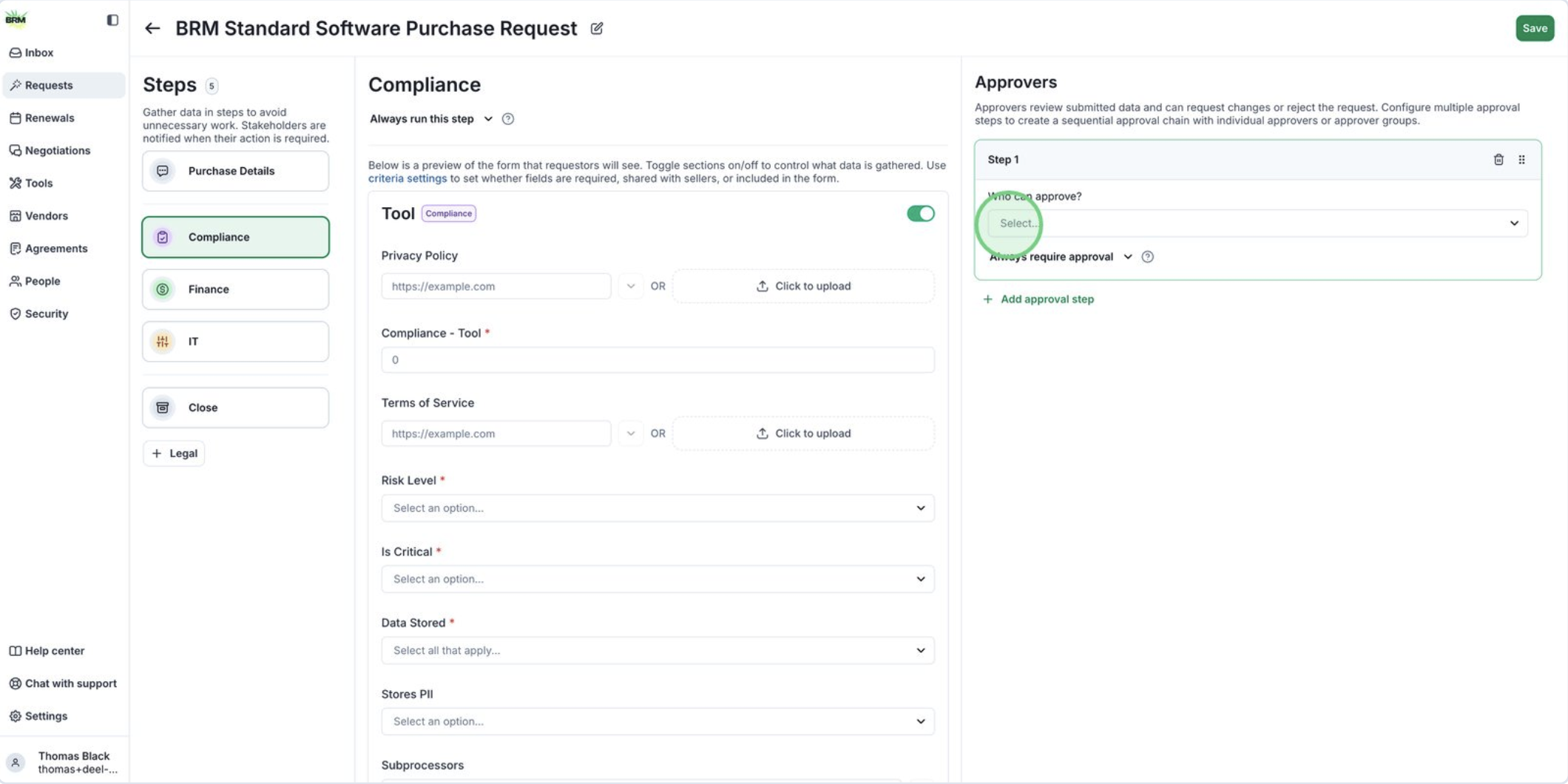
Click each step to review the existing standard criteria.
*We will learn how to customize criteria in the next article
-
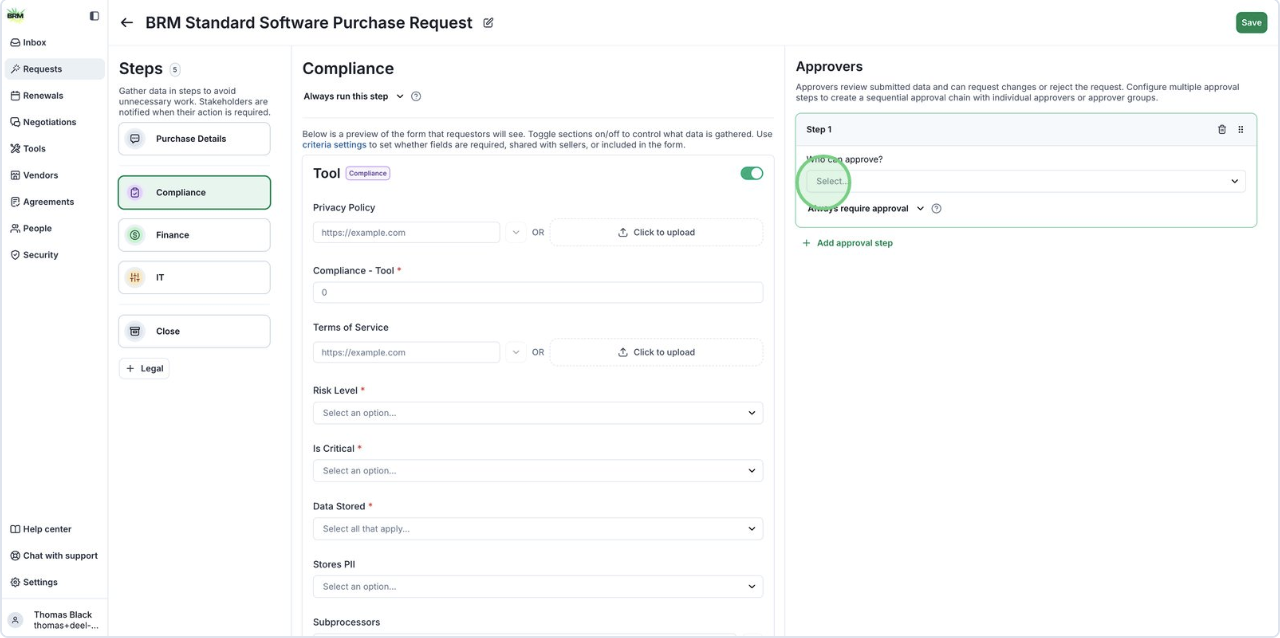
Within each step, you’ll see an Approvers section. This is where you assign the appropriate approver for that step.
-
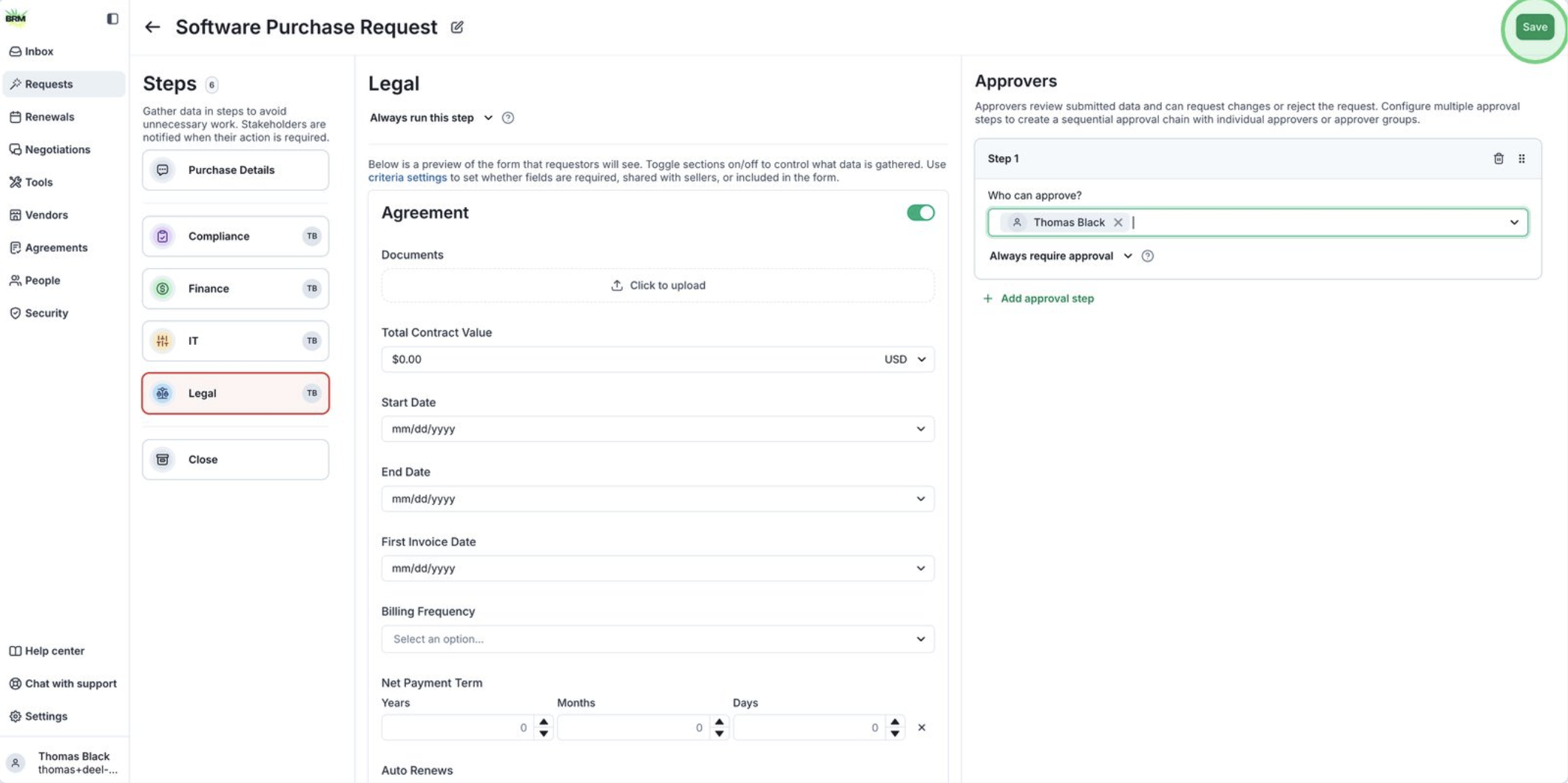
Once all approver are set, click Save in the upper right to save all workflow changes, including steps and approvers.
-
Click the back arrow to return to the previous screen.
-
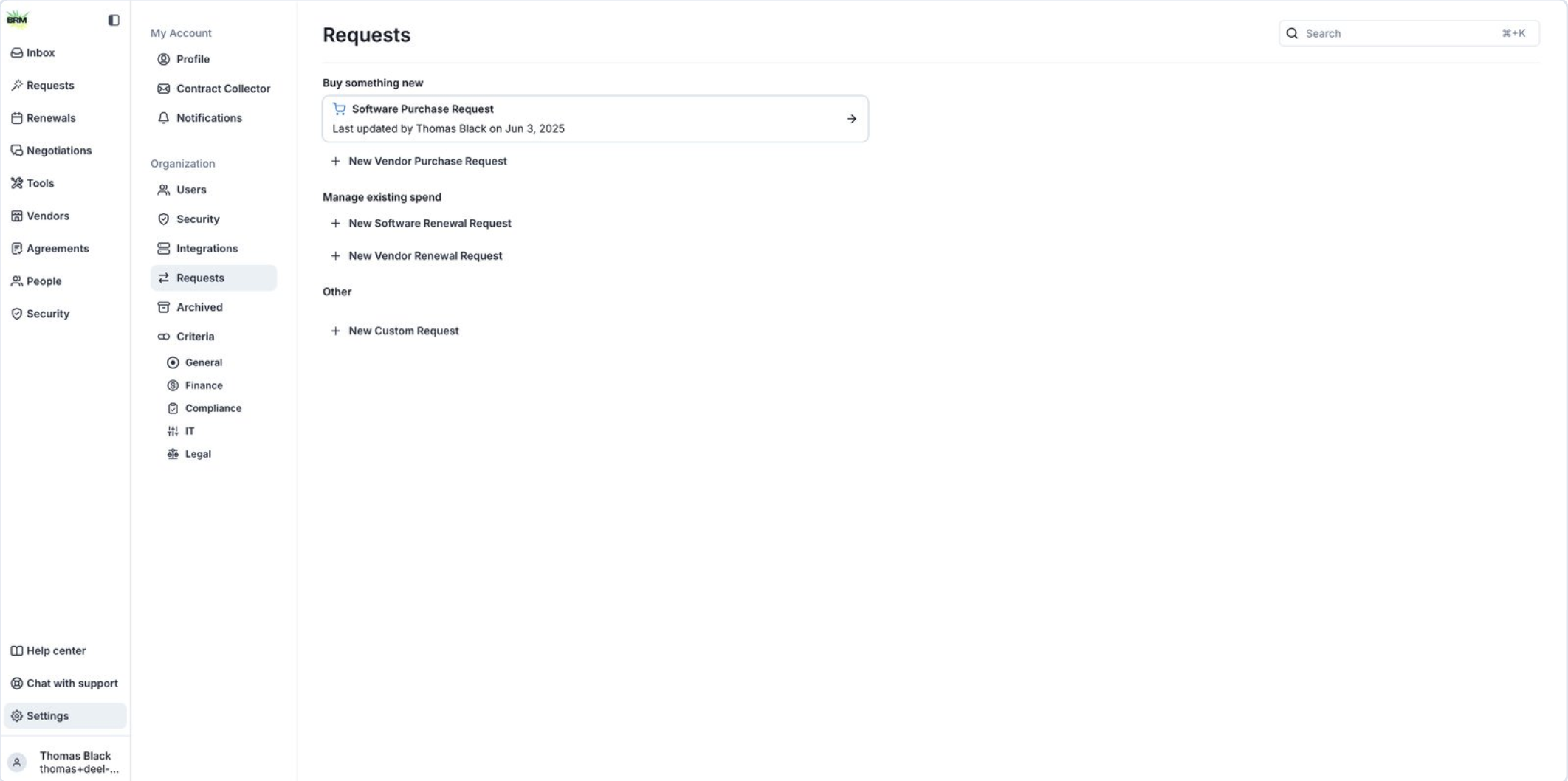
Here you will see your new Request Workflow. Return to this screen to make edits to the workflow in the future.
Requests
Creating your First Request Workflow
Request workflows are a core part of the procurement process in BRM. In this guide, you’ll learn how to create your first request workflow by building a standard software purchase workflow.
Was this page helpful?