

Steps to Connect
- Go to Settings in BRM From your BRM dashboard, select Settings in the bottom-left corner of the sidebar.
-
Open Integrations
In the left-side menu under Organization, select Integrations.
You’ll see a list of available integrations organized by category.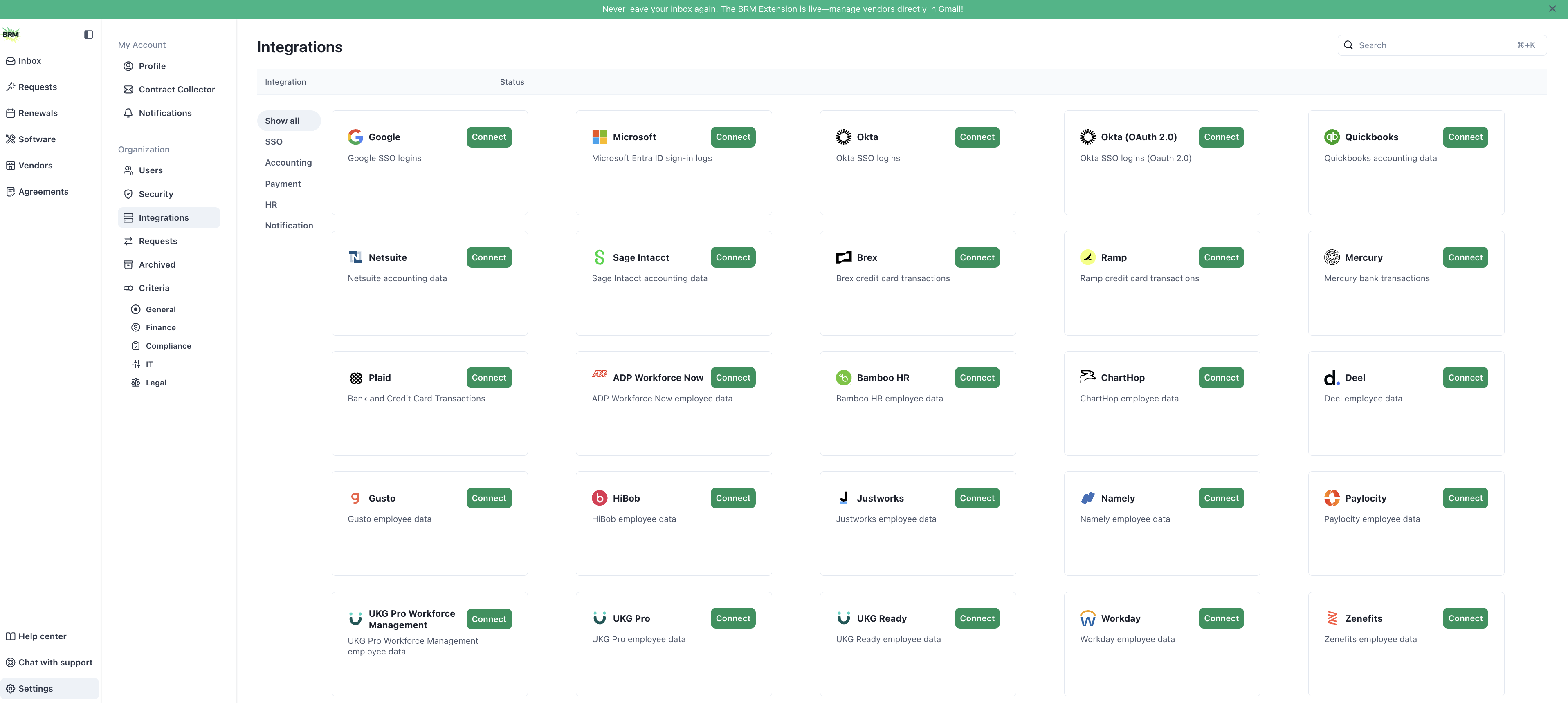
-
Find and Connect Microsoft
Scroll to the SSO section and locate the Microsoft integration card.
Click Connect.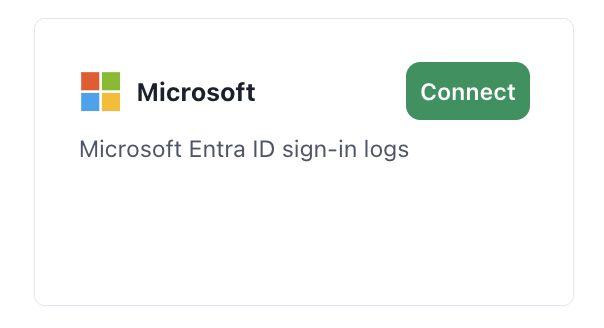
-
Authenticate with Microsoft
A pop-up window will appear with connection steps. Select Create Integration.
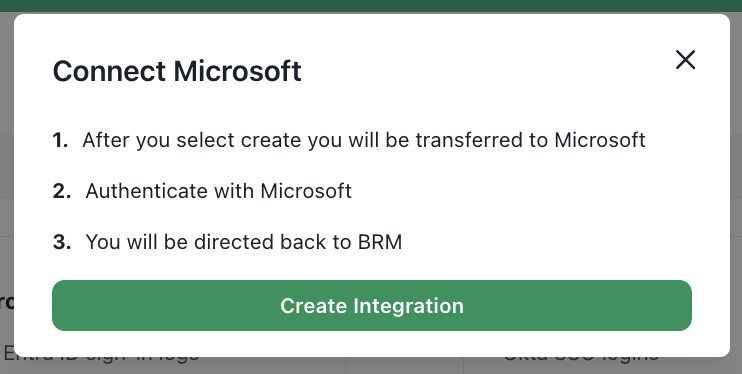
- Return to BRM After successfully authenticating, you’ll be redirected back to BRM. Your Microsoft Entra ID integration will now appear as connected.