

Supported Login Methods
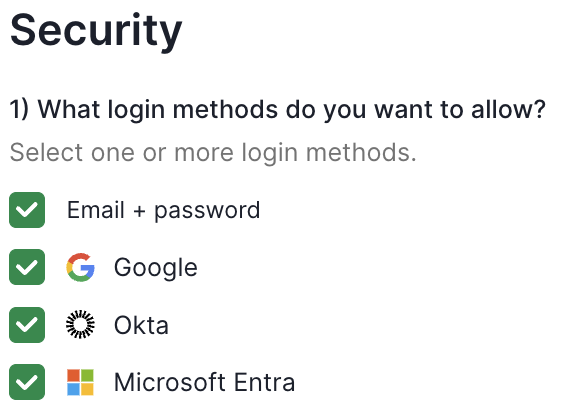
BRM supports four login methods. As an administrator, you can enable or disable any combination of these:- Email + Password — Standard credential-based login using a work email and password.
- Google — Single sign-on via Google Workspace.
- Okta — SSO via your Okta identity provider.
- Microsoft Entra — SSO via Microsoft Entra ID (formerly Azure AD).
Managing Login Methods
- Navigate to Settings → Security in your BRM workspace.
- Under Login Methods, toggle each method on or off based on what you’d like to allow.
- Changes take effect immediately — any disabled method will no longer appear as an option on the BRM login screen.
Note: At least one login method must remain enabled at all times. BRM will prevent you from disabling all methods simultaneously.
Additionally: Auto-Creating Users
BRM has the ability to provision a user an account automatically when they try to log in for the first time. You can enable this by toggling this question. This is particularly useful when using SSO systems like Okta or Microsoft entra where you can provision the user in your SSO system and the user will get created in BRM the first time they try to log in. This can also be used to just let anyone with the appropriate email domain create an account if using email + password or google sign in.