

If it happened in a meeting, Nota knows.
What is Nota?
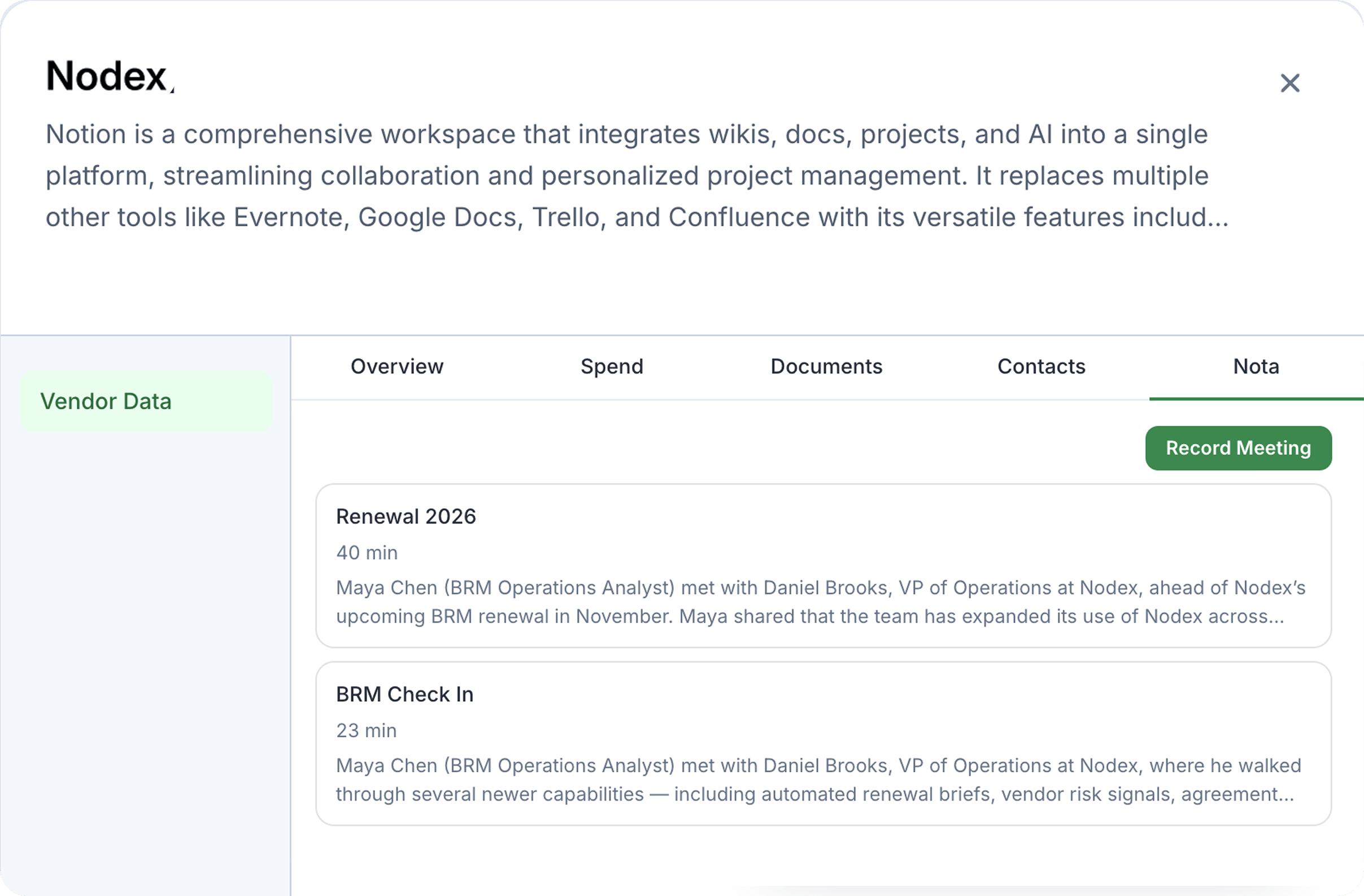
Nota brings your vendor calls into BRM. When Nota sits in on a call, you get a summary, a full transcript, and a set of signals: the pricing that was quoted, the commitments that were made, the actions someone agreed to, and the dates that were mentioned. Every signal links back to the exact moment it was said. Nota then works out which vendor the meeting was about and files it on that vendor’s Relationship page, where it sits alongside agreements, spend, and email. Your team can see it, comment on it, and check what was promised against what actually arrived. You choose what is and isn’t shared. Meetings live in two places:- The Meetings tab in the main navigation lists every meeting Nota has recorded for you, plus the upcoming meetings it’s scheduled to join.
- The Meetings tab on a vendor’s Relationship page shows the meetings about that vendor. Each one also appears as an event on the Relationship timeline.
Quick start: turning it on
- Connect your calendar. Go to My Account → Communication and open Meeting Intelligence. Connect your Google Calendar. Your upcoming meetings appear in the Meetings tab, marked as meetings Nota will join.
- Let Nota join. When a scheduled Zoom or Google Meet goes live, Nota joins and starts taking notes. If several attendees have BRM connected, only one Nota joins the call.
- Or record a meeting by link. Not on your Google Calendar? Open the Meetings tab, choose Record a meeting, and paste the link. Nota supports Google Meet, Zoom, Microsoft Teams, and Slack huddles.
- Tune your signals. Back in Meeting Intelligence, toggle the default signal types on or off and add your own rules (more on those below).
What you’ll see
1. The whole call, distilled
Open any recorded meeting, and you get a written summary; the full transcript with speakers resolved where Nota can identify them, and the signals panel. Select a signal, and you jump straight to the line in the transcript where it was said, so “they agreed to waive the implementation fee” is never a matter of memory again.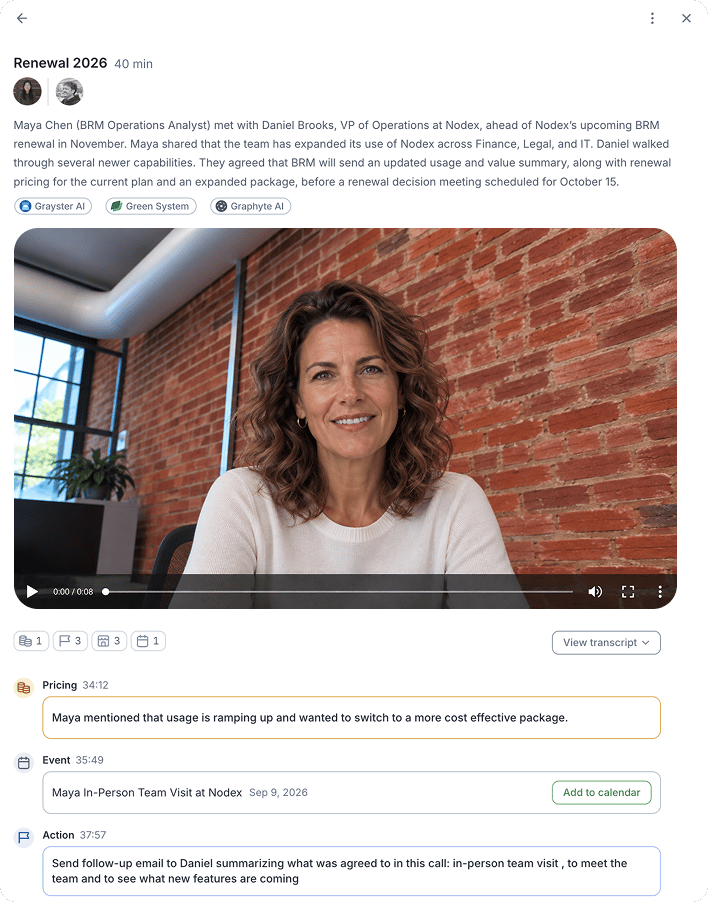
2. Signals that match your rules
Nota tracks a standard set of signal types out of the box: pricing, commitments, actions, and dates. Then you add your own. Personal rules apply to your meetings. Write them in plain language, for example: Flag anything over $5,000 a month. Or, flag anything with a price ramp. From then on, Nota checks every meeting you’re in against the rule and creates a signal when it matches. Organizational rules are set by admins and super admins and run on every meeting in the organization, every time, with no exceptions. Use them for terms your company has already decided it won’t accept. When Nota hears one, it flags it in that meeting’s signals so the attendee knows straight away.3. Filed on the Relationship, with the agreement attached
Nota identifies the primary vendor from who was on the invite and what was said. The meeting then appears in that vendor’s Meetings tab and on the Relationship timeline with its summary attached. Nota also links the agreements you hold with that vendor under Related agreements, so you can go from “here’s what the rep quoted” to “here’s what we’re paying” without leaving the page.4. Bring your team in
On the timeline event, you can leave comments and tag colleagues. “Watch the part at 14:02 before the renewal call” now lives on the meeting itself, where the rest of the team will find it.5. Dates become events
When someone on the call mentions a date (“we’ll send the proposal on the 15th”), Nota suggests a calendar event. Choose Add to put it on your BRM calendar or Dismiss to remove it.6. Only who should see it
Every meeting has a visibility setting:- Private. Only the people who were invited can see it. Attendance doesn’t matter; if you were on the invite, you have access.
- Public. Everyone in your organization can see it.
- Share. For a private meeting, give specific colleagues access without opening it to the whole org.
- Internal 1:1s (you and one colleague)
- Internal group meetings (three or more people, all from your company)
- External 1:1s (you and one person from outside your company)
Why this changes how you work
Before the renewal call. Open the vendor’s Relationship and the last three calls are right there, with every price and commitment pulled out. You walk in knowing exactly what was offered last time. When the invoice doesn’t match. The rep said the discount was locked in. The invoice says otherwise. Instead of asking around, you open the meeting, click the pricing signal, and read the line where they said it. You have the record.When someone leaves. The person who ran the relationship moves on, and the conversations don’t move on with them. Every call they had with that vendor is on the Relationship for whoever picks it up. The common thread: the days of a promise going both unfulfilled and unnoticed are over. Every commitment is recorded in one place, next to the agreement it relates to.