

Before you start
- Slack must be connected for your organization. To do so, go to Settings > Integrations.
- If you have multiple Slack workspaces, connect BRM to each workspace you use to communicate with your vendors.
- The channel should be a shared Slack channel that includes people from the vendor.
- To connect a channel, you need permission to manage Slack connections for that vendor.
- To create a new vendor while connecting, you need that permission across your organization.
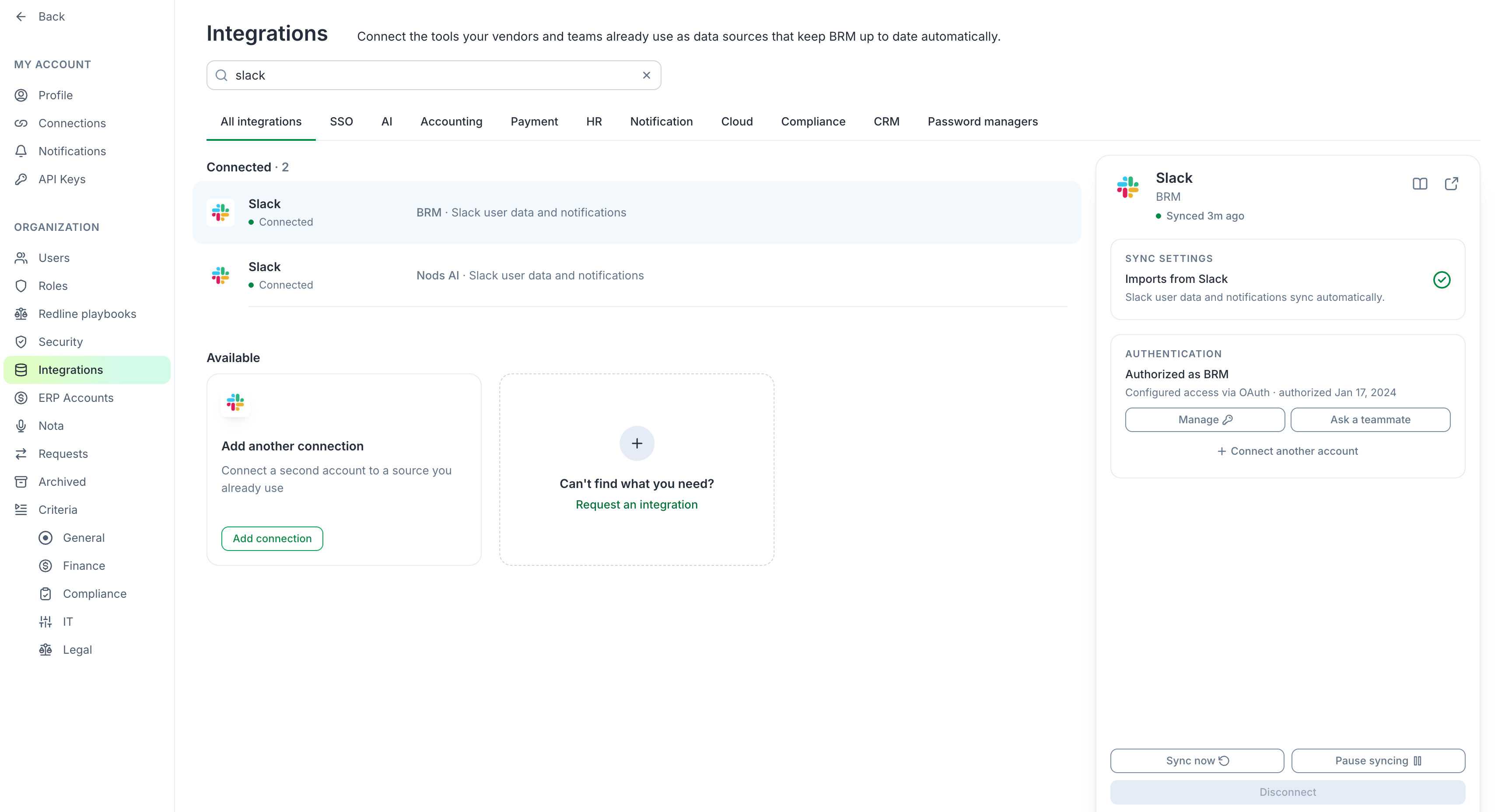
Connect a channel
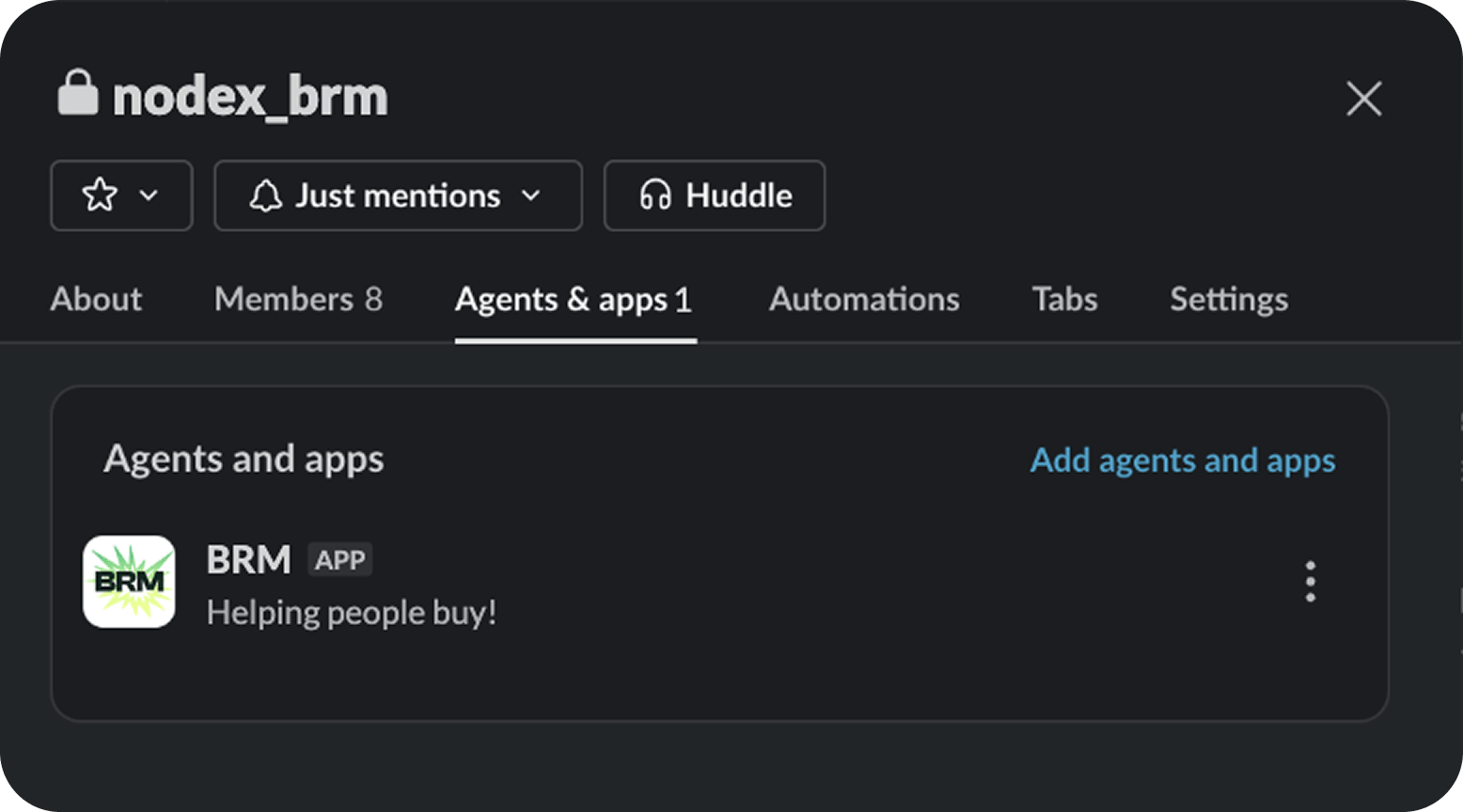
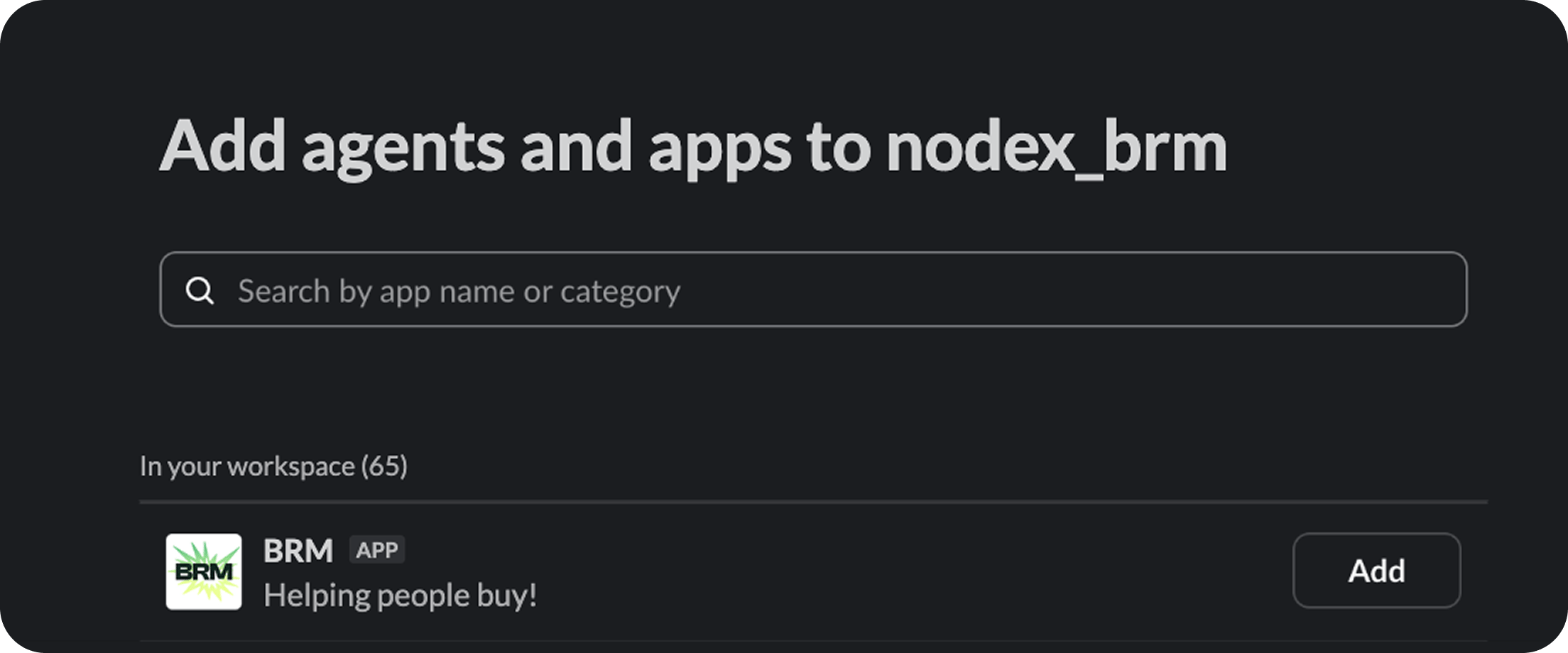
- Add the BRM app to the channel. Mention @BRM in the channel, or open the channel’s settings, go to Agents & apps, choose Add agents and apps, and search for BRM.
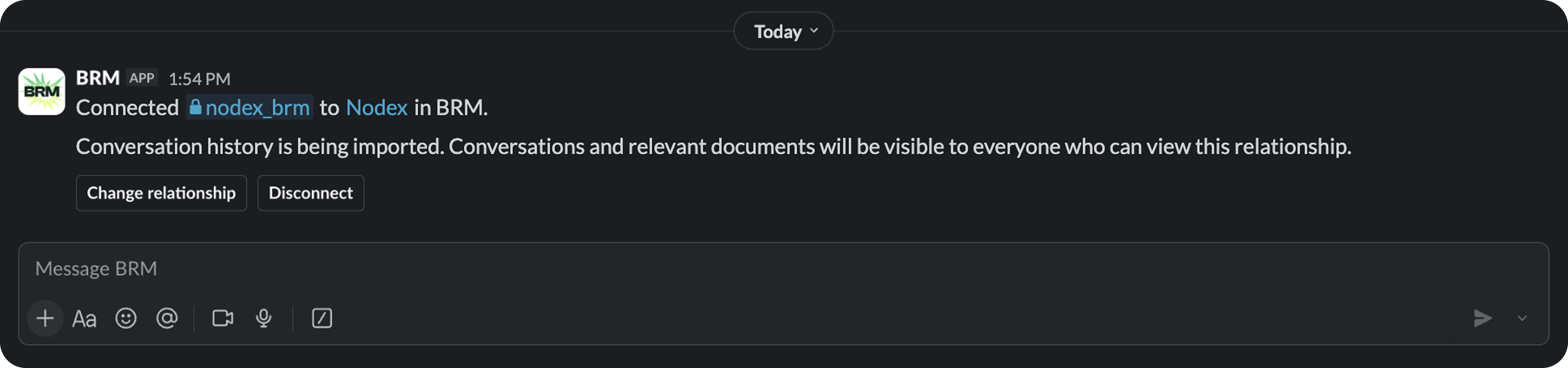
- Check the match. BRM identifies the vendor from the email domains of the vendor’s people in the channel. You’ll receive a private message in the channel confirming which relationship it connected to.
- Create the vendor if needed. If no relationship matches, the private message asks you to choose one or create a new vendor record with one click.
Read Slack conversations on a Relationship
Open the vendor’s relationship page and scroll the timeline. Slack exchanges appear alongside emails, meetings, payments, and agreement dates. Use the Communications filter to show conversations only. BRM groups messages into exchanges instead of individual threads. An exchange covers one topic from start to finish, for example, a round of contract redlines from the first request to final agreement, and can include messages from several threads. Each exchange has a short AI summary at the top. Select an exchange to read the full conversation. From there, you can:- Comment for your team. Comments stay in BRM and are not posted to Slack.
- Open the conversation in Slack.
- View files that were shared in the exchange.
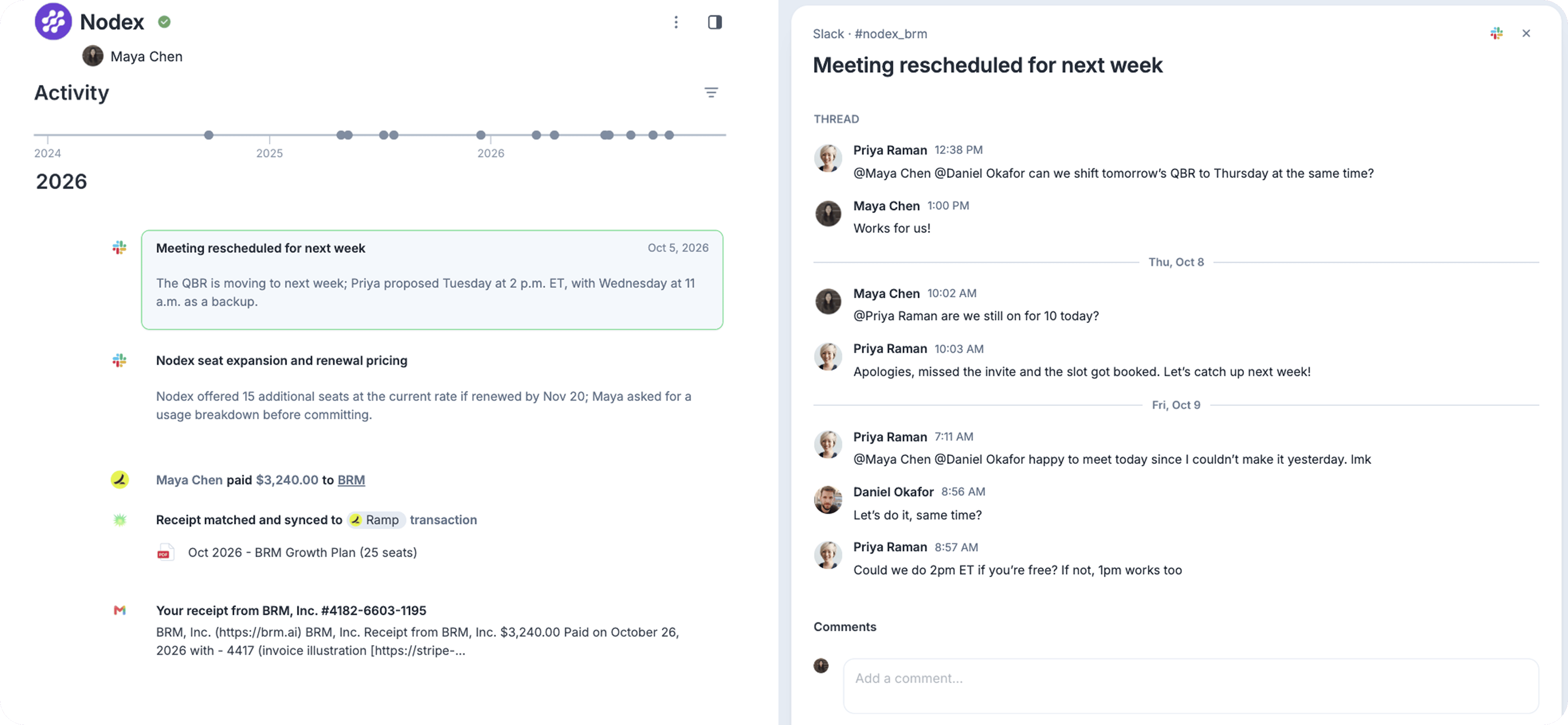
Files shared in Slack
BRM treats files in a connected channel the same way it treats email attachments. Each file is checked for relevance to the vendor relationship. Relevant documents, such as agreements, order forms, and security documents, are added to the relationship. Irrelevant files are discarded and not stored.Who can see Slack exchanges
A person can read a captured Slack conversation if either of these is true:- They can view the vendor and hold the View vendor Slack conversations permission for it.
- They are a member of the Slack channel and have connected their own Slack account to BRM.
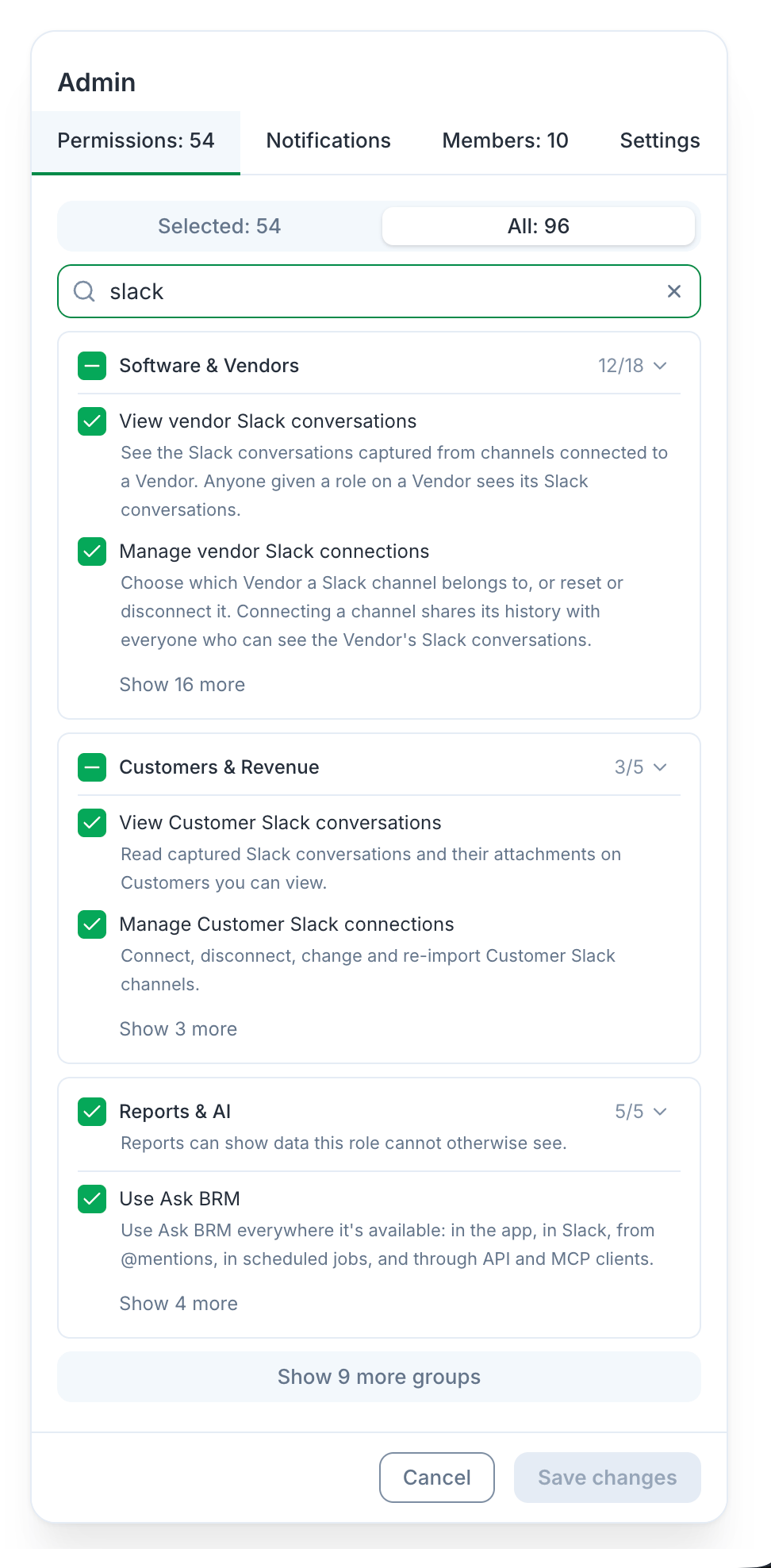
Change or disconnect a channel
From Slack, use the options in the confirmation message BRM sent when the channel was connected. From BRM, open the vendor’s relationship and go to Manage Slack connections. Choose Change to move the channel to a different vendor or Disconnect to stop capturing it.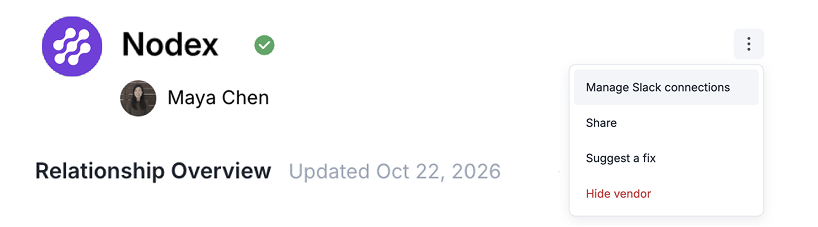
Frequently asked questions
Does BRM capture every channel in our Slack workspace?No. BRM only captures channels where someone has added the BRM app. The channel connected to the wrong vendor. How do I fix it?
Choose Change relationship in the confirmation message or Change under Manage Slack connections on the relationship, then pick the right vendor. BRM couldn’t find a match for my channel.
This usually means none of the vendor’s people in the channel use an email domain on a BRM relationship. Pick the vendor manually from the private message, or create a new vendor record. Can I reply to the vendor in Slack from BRM?
Not at this time. Comments you leave in BRM stay in BRM. Use Open in Slack to reply in the channel. Who receives the confirmation message?
The person who added the BRM app to the channel. What if I want to add BRM to a group DM?
If you are in a group DM with a vendor and you wish to add that to BRM, you can convert that group DM to a channel with Slack, then add BRM as you would with any other vendor channel. What if our vendor also uses BRM?
Each company captures the conversation into its own BRM, under its own permissions.