

Requirements
- Have
AdminorIT Adminrole in Ramp
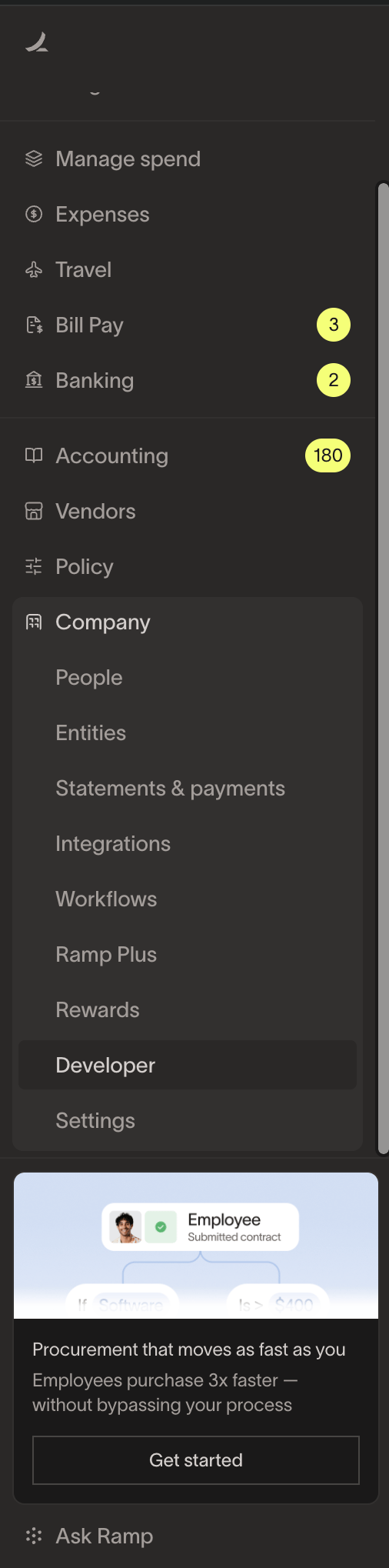
Step 1: In Ramp navigate to Company, and click on Developer
Step 2: Create a new app
- Click
Crate new app - Name the app and add a description
Step 3: Change the app’s grant type to “Client Credentials”
- Click on the app that you just created (in this demo
BRM Integration) - Delete the default grant type that is
Authorization Code - Add a new grant type that is
Client Credentials
Step 4: Configure the app’s scopes by enabling the following permissions
- In your app config, scroll down to
Configure required scopes - Toggle the following scopes on
- bills:read
- cards:read
- cards:write
- limits:read
- limits:write
- memos:read
- receipts:read
- reimbursements:read
- transactions:read
- users:read
Step 5: Enter the Ramp app’s Client ID and Client Secret into BRM
- Head to BRM and navigate to your integrations (Settings —> Integrations)
- Add Ramp as an integration
- Copy over the
Client IDandClient Secretfrom your Ramp app into your BRM modal