

- Set up token usage tracking — in a Google Cloud service account with read-only access to Cloud Monitoring.
- Set up spend tracking — with a one-time billing export to BigQuery, plus read-only BigQuery access for the same service account.
- Connect in BRM — enter the project ID, service-account key, and billing export details together.
What you’ll need
Part 1: Token usage
Step 1: Identify your project
Find the GCP project ID where your Vertex AI traffic runs. You’ll enter this into BRM later.Step 2: Enable Cloud Monitoring
In Google Cloud Console, ensure the Cloud Monitoring API is enabled for this project. If you’re comfortable with the command line, you can accomplish this with the following command:Step 3: Create a service account
Create a new service account and name it brm-vertex-usage. Command-line equivalent:Step 4: Grant the Monitoring Viewer role
Grant the service account the Monitoring Viewer role (roles/monitoring.viewer) on the project. This is read-only — it does not let BRM change anything in your Google Cloud project. Command-line equivalent:Part 2: Spend
ℹ️ Claude models on Vertex AI bill as their own line item (for example, “Claude Opus 4.6”), rather than a single generic “Vertex AI” line. BRM automatically matches these billing rows back to the same models you see in token usage, so spend and usage line up per model.Step 1: Turn on the detailed billing export
In Google Cloud Console, go to Billing → Billing export → BigQuery export → Detailed usage cost → Edit settings. Choose or create a BigQuery dataset to receive the export, then save. A billing admin needs to do this step. ⚠️ It must be the Detailed usage cost export. The “Standard usage cost” export writes a different table that BRM can’t use. ℹ️ Google doesn’t offer a command-line way to turn this export on — it must be done in the console. After you enable the export, Google creates the export table (namedgcp_billing_export_resource_v1_...) on its first export run. This can take a few hours, occasionally up to a day. Wait until the table appears in the dataset before connecting in BRM. BRM verifies it can read the table when you connect, so connecting too early will fail.
Step 2: Share the BigQuery dataset with your service account
Go to BigQuery → select the billing-export dataset → Sharing → Permissions → Add principal. Then addbrm-vertex-usage@PROJECT_ID.iam.gserviceaccount.com (using your Vertex project’s ID) with the role BigQuery Data Viewer, and save.
ℹ️ Grant access at the dataset level. Sharing only the export table itself is not enough — BRM needs dataset-level read access to find and query the table.
Step 3: Grant BigQuery Job User
Grant the service account BigQuery Job User (roles/bigquery.jobUser) on the project that holds the billing export. This is often a different project from the one running your Vertex AI traffic. Command-line equivalent (replace both placeholders with your real project IDs):Step 4: Note down the billing export details
You’ll enter these into BRM in the next part, alongside the project ID and key:- The billing-export project ID
- The billing-export dataset name
- The billing account ID (shown on the Billing export page, e.g. ABCDEF-123456-789ABC)
Part 3: Connect in BRM
Step 1: Create a JSON key
Create a JSON key for the service account and download it. Command-line equivalent:iam.disableServiceAccountKeyCreation). Ask your GCP org admin to allow an exception for this service account.
Step 2: Enter everything in BRM
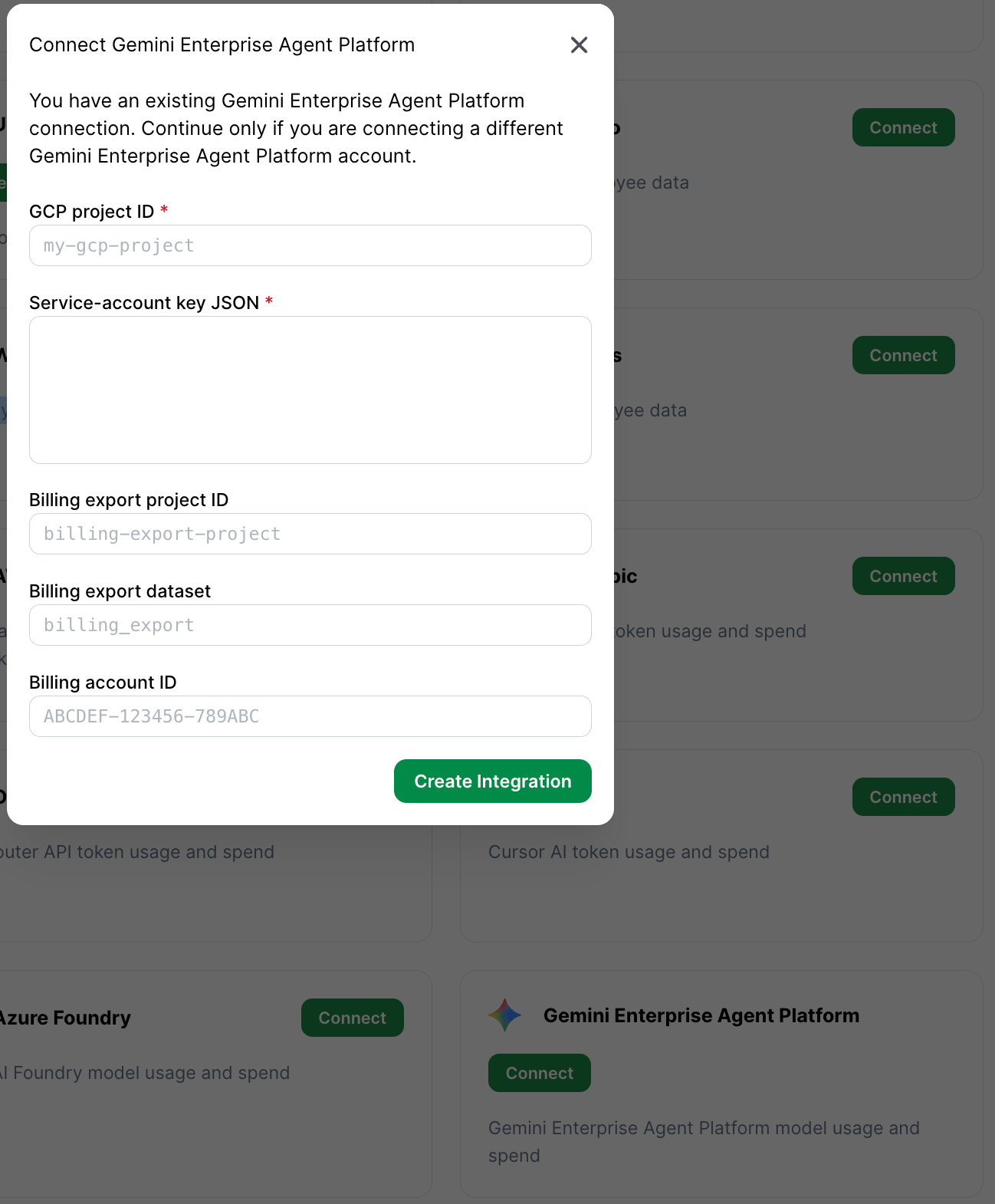
In BRM, open the Google Vertex AI integration setup, found by clicking on your profile in the lower-left hand corner of the screen, navigating to Integrations, then clicking on “Connect” next to “Gemini Enterprise Agent Platform” and enter:- Your GCP project ID
- The full contents of the JSON key file
- The billing-export project ID
- The billing-export dataset name
- The billing account ID
Step 3: Delete your local copy of the key
Once it’s entered into BRM, delete the local copy of the JSON key file from your computer, unless your security policy requires you to keep a managed backup.Part 2: Spend
The billing export is forward-only — it starts collecting from the moment you turn it on and will not backfill older billing history.
Navigate to BigQuery → select the billing-export dataset → Sharing → Permissions → Add principal.
Multiple projects
Set up one BRM integration per Vertex AI project. If you run Vertex AI traffic in several projects, you don’t need a separate service account for each: grant the one service account Monitoring Viewer on each project (or at the folder or organization level), and create one BRM integration per project, all using the same key.Security notes
- Token usage only requires Monitoring Viewer — a read-only role.
- Spend only adds BigQuery job execution plus dataset-scoped read access — also read-only.
- BRM cannot run inference, read prompts or responses, or change any Google Cloud resources or billing settings with these roles.
- You can rotate or revoke the service-account key at any time from Google Cloud. Note that revoking the key stops BRM’s syncing until you enter a new key by reconnecting the integration in BRM.
Common mistakes
- Sending a Gemini API key instead of a service-account JSON key. These are different credential types — BRM needs the service account.
- Granting Vertex AI permissions but not Monitoring Viewer. BRM reads from Cloud Monitoring specifically; thus the integration requires this role.
- Turning on the Standard usage cost export instead of Detailed usage cost. BRM reads the detailed (resource-level) export table.
- Connecting in BRM before the export table exists. Google creates the table on the first export run after you enable it, which can take up to a day. Wait for it to appear, then connect.
- Entering only some of the billing export fields. The billing-export project ID, dataset name, and billing account ID go together — enter all three or none.
- Granting BigQuery access too broadly — or too narrowly. Use dataset-scoped “BigQuery Data Viewer” on the billing-export dataset: not project-wide access, and not table-only access either.
- Pointing one integration at multiple projects. Set up one BRM integration per Vertex AI project (they can share a service account — see “Multiple projects” above).
Provider documentation
Our steps above should stay current, but if Google Cloud changes their interface, these are the source-of-truth docs:- Create and delete service-account keys
- Service-account credentials
- Cloud Monitoring roles and permissions
- Cloud Monitoring timeSeries.list API
- Google Cloud metrics overview
- Cloud Billing export to BigQuery
- BigQuery IAM access