

What you’ll need
Step 1: Sign in to OpenRouter
Sign in to OpenRouter using an account with admin access to the correct workspace or organization. Double-check you’re in the right workspace before creating the key. Keys created in the wrong workspace won’t show the data you expect.Step 2: Go to Management API Keys
Go to Prefrences → Management API Keys.Step 3: Create a new key
Click Create New Key.Step 4: Name the key
Tip: Name the key BRM AI Usage.Step 5: Copy the key
Copy the key right away — OpenRouter only shows the plaintext key once.Step 6: Enter the key in BRM
In BRM, open the OpenRouter integration setup and paste in the key. BRM will confirm the connection and begin pulling in usage data.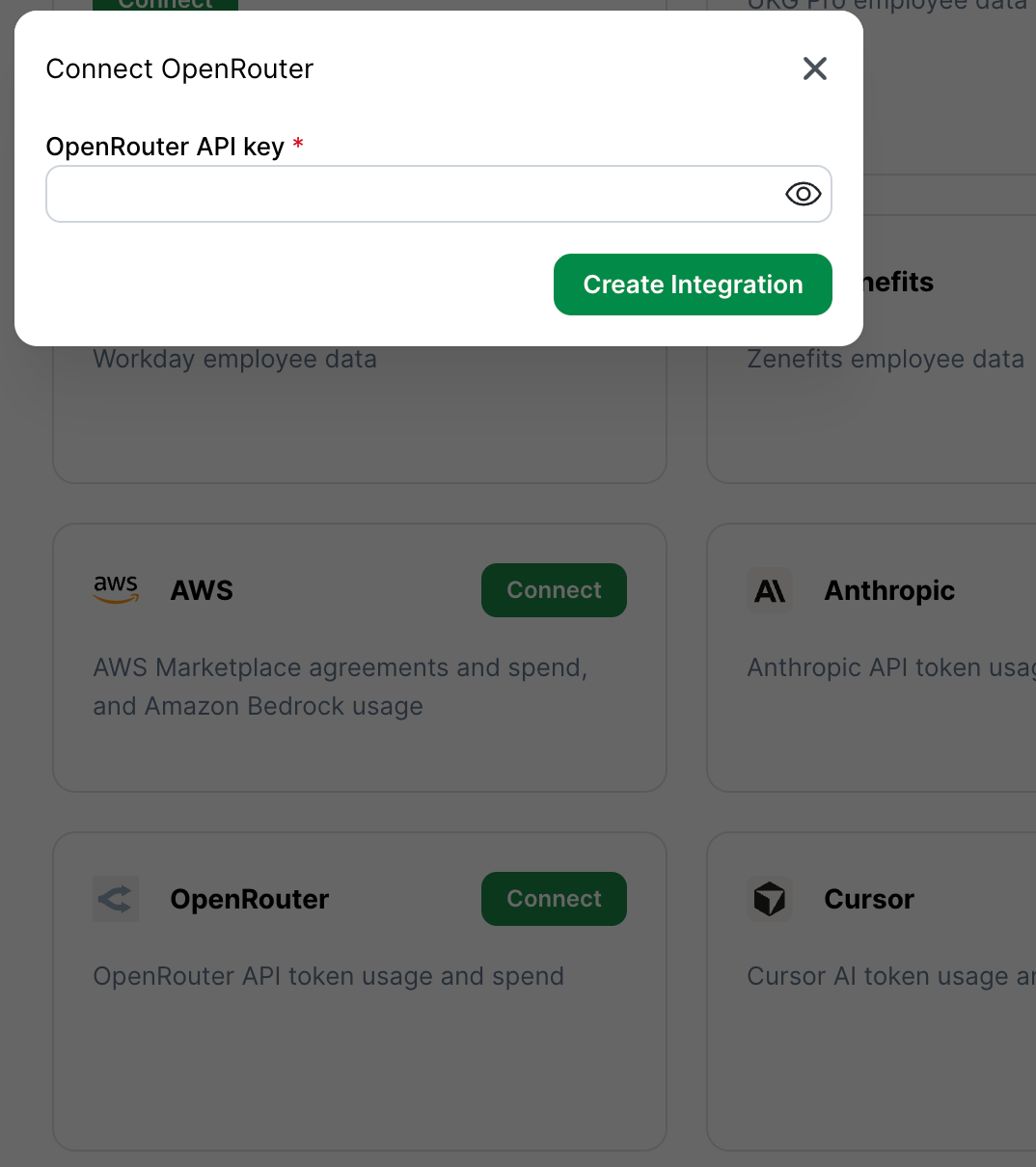
Common mistakes
- Creating a standard model API key instead of a Management key. Standard keys will fail when BRM queries analytics.
- Creating the key in the wrong workspace or organization. Make sure you’re in the workspace that has the usage you want BRM to track.
- Not copying the key right away. OpenRouter only shows it once. If you miss it, create a new one.