

What you’ll need
Step 1: Sign in to the OpenAI API Platform
Sign in to the OpenAI API Platform using an account that is an organization owner. Project owners cannot create Admin API keys; only an organization owner can.Step 2: Open Admin keys
Open organization settings → Admin keys in the left navigation.Step 3: Create a new admin key
Click Create new admin key.Step 4: Name the key
Tip: Name the key “BRM AI Usage”.Step 5: Set scopes (if shown)
Select “Read Only” to grant BRM read access to usage data.Step 6: Copy the key
Copy the key right away. OpenAI does not let you recover a lost key — if you lose it before entering it into BRM, you’ll need to create a new one.Step 7: Enter the key in BRM
In BRM, open the OpenAI integration setup and paste in the key. BRM will confirm the connection and begin pulling in usage data.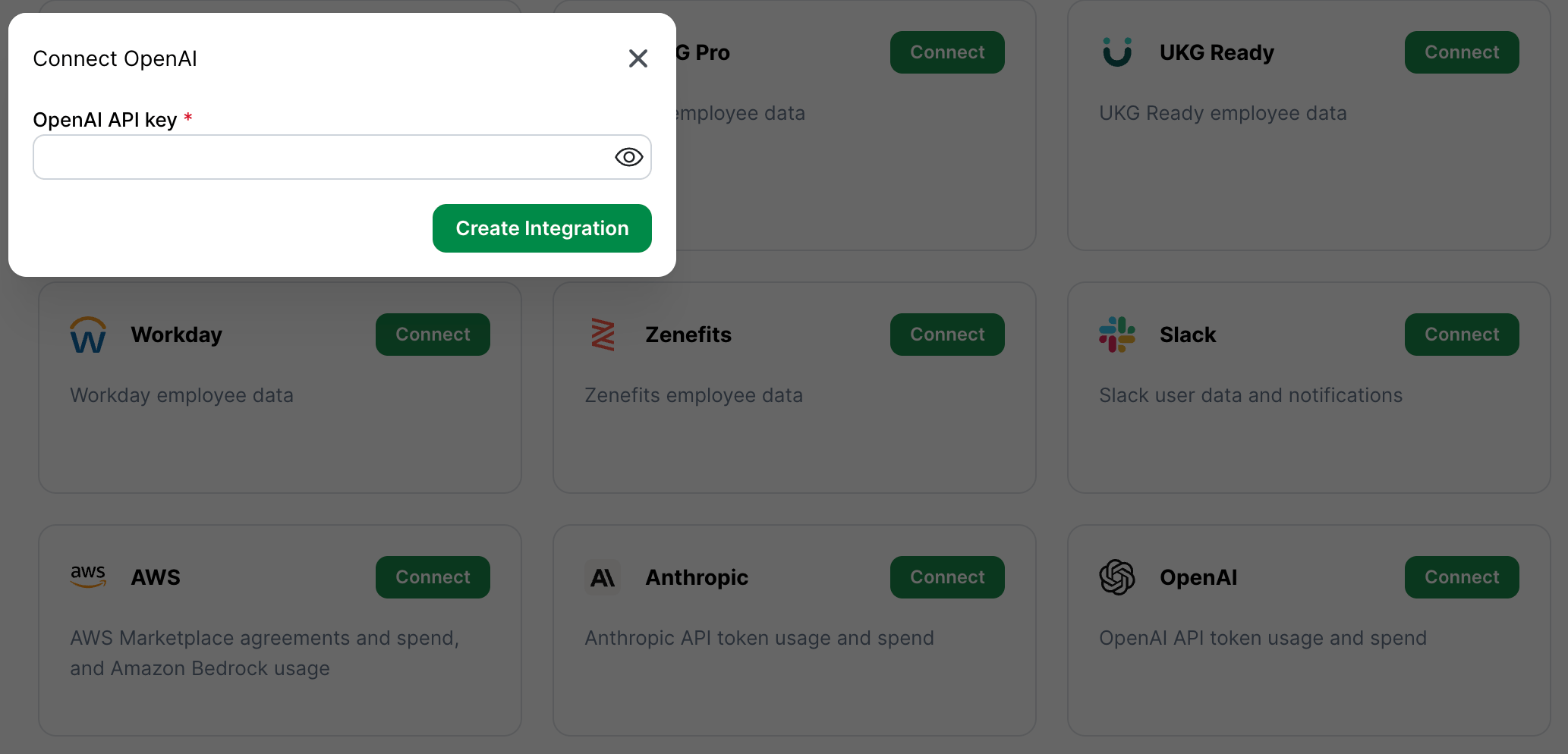
Common mistakes
- Creating a project API key instead of an organization Admin key. Project-level keys won’t work in this case.
- Having a project owner create the key. Only an organization owner can create Admin API keys.
- Losing the key before entering it into BRM. OpenAI can’t recover the key — you’ll need to create a new one.