

What you’ll need
Step 1: Sign in to the xAI Console
Sign in to the xAI Console using an account with admin access to the team(s) whose usage you want BRM to track. Management keys are team-scoped — BRM will pull usage for every team the key can administer, so make sure you’re using an account that covers the right teams.Step 2: Go to Management Keys
In the xAI Console, go to Settings → Management Keys.Step 3: Create a new key
Click to create a new management key.Step 4: Name the key
Tip: Name the key “BRM AI Usage” so it’s easy to find and manage later.Step 5: Copy the key
Copy the key right away — the xAI Console only shows it once. Paste it directly into BRM’s integration setup screen. Don’t paste it into email, Slack, or any other chat tool.Step 6: Enter the key in BRM
In BRM, navigate to your account settings by clicking on your profile in the lower left-hand corner of the screen, then click on “Integrations.” Navigate to the xAI integration, click “Connect,” and paste in the key. BRM will confirm the connection and begin pulling in usage data.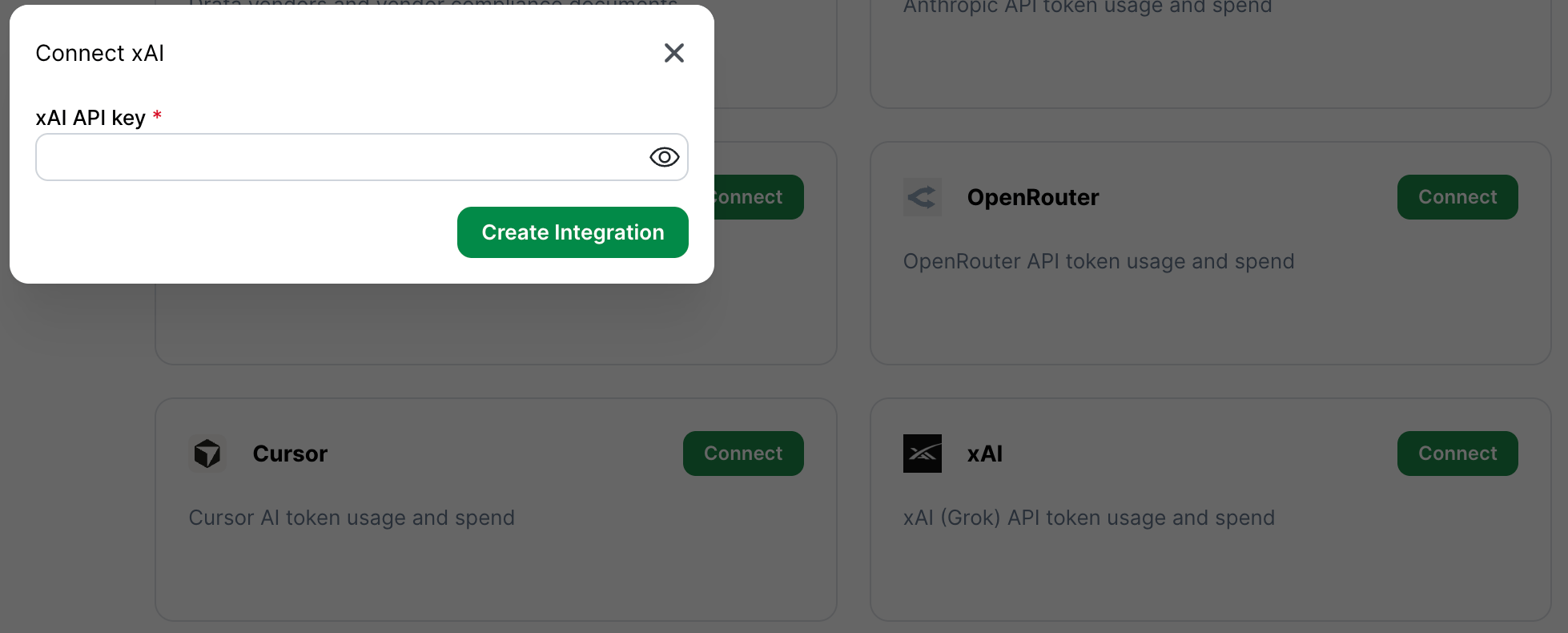
Common mistakes
- Using a regular xAI API key instead of a Management key. Regular inference keys (from the API Keys page) will not work for this integration.
- Using a key that doesn’t cover the right teams. Management keys are team-scoped. If the key can’t administer any team, BRM will reject it — and it will only see usage for the teams it can administer. If your organization’s Grok usage is spread across several teams, make sure the key covers all of them.
- Not copying the key right away. The xAI Console only shows it once. If you miss it, create a new one.