

What you’ll need
Step 1: Sign in to Claude Console
Sign in to your Claude Console using an account that has organization admin permissions. If you’re not an admin, you won’t be able to see the Admin keys page — ask an admin on your team to complete these steps instead.Step 2: Go to Admin keys
In the left-hand navigation, go to Organization Settings → Admin keys.Step 3: Create a new key
Click Create key.Step 4: Name the key
Tip: Name the key “BRM AI Usage” so it’s easy to find and manage later.Step 5: Copy the key
Copy the key right away, as Claude Console only shows it once. Paste it directly into BRM’s integration setup screen. Don’t paste it into email, Slack, or any other chat tool.Step 6: Enter the key in BRM
In BRM, navigate to your account settings by clicking on your profile in the lower left-hand corner of the screen, then click on “Integrations.” Navigate to the Anthropic integration, click “Connect,” and paste in the key. BRM will confirm the connection and begin pulling in usage data.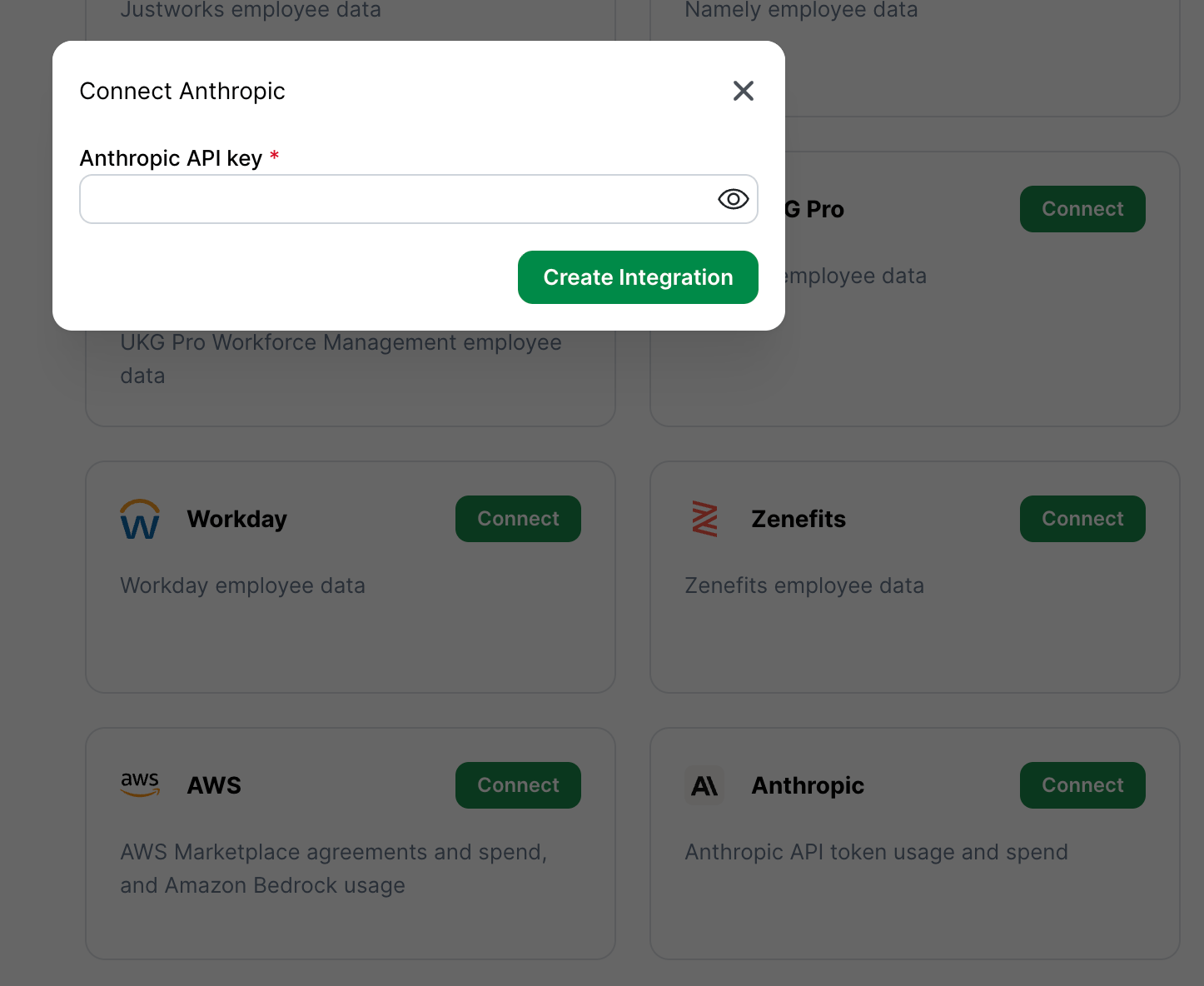
Common mistakes
- Using a regular Claude API key instead of an Admin key. Regular keys (from Workspace API keys) will not work for this integration.
- Signing in as a non-admin. If you can’t find Admin keys in Settings, you don’t have org admin permissions — ask your Claude Console admin.
- Using Claude Enterprise instead of Claude Console. These are different products with different admin tools. If your organization only has Claude Enterprise, contact BRM support before continuing.