

What you’ll need
Step 1: Sign in to the Cursor dashboard
Sign in to the Cursor dashboard using an account that is a team admin. Make sure you’re in the correct team workspace before continuing. Keys created in the wrong workspace won’t show the data you expect.Step 2: Open API Keys
Open API Keys from the dashboard navigation.Step 3: Create a new key
Click New API Key.Step 4: Name the key
Tip: Name the key BRM AI Usage.Step 5: Set the scope
Set the scope to read only to let BRM read AI usage data.Step 6: Copy the key
Copy the key and paste it directly into BRM’s integration setup screen.Step 7: Enter the key in BRM
In BRM, open the Cursor integration setup and paste in the key. BRM will confirm the connection and begin pulling in usage data.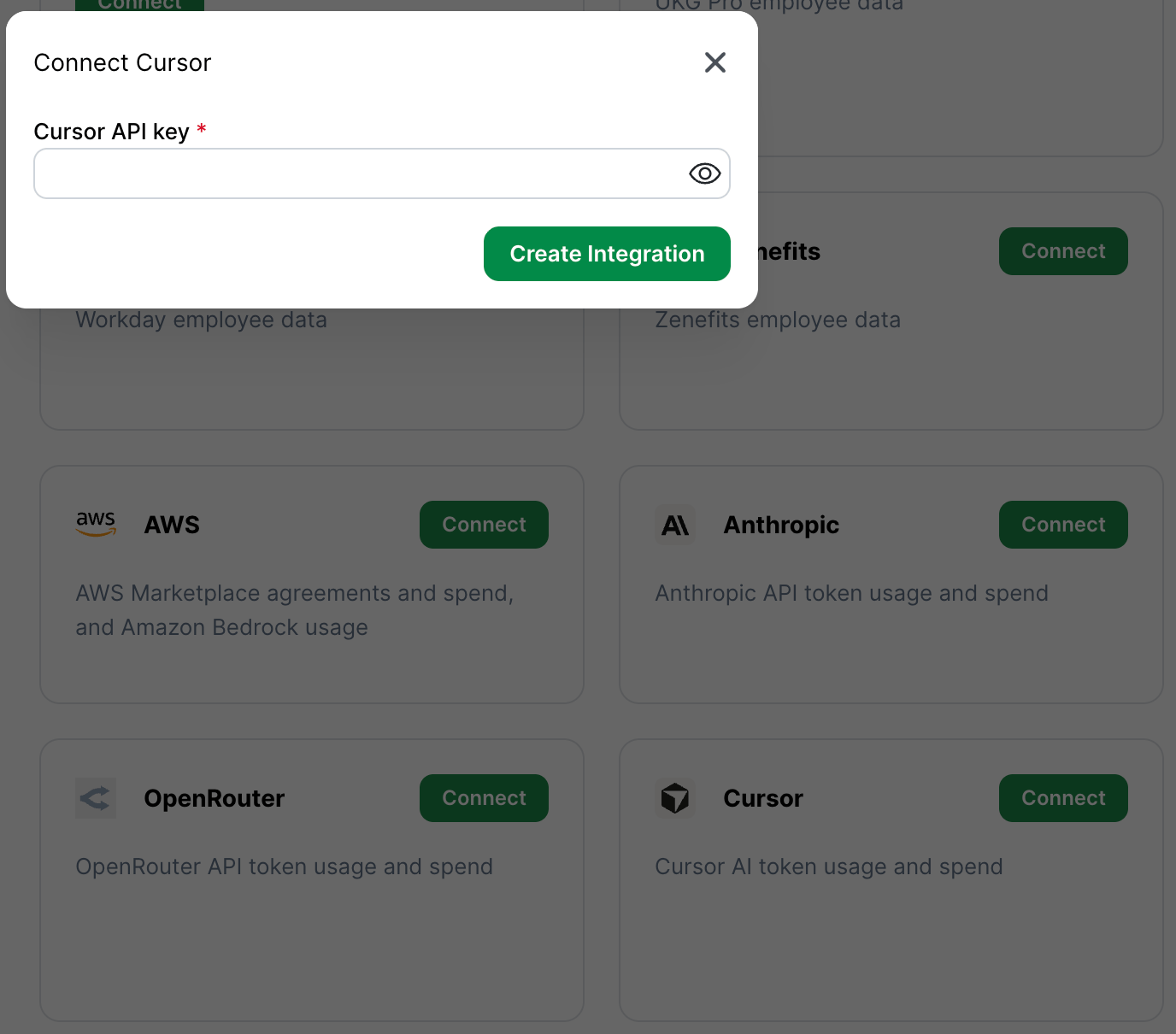
Common mistakes
- Using a personal Cursor account token instead of a team Admin API key. Personal tokens won’t work for this integration.
- Creating the key from the wrong team workspace. Confirm you’re in the team whose usage you want BRM to track.
- Expecting dollar amounts on every historical event. Cursor usage events may include token usage even when older cost fields aren’t available — this is normal.