

What you’ll need
Step 1: Find your account ID
Sign in to the Cloudflare dashboard and select the account that runs your Workers AI traffic. Your account ID is shown on the account’s overview page (in the right-hand sidebar, or under Manage Account). You’ll enter this into BRM later. If you belong to several Cloudflare accounts, double-check you’re in the right one — a token created for the wrong account won’t show the data you expect.Step 2: Open the API token creation page
Go to Create an API token (click your profile icon → My Profile → API Tokens), then click Create Token.Step 3: Create a custom token
Scroll to Custom Token and click Get started. Name the token BRM AI Usage.Step 4: Set the permission
Under Permissions, choose Account → Billing → Read. Under Account Resources, select the specific account from Step 1.Step 5: Create and copy the token
Click Continue to summary, then Create Token. Copy the token right away — Cloudflare only shows it once.Step 6: Enter everything in BRM
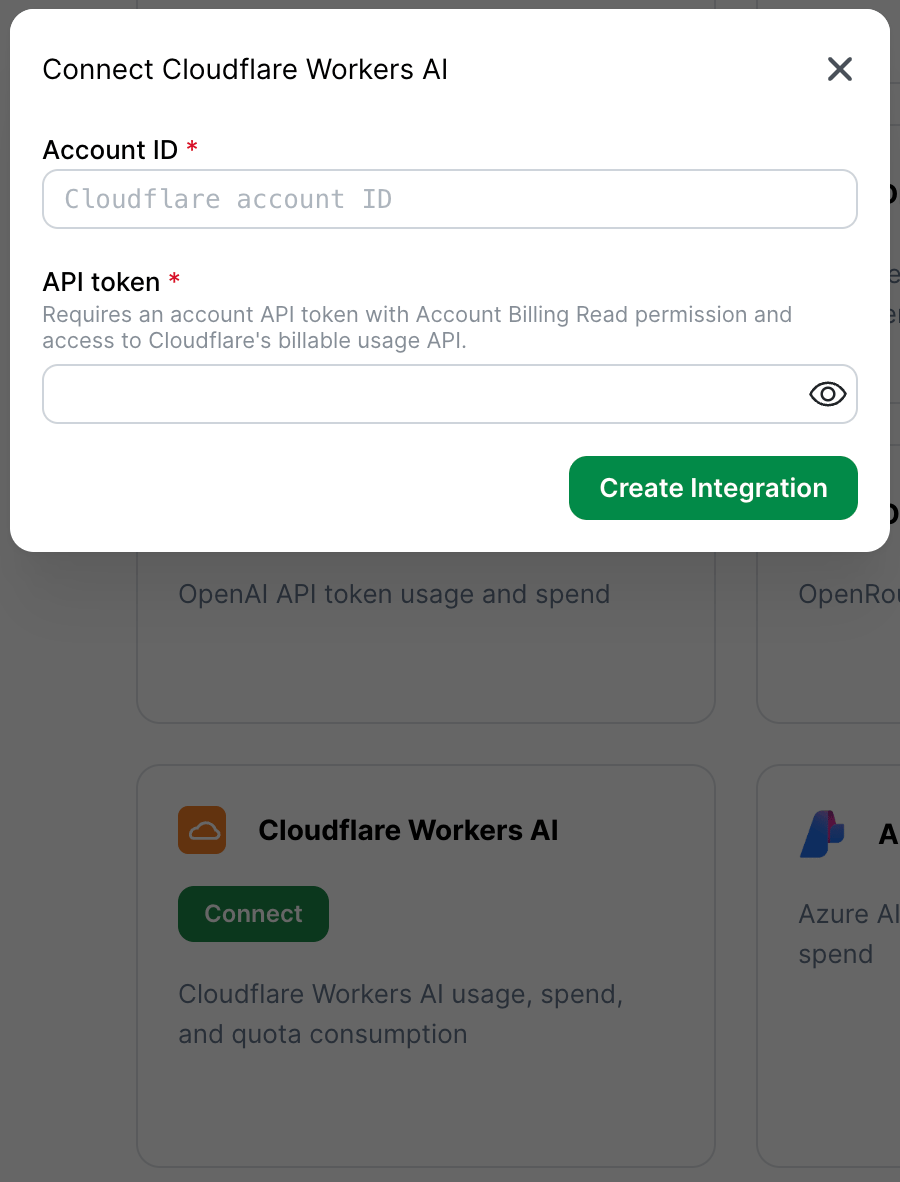
In BRM, open the Cloudflare Workers AI integration setup, found by clicking on your profile in the lower-left-hand corner of the screen, navigating to Integrations, then clicking “Connect” next to “Cloudflare Workers AI”, and enter:- Your Cloudflare account ID
- The API token
Multiple accounts
Set up one BRM integration per Cloudflare account. If you run Workers AI in several Cloudflare accounts, create a token in each account and connect each one separately in BRM.Security notes
- The Billing Read permission is read-only. BRM cannot run inference, deploy or modify Workers, change billing or account settings, or read prompt/response content.
- You can roll or revoke the token at any time from the Cloudflare dashboard’s API Tokens page. Note that revoking the token stops BRM’s syncing until you enter a new one by reconnecting the integration in BRM.
- Consider leaving the token’s TTL unset (no expiry). If you do set an expiry, BRM’s syncing will stop when the token expires until you reconnect with a fresh token.
Common mistakes
- Using a Workers AI inference token or your Global API Key instead of a Billing Read token. BRM reads billing data, so it needs the Account Billing Read permission specifically.
- Creating the token under the wrong Cloudflare account. The token’s Account Resources scope must include the account whose usage you want BRM to track.
- Entering something other than the account ID. BRM needs the 32-character account ID from the dashboard — not your account name, email, or a zone ID.
- Not copying the token right away. Cloudflare only shows it once. If you miss it, create a new one.
- Expecting per-model or per-user breakdowns. Cloudflare’s billing data reports Workers AI usage by billing meter (in Neurons), not by individual model or user.